
iCloud Photos can show a picture without keeping its full-size original on the device. Use the download or export option for that file. If Photos reports paused syncing, follow that message's instructions so the originals can download.
A failed browser download, an iPhone waiting for originals and a cloud-only file in Windows need different steps. Start with the place where the download is stopping, rather than repeatedly toggling the iCloud Photos switch.
In this guide
1. Separate a missing photo from a missing local file
Open a picture that you expect to download. If it's visible in Photos but won't open at full quality or export, the original may still need downloading. If the picture isn't in the library at all, check the account and library view first.
Check that the device uses the account holding those photos. With Shared Photo Library, check whether you're viewing your Personal Library, Shared Library or both. Changing the download folder won't reveal a photo in another library.
When the question is where the library is, the iCloud photo viewing guide explains account access. Once you've found the photo in the right library, use these steps to download a usable copy to your device.
For a collection destined for Google Photos, check the iCloud upload route before downloading the entire library to a phone.
Leave existing pictures in place while checking the download. A deletion in the synced library reaches iCloud and the rest of your connected devices. You'd lose the photo you're trying to download.
2. Export the original on an iPhone or iPad
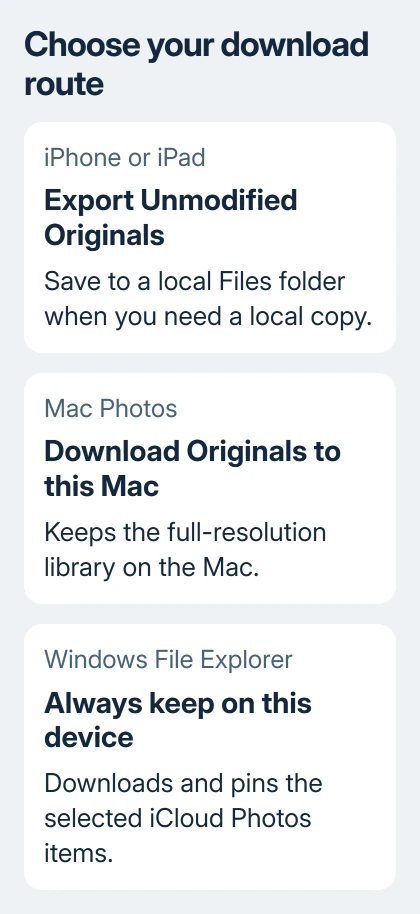
Connect to Wi-Fi and open Photos. Open the library, tap Select and choose the photos or videos you need. Tap Share > Export Unmodified Originals to save copies of the original files.
The Files picker opens to iCloud Drive by default. Choose a folder under On My iPhone or On My iPad if you need the exported copy stored locally, or choose an attached external storage device. Then tap Save.
Choosing iCloud Drive saves the export into another cloud location. That's useful for accessing it elsewhere, but choose local storage instead if you need a file on the phone that works without a connection.
Start with one affected photo instead of selecting your entire library. If it exports, open Files and check that saved copy. If that copy opens, you know the export works before you start downloading a much larger collection.
Apple's photo download instructions describe this export route. An unmodified original keeps the format it was captured or imported in, so you might get HEIC rather than JPEG. That format isn't itself a failed download.
For every original on the device, open Settings > your name > iCloud > Photos. In iOS 27, open iPhone Storage and choose Download and Keep Originals. In iOS 26 and earlier, that choice is directly on the Photos page.
Check free device storage before downloading the collection. Available iCloud storage and available iPhone storage are separate limits. The cloud can hold the full library even when the phone lacks room for it.
3. Let a paused library resume before retrying
On newer software, check library syncing in Photos by tapping Collections, then the profile button. For iOS 17 and older, open Library > All Photos and scroll past the last picture to read the status.
Follow the message you see. A pause labeled Low Data Mode saves data; Low Power Mode saves battery. Low Battery needs charging. A temperature warning needs the device to return to a normal temperature.
For Optimizing Battery Power, Optimizing System Performance or Poor Network Connection, use Sync Now if offered, or wait for automatic syncing to resume. These mean syncing has paused, not that your original photo is lost.
Connect to power and Wi-Fi and let a large library sync uninterrupted overnight. Some larger files need longer. Keep iCloud Photos enabled; repeatedly disabling it gives the device another task instead of finishing this one.
If a status message remains unchanged, the Photos syncing-paused guide covers that message in detail. Return to exporting once the library can retrieve its originals again.
4. Download originals to a Mac
Open Photos, then choose Photos > Settings > iCloud. Select Download Originals to this Mac when you want the full-resolution library stored on the Mac, instead of smaller versions that download originals when needed.
Keep the Mac online and check its free storage before requesting the whole library. A collection of photos and videos can require much more space than the small versions already visible in Photos.
Check the library status through Library > All Photos, scrolling to the end. If items are still downloading, give them time to finish. Follow any storage or connection message shown there.
I'd download just the pictures I need when a few files have to reach someone quickly. A whole-library download is the right choice for keeping every original locally, but it makes a small urgent task wait behind a larger one.
5. Make Windows keep the actual file
Open File Explorer > iCloud Photos. If that entry isn't visible in the navigation pane, open Pictures, then iCloud Photos. Find the affected photo or video and right-click it.
If an iCloud photo copy reports not enough space despite a roomy destination, check the local download drive and transfer a smaller batch.
Select Always keep on this device. This pins the item, telling iCloud for Windows to keep a downloaded copy. You can also use this command on the whole iCloud Photos folder, but your PC needs enough space to download everything.
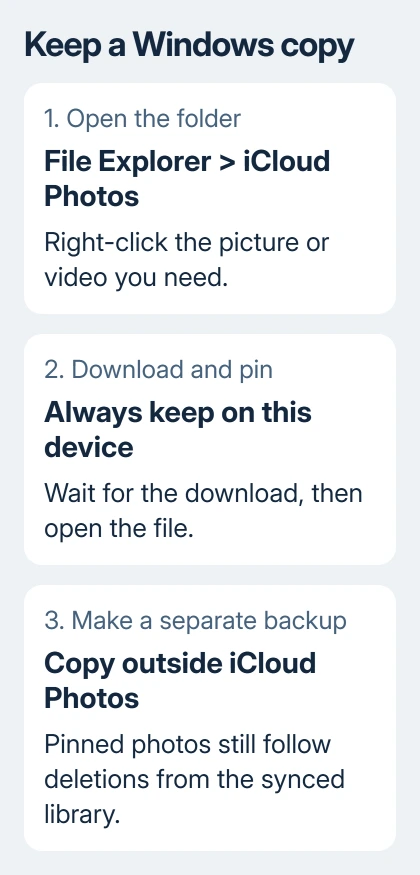
Check that the command has a checkmark when you open the shortcut menu again. Wait for the download, then open the file. A visible thumbnail or filename isn't enough to confirm that the original is stored locally.
A downloaded original that still will not display needs Windows HEIC decoding support when its format is the obstacle.
A pinned file is still part of the synced library. Deleting it elsewhere in the synced library removes the Windows copy too. To create a separate backup, copy the downloaded video or picture into another folder outside iCloud Photos.
6. Finish a browser download in a manageable selection
In your signed-in iCloud Photos web library, select the items and choose Download. The selection limit is 1,000 items at a time. Try a smaller selection when a large download fails, keeping track of what has finished.
Under More > More Download Options, choose Unmodified Originals, Highest Resolution or Most Compatible. Most Compatible supplies JPEG photos or MP4/H.264 video when you need files that work with more apps.
Check your browser's Downloads list and its saved file location. A download that finished but won't open may need a compatible format or app; repeatedly requesting the same original won't change its format.
If the same photo fails in the app and web library, ask Apple Support about iCloud Photos downloads. Give the device, library status and whether one file or every original fails. Keep the original in iCloud during the check.
The Short Version
Export originals to Files on an iPhone, download originals in Mac Photos or pin files in Windows. Follow paused-sync messages first. For web downloads, choose the right format and stay within the 1,000-item selection limit.
Checked November 10, 2026.






