A missing Teams Meeting button in classic Outlook often means its add-in is disabled or missing. Check COM Add-ins first. New Outlook uses a built-in Teams meeting switch, which needs different checks.
If your invitation has no joining details, new Outlook adds them after you send it. Check what's missing before repairing either app.
In this guide
1. Find the meeting control for your Outlook version
Open Outlook's calendar and start a meeting. In classic Outlook, choose New Meeting and look for Teams Meeting on its ribbon. You won't find that meeting control on the regular email toolbar.
For new Outlook on Windows, choose Calendar > New event. Look for the Teams meeting switch next to the title in the event window. That's the control to use instead of classic Outlook's separate add-in.
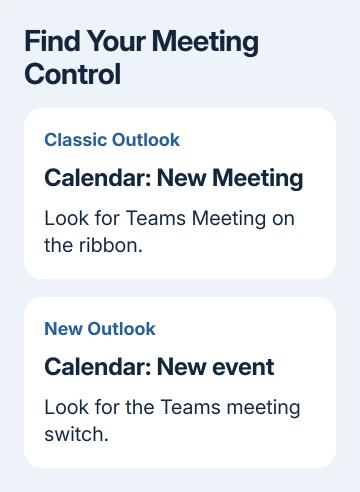
The distinction matters because new Outlook doesn't use the Teams COM add-in. If there is no File > Options menu, don't spend time searching for that classic settings dialog. Follow the account and integration checks in section 4.
Outlook on Mac also has Teams meetings built in and doesn't use the Windows COM add-in. For a missing Mac option, have your administrator verify the meeting account and its Teams license instead of running Windows installer commands.
I'd identify the Outlook version first. That saves you from removing a working app just because its button has moved.
2. Enable the classic Outlook meeting add-in
In classic Outlook, open File > Options > Add-ins. Find Microsoft Teams Meeting Add-in for Microsoft Office and check which list contains it. Check whether Outlook lists it as inactive or disabled, or doesn't list it at all.
Use the Manage menu near the lower edge: select COM Add-ins, then Go. Check the box beside the Teams meeting add-in and confirm with OK. Close the remaining Options dialog and restart Outlook.
Return to the calendar and open another meeting. Check that the Teams Meeting command works and inserts the joining information. Seeing the add-in in the list isn't enough; it needs to create the meeting correctly.
Microsoft says both apps should run without administrator privileges in its meeting add-in troubleshooting.
Close both apps and start them normally from Start. If a shortcut is configured to run as administrator, open its Properties > Compatibility and clear the Run this program as an administrator checkbox. Ask IT if that setting is managed.
Launch Teams, sign in, and then open Outlook. If the add-in still isn't in the COM list, you can't enable it with a checkbox. Repair its installation next.
3. Restore an add-in lost during the Teams upgrade
An installation fault can leave new Teams working but remove classic Outlook's meeting add-in. Remove the meeting component and let Teams install it again. You don't need to remove your Outlook account.
On Windows 11, right-click Start, choose Settings > Apps > Installed apps, and search for Teams Meeting Add-in. Open its three-dot menu and choose Uninstall. On Windows 10, look under Settings > Apps > Apps & features.
Close Outlook. In the taskbar's notification area, right-click the Teams icon and select Quit Teams. Closing its main window can leave Teams running, so use the tray command for this repair.
Start Teams again. Wait until Teams Meeting Add-in returns to the Windows installed-app list, then open Outlook and try creating a meeting. When it reappears in the app list, you'll know Teams has installed it again.
Don't remove unrelated Office components while searching. If the meeting add-in never returns, give IT that specific result; repeatedly deleting your mail profile won't repair a missing Teams installer component.
If Outlook itself won't open, resolve that startup failure before testing the meeting button. The calendar needs to open normally before you can test scheduling.
4. Reconnect Teams with new Outlook
Sign in to Teams and Outlook using the same work or school account. A personal Teams account alongside a company Outlook mailbox doesn't give you that same account connection.
Close Outlook. Right-click Teams in the taskbar notification area and select Quit Teams. Start the current Teams client, complete sign-in, and then start Outlook. Open a fresh calendar event and check the switch again.
For automatic online meetings, open the calendar's Calendar settings > Events and invitations. Under Events you create, enable Add online meeting to all meetings and choose Microsoft Teams as the meeting provider. Save the setting.
If Teams isn't offered, inspect the account selector on that settings page. Each account has its own preferences, so another mailbox can show different meeting providers.
New invitations will now include an online meeting by default. This setting doesn't restore a Teams license or change meeting policies. If neither the switch nor the provider appears for the correct account, move to the administrator check.
5. Send the invitation before checking its join details
In new Outlook, turn on Teams meeting, add attendees, and select Send when the invitation is ready. Reopen the sent calendar event to check its joining information. Saving an unfinished event as a draft doesn't add those details.
If you're testing this at work, label the meeting as a test and ask a colleague before inviting them. Sending it creates a real calendar request, so they'll receive more than a preview of the Teams link.
A meeting that's missing from your calendar entirely is a different failure from an event with no online link. Check which account's calendar is selected and whether the organizer sent the invitation to that address.
For messages that aren't arriving either, the Outlook mail delivery checks address the mailbox side. Reinstalling the meeting add-in won't make an invitation sent to another address appear.
6. Give your administrator the account and missing control
Ask IT to check the account's Teams license, meeting policy and permission to use the Outlook add-in. Mention whether this is classic Outlook's missing command or new Outlook's missing switch, and whether Teams itself signs in successfully.
Include both app versions and the repair result. Ask IT for a Teams Meeting Add-in installation repair if the component won't reinstall. For a missing new Outlook switch, ask for an account integration and policy check.
The Short Version
Classic Outlook needs its meeting add-in enabled and installed. New Outlook needs the correct Teams account and its built-in switch. If only joining details are missing, send the invitation and reopen the event first.
Checked November 10, 2026.