Ask Gemini opens Gemini in Chrome on an eligible Chromebook Plus. Click it at the top of Chrome and accept the first-use setup. If the button is hidden, check Settings > AI innovations > Gemini in Chrome for the option to show it.
If the feature's settings page is missing, check whether your Chromebook, account, language and region qualify. Access is still rolling out. Installing the Gemini website as an app doesn't enable this browser integration.
In this guide
Check the Chromebook and account first
Google says its Chromebook Plus setup requires a Chromebook Plus, a current Chrome version, a signed-in browser and a supported device language and region. Incognito windows don't support the feature.
The age requirement is 13 or older, or the applicable age in your country. Work and school accounts also need administrator approval. Personal and managed accounts can show different results on the same model.
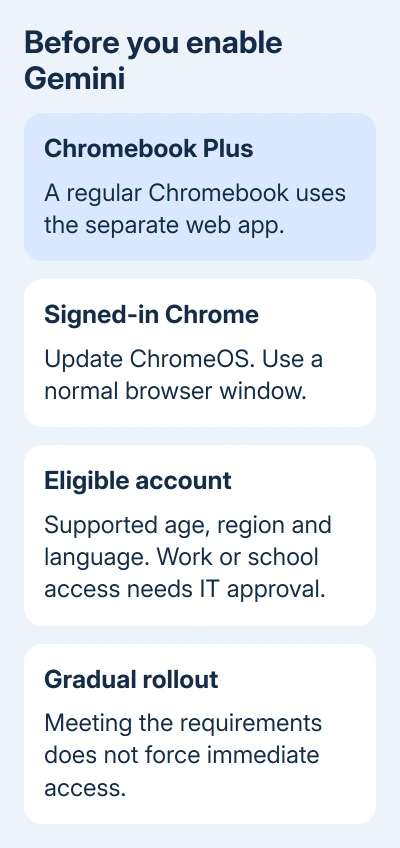
Check the full product name or the manufacturer's specifications to confirm your model. A laptop running ChromeOS isn't necessarily a Chromebook Plus. Changing a setting won't turn a regular Chromebook into a Chromebook Plus.
For that model, use Gemini on a regular Chromebook instead. Its web chat is useful, but it isn't the browser sidebar that automatically works with shared tabs.
I'd check the model and account before changing settings. A hidden button is easy to restore; an account that hasn't received access won't be repaired by resetting the whole Chromebook.
Update ChromeOS before looking for the control
On a Chromebook, the browser updates with the operating system. Open the time area, choose Settings, then About ChromeOS. Select Check for updates and let any available download finish.
Restart when the update asks for it, then reopen Chrome in a normal window. Keep the Chromebook plugged in during the update so the installation isn't interrupted by a flat battery.
The version appears under Google ChromeOS on the same settings page. Note it if you need help later. A version number is more useful to an administrator than saying the computer was updated recently.
If the update option isn't available, the Chromebook may already be current. For a work or school device that won't update, have its administrator review the update policy before trying other system changes.
Updating meets one requirement. It doesn't override the feature rollout, your account's access controls or a region restriction. Once the update finishes, continue to Chrome's settings.
Show Ask Gemini and complete setup
- Open Chrome and select its three-dot More menu.
- Open Settings and select AI innovations > Gemini in Chrome. Open the settings menu first if the categories are hidden.
- Under Preferences, turn on Show Gemini at the top of the browser and turn on Gemini keyboard shortcut.
- Click the browser's Ask Gemini button.
- Follow the first-use instructions to opt in, then type a question in the text box.
The side panel should open beside the page you're viewing. After opting in, the Gemini button stays pinned to Chrome. The browser also supports right-clicking its top area and choosing Pin Gemini or Unpin Gemini.
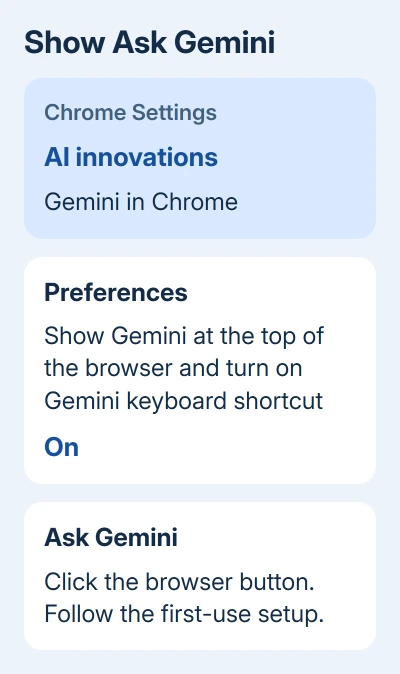
That preference restores a button that was hidden. If the entire Gemini page is missing from Settings, check your account and feature availability; another button preference won't solve an access restriction.
A workplace administrator can control whether the account gets access. Ask specifically about Gemini in Chrome, because permission to use the Gemini website doesn't by itself answer whether the browser integration is enabled.
Choose which tabs Gemini can use
The current tab is shared by default when you open Gemini in Chrome. Begin with an ordinary public page and ask for its main points. Check that the response relates to that page before adding several sources.
To share another open page, click Add tabs in the text box and select it. A check mark shows which tabs you're sharing. Typing @ in your prompt also lets you select an open tab directly.
The current instructions allow sharing up to 10 open tabs. Give the request some context, such as which two pages you want compared and which details matter. A list of unrelated tabs makes the intended task harder to understand.
To stop sharing a page, click Show shared tabs, then Remove tab beside that page. This changes what the chat can use; it doesn't close your browser tab.
Review shared tabs before opening private work or school material. Tabs opened from a chat or a shared tab can also become shared, so check the list after following links during the conversation.
Set sharing and shortcuts to suit your work
In Chrome Settings > AI innovations > Gemini in Chrome, find Permissions. Turn off Share current tab by default if each new chat should begin without automatically sharing the page you're reading.
That's useful when you move between public research and personal pages. It lets you add the intended source to the chat rather than relying on whichever tab happened to be open.
After opting in, Search+G opens or closes Gemini in Chrome. Search+Alt+G switches between the browser tab and Gemini's window. Use the Search key on the Chromebook keyboard rather than substituting Windows shortcuts.
To change these shortcuts, open Gemini's More options > Settings & help > Open Chrome settings. Click Edit beside the keyboard or navigation shortcut, then press the combination you want.
For a separate subject, choose Start new chat at the top. If that control isn't visible, open More options first. Start fresh when you want to compare a different set of pages, so the earlier discussion doesn't get mixed in.
When Gemini still isn't available
A missing sidebar on a current, eligible Chromebook Plus can still be part of the gradual rollout. There isn't a published setting that forces access onto an account before the feature reaches it.
When asking the Chromebook Help Community for help, include your model, ChromeOS version, account type and the exact control that's missing. On a managed laptop, give IT that information so they can review its policy.
If Gemini opens but behaves incorrectly, use More > Settings & help > Send feedback in its panel. Describe what you asked, which tabs were shared and what happened instead.
A right-click Ask Gemini entry is a separate interface issue. The Chrome context-menu guide covers removing that context-menu entry; these steps use the main browser button.
The Short Version
Confirm Chromebook Plus eligibility, update ChromeOS, then enable the Ask Gemini button and opt in. Check shared tabs before using the panel. A hidden button and an account without access need different answers.
Checked November 11, 2026.