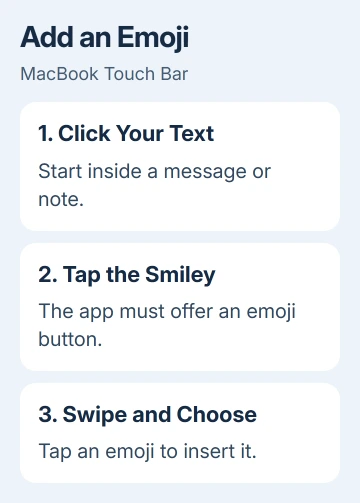
The emoji button appears on a MacBook Touch Bar when a supported app has a text field active. Click inside a message or note, tap the smiley face on the Touch Bar, then swipe through the choices and tap an emoji to insert it.
A strip showing only brightness, volume, or function keys needs a different setting first. Switch it to app controls so the app can offer its text buttons. A missing emoji button in one app doesn't mean the Touch Bar is broken.
In this guide
Begin with a message ready for typing
Open Messages and click inside the box where you'd type a message. Put the cursor in the message itself, rather than the search box or the conversation list. The Touch Bar changes to match what you're doing.
Look for its smiley-face button. Tap it to open the emoji choices, swipe to move through them, and tap the one you want. It should appear beside the cursor in your message. Check the text before sending it.
Apple's Touch Bar instructions describe adding emoji in some apps. An app can let you type emoji without offering a Touch Bar emoji button.
Once this works in Messages, return to the app you originally wanted. Click its writing area and compare the controls. If the smiley is missing there, use the keyboard picker described later instead of changing the whole Mac.
Touch Bar controls also change when you leave the text field. Selecting a file in Finder won't offer the same buttons as composing a message. Keep the cursor in editable text while checking for the emoji control.
Let the Touch Bar show app controls
An expanded Control Strip fills the strip with system controls, such as brightness and volume. Function-key mode fills it with F keys. Neither view leaves the normal space for an app's emoji button.
On Ventura (version 13) or a newer release, use these steps:
- Click the Apple menu, then System Settings.
- Choose Keyboard in the sidebar.
- Click Touch Bar Settings. Scroll down in Keyboard if needed.
- Open Touch Bar shows and choose App Controls.
- Click Done, then return to Messages and click its writing area.
The strip should now change when you move between apps. That change tells you app controls are working again. Look for the emoji button while a message is ready for typing.
On Monterey 12 or an older release, open System Preferences > Keyboard > Keyboard and use the Touch Bar shows menu there. Choose App Controls, then return to your message. The older panel doesn't use the newer sidebar layout.
The Show Control Strip option can leave a small set of system buttons alongside app controls. You don't have to remove brightness and volume just to use emoji.
Keep app controls selected so the expanded strip doesn't take up their space.
If the strip stays completely dark, switch to the black Touch Bar checks. An unlit panel needs a different approach from an app that simply doesn't offer emoji.
Check for an app-specific function-key rule
A Touch Bar that shows app buttons in Messages but F1 through F12 in another app may have a function-key rule for that app. This is separate from the general Touch Bar setting.
In current System Settings, open Keyboard > Keyboard Shortcuts > Function Keys. Look for the affected app in the list. Remove its entry if you want that app to show its regular Touch Bar controls instead of function keys.
In older System Preferences, use Keyboard > Shortcuts > Function Keys. Select that application, then remove its entry with the minus button. Return to the app and select a text field again.
Removing that rule lets the app show its own buttons, but it can't add emoji support the app doesn't have. If the app still has no emoji control, use the standard character picker.
Open the emoji picker without the Touch Bar
Press Control + Command + Space while your cursor is in the text. This opens the Mac's emoji and symbol picker, so a missing Touch Bar shortcut doesn't stop you entering emoji.
Search the picker or browse its categories, then select your emoji. It should appear where your cursor is. If nothing appears, click back into the document or message and open the picker again.
I'd use this shortcut for an app that doesn't show a Touch Bar smiley. It's quicker than changing settings that already work properly in Messages, and it doesn't need an extra keyboard app.
A MacBook with a physical row of function keys can't gain a Touch Bar through software. That includes MacBook Air models. Use the same keyboard picker on those Macs; a keyboard cover or extension won't create a touch-sensitive display.
If your other shortcuts also fail, the Mac keyboard-shortcut guide helps check the modifier keys. Control and Command are different keys, and this shortcut needs both.
Keep emoji suggestions separate from the picker
Typing suggestions are the words or phrases the strip offers while you write. They can include emoji suggestions, but they aren't the same as opening the full emoji list with the smiley button.
Open System Settings > Keyboard > Touch Bar Settings and turn on Show typing suggestions if you want those suggestions. Some apps also offer View > Customize Touch Bar, with a typing-suggestions option.
That customization menu applies to the current app. Don't expect an option added in one app to appear in every other app. Test the change in the same writing area where you enabled it.
If neither the text picker nor normal text entry works in that app, quit and reopen it, then compare a new message in Messages. If it only fails in that app, send its support team both the app version and your macOS version.
For controls missing across supported apps despite the correct settings, tell Apple Support which MacBook and macOS release you have, and whether the strip lights up.
With those details, support can check whether the app controls need attention or the display needs service.
The Short Version
Click a message field, tap the Touch Bar's smiley, then swipe and choose an emoji. Select App Controls if system buttons fill the strip. Control + Command + Space opens emoji when an app has no Touch Bar button.
Checked November 11, 2026.