An Apple Watch volume control can seem broken when it's changing a different sound from the one you're listening to. Use Sounds & Haptics for alerts, Now Playing for music, and the Digital Crown during a call for call volume.
On watchOS 26 and later, automatic alert volume adapts to your surroundings. Turn it off for a fixed alert level. If the Crown won't scroll anywhere, check the physical control before changing more sound settings.
In this guide
1. Choose the control for the sound that's wrong
Apple Watch has no iPhone-style volume rocker or physical volume switch. Its round Digital Crown adjusts volume when you have the right sound control open. The side button has other functions, including Control Center.
Start with the sound that actually fails: a ringtone, an app alert, a live call, or music playing through another device. Changing an alert slider won't necessarily change the headphones playing your music.
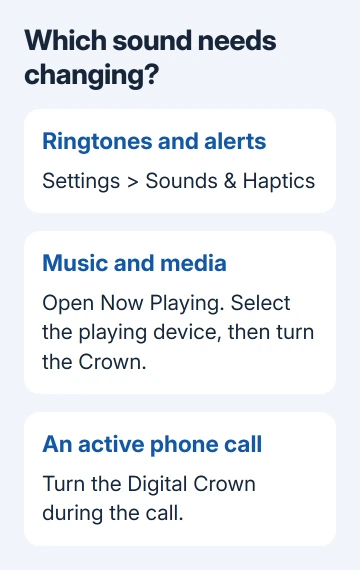
For alerts, open Settings > Sounds & Haptics on the watch. If the watch screen is awkward to use, the paired iPhone's Watch app > My Watch > Sounds & Haptics also provides sound settings.
For music or other supported media, open Now Playing on the watch while the audio is playing. For a phone call, adjust the Crown during the call. Check the same sound again after making the change.
This first comparison matters: a Crown that scrolls lists and changes call volume is responding. If it fails only inside one music app, continue with the playback controls before assuming the Crown is damaged.
2. Set a fixed alert volume on watchOS 26 or later
Open Settings > Sounds & Haptics. On watchOS 26 and later, alerts automatically adjust to the surroundings. Under Automatically Adjust Volume, choose Level, then Louder, Default, or Quieter for the range you want.
To keep the volume at one level, turn off Automatically Adjust Volume. Use the onscreen volume buttons, or tap the slider before rotating the Digital Crown. Turning the Crown without selecting the slider can scroll the screen.
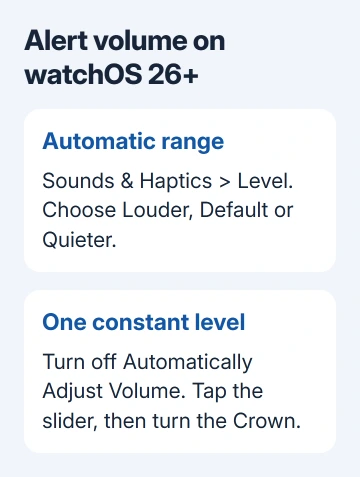
Apple's sound adjustment instructions describe these two choices. Choose automatic adjustment if you want alerts to adapt, or a fixed setting if you want the level to stay put.
On watchOS versions earlier than 26, use the alert volume buttons or tap the volume slider and turn the Crown. There isn't an automatic-volume feature to turn off on those versions.
If the slider responds to taps but the Crown doesn't change it after you tap it, check whether the Crown scrolls a settings list. That tells you whether this particular slider fails or the Crown stops responding elsewhere too.
If you're trying to increase the tap on your wrist, use the Haptics setting instead. A stronger vibration and a louder speaker are separate adjustments. Raising the volume won't repair a notification that never reaches the watch.
3. Turn off a mode that's silencing alerts
On watchOS 10 and later, a side-button press opens Control Center. On watchOS 9 and earlier, hold a finger at the screen's bottom edge, then swipe up. Check Silent Mode and Focus before raising volume further.
Turn off Silent Mode for audible alerts. A silent watch can still tap your wrist, so a muted bell can look like a volume failure. Do Not Disturb can also suppress the alert you're using for the check.
Repeat the kind of alert you originally missed. If sound returns after changing the mode, the speaker and volume setting weren't the cause of that silence. Once the alert can sound, set the volume where you want it.
If the notification doesn't appear at all, follow the Apple Watch notification checks. Whether an alert is delivered is a different problem from how loudly the watch plays it.
4. Adjust the device actually playing your music
Open Now Playing on Apple Watch. If several devices are playing, tap the device icon in the top-right corner and select the intended playback device. Turn the Digital Crown while its playback controls are open.
The Now Playing procedure covers choosing a device and then controlling what's playing. A watch controlling your iPhone isn't necessarily playing audio from the watch's own speaker.
Watch the volume display while turning the Crown, and listen to the speaker or headphones you meant to adjust. If the display changes but a different device gets louder, correct the selected playback device before trying a repair.
I'd compare Now Playing with the music app's own watch screen before resetting the watch. If the built-in control works and one app's control doesn't, report the app name, version and playback device to that app's support team.
For a live call, turn the Crown while the call is active. Don't use the alert-volume setting as your call-volume check. If only the connected earphones sound weak, the quiet AirPods checks address that listening device.
5. Restart, then check a Crown that won't respond
If the watch responds to taps, remove it from its charger. Hold the side button, tap the power button when shown, and drag Power Off. To turn it back on, hold that same side button again. Release it once the Apple logo becomes visible.
Restart the paired iPhone too if the failure involves controlling its audio. Settings > General > Shut Down works across iPhone models; turn it on again with its side or top button. Then check the previously failing control.
If the Crown won't scroll lists or select controls anywhere, remove cases or film obstructing it. Check its gap for dirt. The Crown troubleshooting page recommends repair if the Crown keeps failing, even if it sometimes works.
For debris, follow the Crown cleaning procedure: turn off the watch, remove the charger and any leather band, then hold the Crown under lightly running, warm, fresh water while turning and pressing it.
Use no soap or cleaning products. Dry the watch and the gap around its Crown with an absorbent, nonabrasive, lint-free cloth, rotating and pressing as you dry. Cleaning clears dirt around the Crown; it doesn't change app sound settings.
When the speaker or Crown needs service
A moving volume display with muffled or distorted sound points you toward the speaker checks. Look for obstructions, and allow water in the ports to evaporate. Don't use heat, compressed air or sharp objects in the openings.
For a Crown that remains damaged or unreliable after the case and debris checks, arrange an Apple Watch repair. Give support the model, watchOS version and whether the Crown fails in every list or only while controlling one app.
The Short Version
Match the volume control to alerts, media or calls. On watchOS 26 and later, disable automatic alert volume for a fixed level. Check Silent Mode, the selected playback device and Crown response before arranging speaker or Crown service.
Checked November 11, 2026.