Close Android tabs inside the browser's tab switcher. In Chrome, tap the tab-count button beside the address bar, then close a page or choose More > Close all tabs. Samsung Browser puts its tab button in the bottom toolbar.
Removing a browser from Android's recent-apps screen doesn't replace its tab controls. Open the app containing the pages, then close one tab, a group or all the tabs. Private and inactive tabs need a separate check.
In this guide
Close one Chrome tab without losing the others
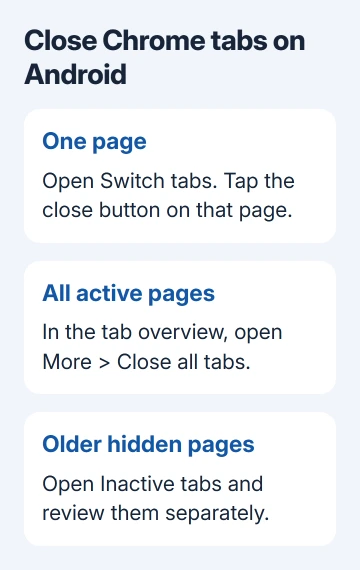
Open Chrome on the phone. Tap Switch tabs, the tab button beside the address bar. The tab overview shows previews of open pages; tap the close button at a preview's top-right corner to remove that page.
Swiping a tab preview also closes it. Use the close button if you're trying to avoid moving through the wrong page. Check the page title on the preview before closing a form or something you haven't saved.
The tab disappears from the overview when it closes. Tap a remaining preview to return to that page. This closes a webpage inside Chrome, rather than uninstalling the browser or deleting its stored browsing history.
Google says to use the Android tab controls to close one tab or several at once. On larger Android screens, Chrome can also show a tab strip with a close control on each tab.
If your browser looks different, check the app name first. Samsung Browser and Chrome keep their own sets of tabs, even on the same Galaxy phone. Closing a page in one won't remove a page opened in the other.
Close all Chrome tabs or select several
To close all active tabs, open Switch tabs, tap More in the tab overview, then choose Close all tabs. Use the menu inside the overview, rather than the menu on an individual webpage.
Check the confirmation before completing it, especially when tab groups are involved. A group contains several pages, so closing groups can affect more pages than the number of group previews suggests.
To close only several tabs, use More > Select tabs in the overview when that option is available. Tap the previews you want, then use the selection menu's Close tabs action. Keep the pages you still need unselected.
For shopping or research, close finished comparisons while keeping the order confirmation or final reference. I'd select a few previews at a time when titles look similar, rather than clearing everything and recovering it.
For another tab that doesn't appear with the active pages, check the Inactive tabs area next. Even with a clear active tab view, older pages can still be open there.
Check inactive tabs and saved groups separately
In Chrome's tab overview, find Inactive tabs near the grid's top edge. Open it to review the older pages Chrome has moved out of the active collection. To remove them together, use Close all inactive tabs > Close all.
Those inactive pages are separate from the regular tabs you just closed. Review its previews before confirming so you don't remove an older reference that was simply hidden from the active grid.
To change when Chrome moves tabs there, open More > Settings > Tabs and tab groups > Move to inactive section. Choose a time period there, or Never if you don't want Chrome to move tabs into that section.
In the current layout, inactive items close after six months unless Automatically close inactive items is off. Older Chrome releases can have different tab settings, so use the labels present in your installed app.
Saved tab groups work differently too. Closing a saved group doesn't necessarily delete it; the group can remain available to reopen. Don't use a group's Delete action when all you want is to remove its pages from the current view.
For pages also appearing elsewhere, check whether they belong to saved, synced groups. A group change can reach another signed-in device. Check which group a page belongs to before assuming the page is open on your phone alone.
Close Incognito tabs when you finish private browsing
Open the tab switcher and select the Incognito section. Close its tabs there. Regular and Incognito pages are separate, so clearing the normal tab grid isn't the same as ending your private browsing session.
An Android Incognito tabs open notification can offer Close all Incognito tabs. The Incognito instructions explain that closing all private tabs ends the session.
After closing them, return to the Incognito tab view and confirm no private pages remain open. Use the browser's tab controls even if you already swiped Chrome away from Android's recent-apps screen.
Incognito doesn't hide activity from your internet provider or every network administrator. Its local behavior differs from deleting regular history. Use it for a session you want kept out of the browser's normal history.
Close tabs in Samsung Browser
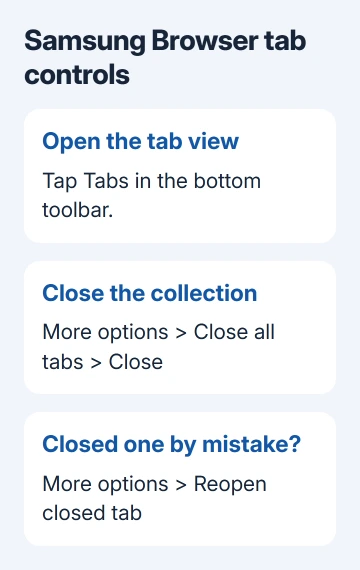
Open Samsung Browser, also called Samsung Internet on some phones. Tap Tabs in the bottom toolbar, shown as a box containing a number. Tap the close button at the top-right of a tab preview to remove that page.
To close every tab, open that tab view, tap More options > Close all tabs, then Close to confirm. Use these Samsung Browser tab controls, for this app; its menus differ from Chrome's.
For automatic cleanup, open Tabs > More options > Auto settings. The listed choices include Never, After 7 days, After 30 days, and Within smart tab management. Choose based on whether you keep unfinished reading open for longer periods.
If a page disappeared by accident, return to Tabs > More options > Reopen closed tab and select it. Check that list before opening a fresh search and trying to remember the exact address.
Recover a page or remove its history
In Chrome, More > Recent tabs can help you return to recently used pages. For an older ordinary page, open More > History and find its title or site. Closing a regular tab doesn't automatically erase its history entry.
If removing the browsing record is your actual goal, follow the computer Chrome history guide. Deleting history is a separate action, with its own time range and choices. Closing a tab doesn't do that.
For Chrome on a computer, the Mac browser tab controls cover the desktop layout. On Android, use the browser's own controls; the recent-apps view doesn't work like a browser window on a computer.
If a close button doesn't respond, record the browser name, version and whether it affects one page or the whole tab overview. Send that detail through Chrome's Help & feedback or Samsung's support route for the browser.
The Short Version
Close pages through the browser's tab switcher. Chrome uses More > Close all tabs; Samsung Browser uses the tab view's More options. Check inactive and Incognito pages separately. History is for browsing records or recovery.
Checked November 11, 2026.