To edit a Word document, open it in Word, select Editing, then click where you want to change the text. Select existing words to replace them, or click between words to add new text without deleting anything.
The desktop app and Word for the web can both handle everyday edits. A shared file may open for viewing or review instead, so check the mode before assuming the keyboard or document is broken.
In this guide
Open the file in the Word app you have
On Windows or Mac, open Word and choose File > Open. Browse to the document, or choose it from Recent if you've worked on it before. Check the filename so you're editing the version you meant to open.
Double-clicking a downloaded document can also open it, but a browser's attachment preview isn't the same as Word. If the page only offers viewing or downloading, open the downloaded file in Word to edit its contents.
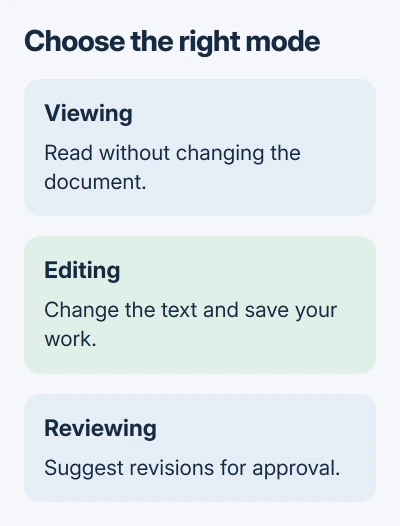
In the web version, open your OneDrive document or follow the owner's sharing link. In the upper-right corner, use the mode menu and select Editing. Older layouts can show Edit Document > Edit instead.
Microsoft's document mode instructions explain the difference: Viewing prevents changes, Reviewing records suggestions, and Editing lets you change and save the document.
If Editing is unavailable on a shared document, ask its owner for permission. Our Word document unlocking guide covers restrictions and read-only settings when the file opens but won't accept changes.
Put the cursor in the right place before typing
Click once between two characters. The blinking vertical mark, called the insertion point, shows where your next characters will appear. Type a short addition and check its position before changing a whole paragraph.
To replace a word, double-click it so the word is selected, then type the replacement. To replace several words, drag across them first. The highlighted selection disappears when you start typing, and the new text takes its place.
When you want to add text, leave the surrounding words unselected. Otherwise, typing your missing sentence will replace the highlighted paragraph instead of adding to it.
Press Backspace to remove text before the insertion point, or Delete to remove text after it where your keyboard has that key. Select a passage first if you want to delete all of it at once.
Made the wrong change? Use Undo immediately. Ctrl + Z on Windows or Command + Z on Mac reverses the last action, so you can try again without reconstructing the original sentence from memory.
I'd finish one paragraph before moving on to the next. It's easier to catch a missing space or accidental deletion while you still remember what that paragraph was meant to say.
Select the words before changing their appearance
Select the text you want to format, then open Home. Choose a font, font size, bold or italic from that tab. Only the selected text changes, rather than every word in the file.
If nothing is selected, a formatting choice can affect what you type next. When a change appears to do nothing to existing text, check the selection before clicking the same control repeatedly.
For a heading, select the heading paragraph and choose an appropriate Heading style on Home. Styles keep matching headings consistent, which is easier to maintain than changing their size and weight one at a time.
Use the paragraph controls for alignment and lists. For many paragraph settings, you only need to click inside the paragraph. Select several paragraphs when you want the same setting to apply to all of them.
On an iPad or Android tablet, double-tap a word and drag the selection handles to include more text. Open Home for formatting. In portrait orientation, some controls can sit in the font or paragraph menus rather than alongside the text.
Keep an eye on the surrounding page after a size or spacing change. A paragraph can move to the next page even though you've changed only its appearance, so review the page break before sending the file.
Choose direct editing or tracked suggestions
For your own draft, ordinary Editing is usually enough. When someone wants to approve your corrections, turn on Review > Track Changes before making them. Additions and deletions then remain visible as proposed revisions.
In newer desktop Word, Reviewing mode turns on tracking for your changes. A shared document sent for review may require tracking, so you won't always be able to switch it to Editing.
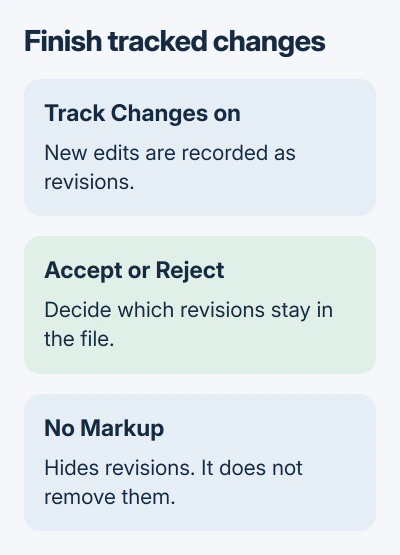
Turning Track Changes off stops recording new edits. It doesn't remove revisions that are already waiting in the document. Use Accept or Reject on the Review tab to decide which changes to keep.
Similarly, choosing No Markup changes what you see, not whether the revisions still exist. Review the pending changes before treating a clean-looking page as the final version.
If you're correcting someone else's wording, a comment can explain a question without replacing their sentence. Use a comment when the answer affects the edit, such as a date or name you can't verify yourself.
Save the edited document and check the result
In desktop Word, click Save, or press Ctrl + S on Windows or Command + S on Mac. A new file needs a name and location through Save As. Keep the Word document format when you need to edit it again.
To preserve the original, make a separate Word copy before working on it. A new filename helps distinguish your edited version from the file you received.
Word for the web saves changes online as you work. Check its saving status before closing the tab, especially after a connection interruption. The online document and the copy you downloaded are separate files.
Read the changed paragraphs once more, including the sentence on either side. Check that the names, numbers and formatting are still correct, then make sure you're sharing the saved version of the file.
If editing fails in every document, try a new blank file and tell Microsoft Support whether typing works there. Include the Word version, operating system and exact message; for a single shared file, start with its owner instead.
The Short Version
Start in Word with Editing selected. Highlight existing words when they need replacing. Use Home for formatting, Track Changes for reviewable suggestions, then save and check the edited file.
Checked November 11, 2026.