Outlook keeps downloaded mail, address suggestions, and add-in resources separately. Clear the cache connected to the problem: a mailbox rebuild won't remove an unwanted address, and an add-in cache won't fix a damaged mail profile.
Classic Outlook keeps downloaded Exchange mail in a rebuildable .ost file. New Outlook works differently. Supported Mac versions offer Empty Cache for Exchange folders, so check which Outlook app you have before removing anything.
In this guide
Match the cache to the problem first
Open Outlook and look for File at the upper left. The Windows instructions that use File > Account Settings are for classic Outlook. New Outlook has Settings and doesn't use those classic menus.
Next, check what has gone wrong. Recent messages missing from one folder point toward its downloaded copy. A broken add-in pane needs the add-in cache procedure. An unwanted recipient suggestion belongs to address suggestions instead.
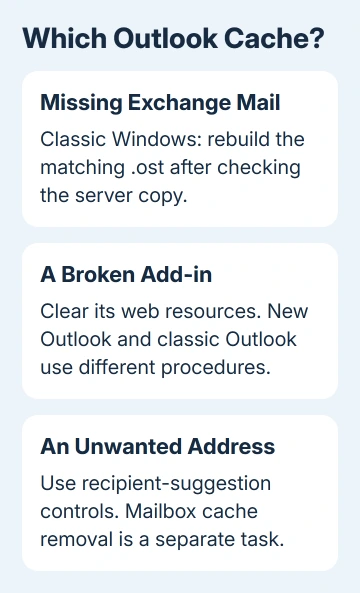
I'd make this choice before opening an AppData folder. Several unrelated Outlook files share that location, and deleting the whole folder creates a much larger job than clearing one cache.
If Outlook doesn't launch at all, use the Outlook startup checks first. A cache procedure that needs a working account won't help until the app can open.
Rebuild downloaded Exchange mail in classic Outlook
Use these steps for a classic Outlook Exchange account with an offline .ost file. An .ost holds a downloaded copy of your mailbox; a .pst can hold the only copy of POP mail or a local archive.
Before removing the offline copy, check that your important messages and recent changes have reached the server. Save anything that's still only on this computer. Don't delete a .pst as a cache-cleaning step.
- Select File > Account Settings > Account Settings.
- Check the account on the Email tab, then open Data Files.
- Select the matching account's data file and note its full location and .ost extension. Use Open File Location if available.
- Close Outlook completely, then remove that account's .ost file from the location you identified.
Before removing a file, fully close and restart Outlook so a background session is no longer holding it open.
- Open Outlook and let it download the mailbox again.
Microsoft says Outlook can recreate an Exchange offline file after it's deleted. This is a fresh download, so large mailboxes need time and an internet connection.
Check the original problem folder after synchronization. A message that exists on the server should return. Mail that isn't on the server won't return just because you rebuilt the local cache.
If old messages remain absent while recent mail works, review the older-email download settings. The amount of mail Outlook downloads depends on that setting, even when the cache is working.
Clear a stuck add-in in classic Outlook
Use this when an installed web add-in shows old content or keeps failing. It clears resources used by add-ins, not your mailbox. Try removing the affected sideloaded add-in first if you installed it for testing.
Close Outlook. Press Windows + R, paste %LOCALAPPDATA%\Microsoft\Office\16.0\Wef\, and press Enter. Clear that folder's contents rather than picking individual manifest files from it.
Microsoft's Office cache procedure also includes the WebViewHost cache when that folder exists. It gives this location:
%userprofile%\AppData\Local\Packages\Microsoft.Win32WebViewHost_cw5n1h2txyewy\AC\#!123\INetCache\
Clear its contents if present. For an Outlook add-in using the unified Microsoft 365 manifest, also delete %userprofile%\AppData\Local\Microsoft\Outlook\HubAppFileCache.
Open Outlook and load the same add-in. Freshly loaded content is the useful result. If Windows can't find an optional folder, don't create it or start removing similarly named folders nearby.
Clear the add-in browser cache in new Outlook
New Outlook uses a different procedure for its add-in cache. The classic .ost steps don't apply here, and clearing this browser cache won't reset all your account settings.
- Close new Outlook.
- Open Command Prompt and run
olk.exe --devtools. - Wait for Outlook and Microsoft Edge DevTools to open.
- In DevTools, choose Network.
- Right-click inside the Requests table and select Clear browser cache.
Return to the affected add-in and open it again. The command clears cached web resources; it doesn't empty your server mailbox or remove every suggested contact.
If the command isn't recognized, stop there rather than guessing a version-specific WindowsApps path. Give your IT team the Outlook version and the add-in name so they can use the installed client's supported procedure.

Empty an Exchange folder cache on Mac
In supported Outlook for Mac versions, connect to the Exchange server, then right-click or Control-click the affected Exchange folder. Choose Properties > General > Empty Cache.
Back up unsynchronized information first. Emptying this cache replaces the folder with the server's contents, so local changes that haven't synchronized can be lost, including contacts' mail certificates.
The folder empties and Outlook downloads its items again. Start with the affected folder, then check whether its missing messages or synchronization problem has cleared before doing anything broader.
If your Outlook app doesn't show Properties or Empty Cache, it doesn't offer these controls. Use Outlook Help or your Exchange administrator for that version rather than deleting the Mac's entire Outlook profile folder.
Address suggestions still there, or mail still wrong?
Address suggestions aren't the same as downloaded email. Follow the unwanted Outlook address instructions for that problem, especially with Exchange Online suggestions backed by Microsoft Search.
For continuing mailbox trouble, tell the Exchange administrator which folder fails, whether the server has the missing items, and which cache was rebuilt. For a single broken add-in, contact its developer with the error and Outlook version.
The Short Version
Choose the affected cache first. Rebuild a confirmed Exchange .ost in classic Outlook, clear web resources for an add-in, or use Empty Cache for a supported Mac Exchange folder. Keep .pst archives intact.
Checked November 11, 2026.