Closing Outlook and opening it again restarts the app, but a frozen background process can keep the old session running. Save any unfinished message, exit Outlook, then reopen the same version. If it won't close, end its task first.
The exit controls differ in new Outlook, classic Outlook, and Outlook for Mac. None requires an account reset, profile deletion, or computer restart. Start by closing the app; you don't need to set up your account again just to restart it.
In this guide
Save the message and identify your Outlook app
Open unfinished messages and save them before closing. If Outlook is responsive, check Drafts for the message you need. An app that has already frozen may not have saved the last words you typed.
Check the Windows app's top-left corner. File opens the classic Outlook menu. New Outlook uses its own Settings interface and doesn't have that classic File menu. This matters when a guide asks you to change add-ins or a profile.
On a Mac, use the Outlook menu in the menu bar. In a browser, Outlook is a website tab, so closing a desktop Outlook process won't refresh that mailbox view. Choose the instructions for the window you're actually using.
If Outlook is sending a large attachment or archiving mail, give it time to finish. Microsoft's Outlook freezing instructions recommend checking classic Outlook's status bar for background work before treating it as stuck.
Exit and reopen Outlook on Windows
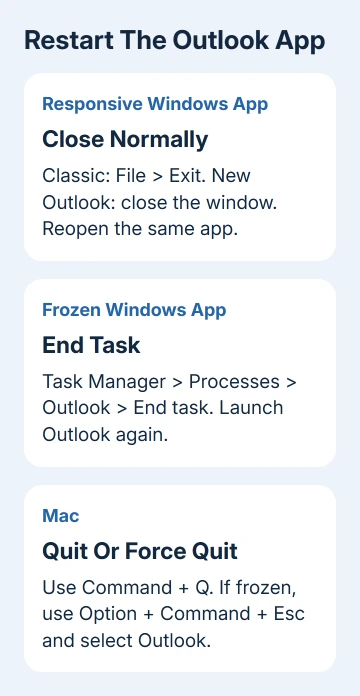
In classic Outlook, select File > Exit. Close any separate Outlook message or appointment windows that remain. When you're ready, open Start, type Outlook, and launch classic Outlook again.
In new Outlook, close the app with its window's Close button. Reopen new Outlook from Start. If Windows lists both versions, select the same one you just closed so you're checking a restart rather than switching apps.
When the mailbox appears, retry the action that needed a restart. After a display freeze, check that the folder responds again. For delayed mail, check whether the connection and synchronization have resumed.
Closing the window keeps you signed in. A normal restart doesn't require removing the account or reentering its settings. Repeated password prompts need sign-in troubleshooting rather than another restart.
I'd use a normal exit whenever the app still responds. It gives Outlook a chance to finish its work and close cleanly. Use the next method when the window won't close or opening Outlook only brings back the same stuck session.
Stop Outlook when its window is frozen
Open Task Manager with Ctrl + Shift + Esc. On Windows 11, select Processes in the navigation area. On Windows 10, select More details if needed, then the Processes tab.
Select the Outlook app that is stuck and choose End task. New Outlook can appear as Microsoft Outlook. Classic Outlook's process is OUTLOOK.EXE if you need to identify it in the Details view.
Confirm that the Outlook window has disappeared and that its app entry is gone. Close Task Manager and reopen Outlook from Start. Microsoft's new Outlook procedure uses this close-and-reopen sequence when the app stops responding.
Ending the task can discard unsaved work, so keep this method for an app you can't close normally. Leave unrelated Windows services and browser processes running, even though new Outlook uses web technology.
After reopening, check Drafts and the Outbox before sending again. An item waiting in the Outbox needs different handling from a message already in Sent Items. That check helps you avoid sending the same message twice during the restart.
Quit Outlook fully on a Mac
With Outlook active, choose Outlook > Quit Outlook, or press Command + Q. The red window button closes a window; it doesn't reliably mean the whole Mac app has quit. Open Outlook again from the Dock or Applications.
For a frozen app, press Option + Command + Esc. Select Microsoft Outlook, choose Force Quit, and confirm. Reopen it after it closes. Force Quit can lose unsaved work, just like End task on Windows.
Check that the mailbox loads, then retry the original command. If the same account error returns in the new window, Outlook has restarted, but the account or app problem still needs attention.
If other Mac apps are also frozen, save work elsewhere before restarting the Mac. That's a computer-wide restart and should follow the app-only attempt, especially when other work is open.
Refresh Outlook in a browser or on a phone
For Outlook in a browser, save your draft and use the browser's Reload button. If the page is still stuck, close that tab and open your usual Outlook website again. A website tab doesn't use classic Outlook's safe-mode command.
For a Face ID iPhone, swipe up from the bottom, pause, then swipe the Outlook preview upward. With a Home button, double-click Home and swipe Outlook upward. Open Outlook again using its app icon.
On Android, open the recent-apps screen and swipe away Outlook, then reopen it. The gesture or navigation button varies by phone. For an app that stays frozen, Settings > Apps > Outlook > Force stop stops it before you launch it again.
These steps restart the Outlook app. They won't fix a service outage or change your mail account's password. If the inbox opens but new messages don't arrive, use the Outlook receiving-mail checks for that symptom.
When every restart leads to the same problem
A repeated freeze needs more than another close-and-open cycle. For classic Windows Outlook, safe mode can check whether an add-in is involved: press Windows + R, type outlook.exe /safe, and press Enter.
That command applies to classic Outlook. It doesn't put new Outlook, the Mac app, or the website into safe mode. Use the Outlook startup troubleshooting if classic Outlook only opens that way or remains on Loading Profile.
Give Microsoft support or the workplace mail administrator your Outlook version, operating system, and exact error. Include the time of the repeated startup failure or freeze and whether other apps still responded.
For an ordinary restart, stop once the app is responding again. Clearing saved app files, removing the account, and creating a new Outlook profile are separate repairs. They aren't required just to start a fresh Outlook session.
The Short Version
Save the draft, quit Outlook, and reopen it. Use End task on Windows or Force Quit on Mac if it's frozen. When the fault returns immediately, follow that error's repair steps; an account reset isn't part of an ordinary restart.
Checked November 12, 2026.