

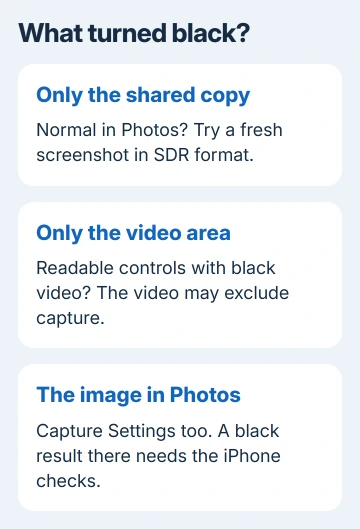
A black screenshot on iPhone needs a different fix depending on where it turns black. If it looks normal in Photos but arrives blank in another app, try a new capture in SDR format. A black movie area can mean protected video.
A screenshot that's black even in Photos needs the app and iPhone checks instead. Keep the original image so you can compare it with each new screenshot as you work through the case that matches yours.
In this guide
1. Open the saved picture before changing anything
Open Photos > Collections > Media Types > Screenshots, then open the affected image. Look at the picture itself, rather than the dark background around it or the preview of a message attachment.
Check whether the whole image is black, only the video area is black, or the image becomes black only after sharing. Those are three different problems, even though their small previews can look the same.
Take one ordinary screenshot of Settings as a comparison. On a Face ID model, briefly press Side + Volume Up together. With a Home button, briefly press Home + Side, or Home + Top on older models. Release both buttons promptly.
Don't hold those buttons down; that performs a different action. Once the screenshot opens, use its save control and choose Photos. In iOS 18 and earlier, a corner thumbnail appears temporarily instead of the newer full-screen editing view.
If the Settings screenshot is readable, your phone can take a normal screenshot. Continue with the app or sharing case that matches yours. If no image appears at all, the screenshot saving checks address that separate problem.
2. Use SDR when the picture fails after sending
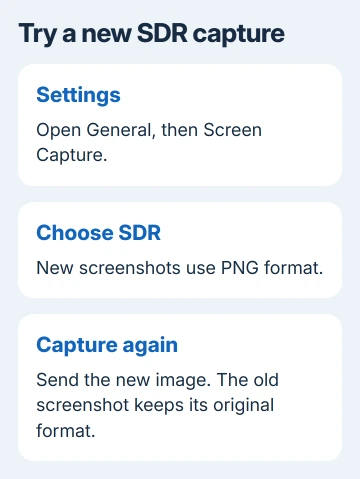
On iOS 26 and later, open Settings > General > Screen Capture. Find the format choices and select SDR. Take a fresh screenshot of the same content and send that new image through the app that failed.
Apple's screen capture settings explain the difference: SDR screenshots use PNG, while HDR uses a format that stores images efficiently with a wider range of brightness and color.
This changes future captures. It doesn't rewrite the screenshot already in your library, so sending the old attachment again won't test the new setting. Check the newest image in Photos before attaching it.
If the new PNG arrives correctly, keep SDR for screenshots you need to share with that app. I'd favor a readable attachment over extra brightness when the purpose is sending someone an error message or receipt.
HDR images normally include a version for standard displays, so a completely black attachment isn't expected. Trying SDR checks whether the receiving app handles that format better; it doesn't mean every HDR image is faulty.
On iOS 18 and earlier, the newer Screen Capture format setting isn't available. Use the app checks instead. If the same file opens correctly in Photos but fails in just one recipient app, report that to the receiving app's developer.
3. Recognize video that can't be captured
If the movie area is black but you can read the playback buttons, the app may have blocked the video from the screenshot. Compare it with the Settings image before treating it as an iPhone display failure.
Protected video can be blocked from recordings, and some playback also blocks the picture in screenshots. A different shortcut or brightness setting won't let you capture it.
Try the app's Share control to send its title or link instead. For an error report, capture the error message outside playback if it remains visible there. That gives support something useful without needing the missing movie frame.
This explanation applies to the protected video area. It doesn't explain a black Settings screenshot or an ordinary photo that becomes blank after sending. For those, continue with the software checks.
4. Reopen and update the affected app
When Settings captures correctly but ordinary content in one app doesn't, close that app and reopen it. Save unfinished work first. On a Face ID iPhone, slide a finger upward from the bottom edge, then pause until the app previews appear.
On a Home button iPhone, double-click Home instead. Find the app's preview and swipe it up, then reopen the app from its icon. Revisit the affected screen and take another screenshot.
Check App Store > your profile > App Updates for an update to that app. Updating the app won't change how another app handles attachments. After updating, capture the same screen and send it to the same destination to compare results.
If the problem stays inside that app, its App Store listing has App Support. Send the developer your iPhone model, iOS version, app version and whether the saved image or just the shared copy is black.
5. Restart the iPhone when normal captures fail too
For a responsive Face ID iPhone, hold Side + either Volume button to bring up the shutdown slider. Drag the slider, wait 30 seconds, then hold Side until the Apple logo appears.
On iPhone 6, 7, 8 or a second- or third-generation SE, hold Side to bring up the slider. On a first-generation SE or iPhone 5 and earlier, use Top. After the shutdown, use that same power button to turn it on.
Capture Settings again and open the new image in Photos. If it's readable now, restarting cleared the problem. If it stays black, check Settings > General > Software Update for a compatible update.
When the screenshot is readable but selecting its words fails, use the Live Text controls. Text recognition can't recover words that weren't captured in the image.
Get help for the case that remains
Use the Apple Support app for black captures of normal system screens after restarting and updating. Ask for help with screenshot capture, and include the Settings comparison and whether the image is already black in Photos.
Reinstalling an app can remove local data, so describe a one-app failure to its developer first. If the original is readable and only the shared copy is black, ask the receiving app's support team for help.
The Short Version
Check the image in Photos first. Use a fresh SDR capture when only sharing fails, use a title link for protected video, and reopen the app or restart the iPhone when normal screens also capture incorrectly.
Checked November 11, 2026.
 If you have any business, I can build it online






