Double-tap the Apple Watch screen with two fingers to zoom out when the whole interface is magnified. To stop accidental magnification, turn off Zoom in the watch's Accessibility settings or in the Watch app on its paired iPhone.
A map enlarged with the Digital Crown and large text inside an otherwise normal screen are different. Use the screen's own zoom or text-size control for those cases.
In this guide
1. Use two fingers on the display
Place two fingertips on the watch screen and tap twice, with both fingers touching together on each tap. Tap the glass itself. It isn't the finger-and-thumb double tap used for hands-free actions on supported watches.
Apple says to use a two-finger double tap in its Zoom instructions to change between magnified and normal views. Try it before restarting the watch or changing its pairing.
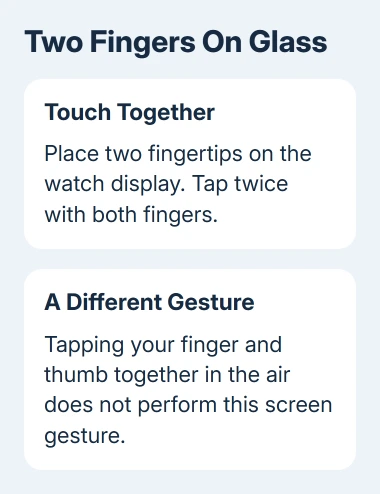
The watch face, menu or app should return to its normal scale. That means magnification has been reduced, but Zoom can still be enabled. Until you turn Zoom off, another two-finger double tap can enlarge the screen again.
If the screen remains enlarged, try the gesture on a part of the display where both fingertips can land cleanly. One finger tapping twice and two fingers tapping once aren't the same command.
I'd use the paired iPhone next if the tiny visible part of the watch screen makes menus hard to reach. That saves you from working through enlarged watch menus just to switch Zoom off.
2. Turn off Zoom from the paired iPhone
On the paired iPhone, open Watch. Choose My Watch, then Accessibility > Zoom. Turn Zoom off.
Check the watch display after the change. It should show the normal view, and the two-finger double tap should no longer zoom the screen in or out while Zoom is off.
This is a watch setting inside the Watch app. The iPhone's own Settings > Accessibility > Zoom controls the iPhone display, so changing that doesn't turn off Zoom on your wrist.
If several watches are paired, check that the correct one is selected in the Watch app first. A change to the wrong watch won't affect the enlarged screen you're trying to use.
For a connection failure in the Watch app, work through the Apple Watch connection checks before trying to change the watch settings from your phone. The watch's own menu is another route.
Don't erase the watch to fix ordinary magnification. The Zoom switch changes the display behavior without removing apps, health information or the watch's pairing.
3. Reach the Zoom switch on the watch itself
Open Settings on Apple Watch, then choose Accessibility > Zoom. Turn off Zoom. This is useful when the paired iPhone isn't nearby or the watch isn't connected to it.
If the enlarged view hides the part you need, drag with two fingers to move around the screen. A small Zoom indicator shows which part of the full page is currently visible.
The Digital Crown can also move around a magnified page. If turning it pans instead of scrolling the way you expect, tap once on the display with two fingers to change what the Crown does.
That single two-finger tap changes how the Crown works; it isn't the double tap that changes the magnification. Knowing the difference helps when the screen appears to move sideways instead of showing the next setting.
After switching Zoom off, reopen the watch face and an app. Both should fit normally. If only one app is still enlarged, check its own controls rather than assuming the Accessibility change failed.
4. Keep magnification but lower its maximum size
Zoom can be useful even when its current setting is too strong. Leave it enabled if you need larger controls, then adjust the magnification rather than removing the feature entirely.
Double-tap with two fingers and hold them on the display after the second tap. Drag up or down to adjust magnification. Lifting your fingers right after the second tap just switches between the enlarged and normal views.
To limit how far the screen can zoom in, open Accessibility > Zoom and adjust Maximum Zoom Level. The guide describes plus and minus controls for that slider. Choose a level that still leaves enough context to navigate.
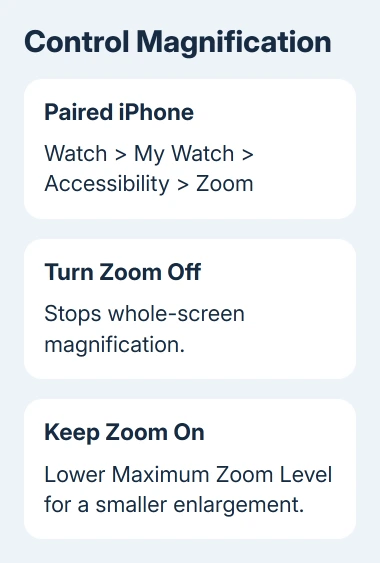
Test the setting on a screen you use often, such as a list in Settings. The useful level is one where you can read the labels and still move to the control you want, rather than a particular maximum number.
Zoom also offers Hand Gestures on supported watches and software through Watch > My Watch > Accessibility > Zoom > Hand Gestures. Those accessibility gestures are separate from tapping the screen with two fingertips.
Enabling hand gestures for Zoom can make the usual universal double tap unavailable. Keep that trade-off in mind if you rely on the finger-and-thumb gesture to answer calls or control other actions.
5. Check the shortcut if Zoom keeps returning
Apple Watch can assign Zoom to the Accessibility Shortcut. That gives the Digital Crown another way to switch the feature, so check the shortcut if Zoom returns after an accidental button press.
Open Settings > Accessibility > Accessibility Shortcut on the watch and review the selected features. Remove Zoom from the shortcut if you don't want it available through that control.
The Accessibility Shortcut instructions describe triple-clicking the Digital Crown. With several features selected, choose one from the menu.
If the entire display looks normal but writing remains too large, adjust text size separately. Screen magnification changes how much of the interface fits; text size changes lettering in supported parts of the interface.
Likewise, use a map's own controls when only the map is enlarged. The Accessibility Zoom switch isn't a general reset for every app's content scale.
When the display still won't respond
A frozen screen that ignores all taps needs a restart. The watchOS update and restart checks cover that procedure. Recheck Zoom after the watch responds.
If Zoom is off but the full interface remains magnified, contact Apple Support through the watch support options. Give the watch model, watchOS version, and whether the paired iPhone shows Zoom enabled or disabled.
Mention whether two-finger taps register at all. A screen that fails to detect touch needs different help from a working screen whose magnification keeps being switched back on.
The Short Version
Double-tap the display with two fingers, then disable Zoom through Accessibility if you don't need it. Use the paired iPhone when the watch menu is difficult to reach. Check the Accessibility Shortcut if Zoom returns.
Checked November 11, 2026.
 If you have any business, I can build it online