Siri reads messages through AirPods when Announce Notifications is enabled. On the iPhone or iPad playing audio through them, open Settings > Notifications > Announce Notifications and turn it off to stop the spoken alerts.
To keep announcements elsewhere, disable only the headphone option instead. Incoming caller names use the separate Announce Calls setting, while workout updates from an Apple Watch have their own control.
In this guide
Stop spoken notifications on the connected device
Open Settings > Notifications > Announce Notifications on the iPhone or iPad playing through your AirPods. Turn the main Announce Notifications switch off if you don't want any announcements from that device.
The change stops Siri reading incoming app notifications. It doesn't turn off normal app notifications, silence every alert sound, or disable Siri's other functions. Messages can still arrive visibly on the device.
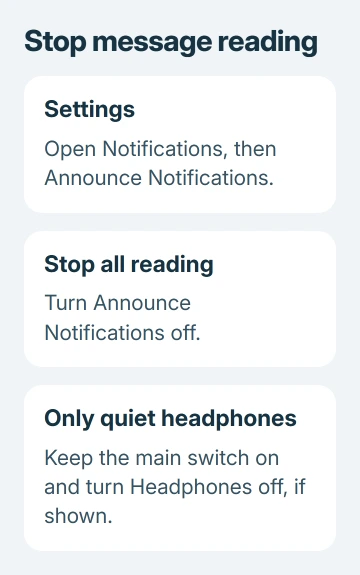
Apple says the announcement switch is under Notifications on current software. Some earlier versions also expose those choices under Siri or Apple Intelligence & Siri.
If the menu isn't where you expect it, use the search field in Settings for Announce Notifications. Open the matching setting rather than switching off the entire Siri feature to stop these spoken alerts.
Change the setting on the device playing through your AirPods. If your AirPods switch between an iPhone and an iPad, changing one device doesn't mean you've changed every device they can connect to.
Use Control Center's audio controls or the connected-device information to check which device is connected to your AirPods. Change that device's announcement setting, then check whether Siri still reads notifications when it normally would.
Keep announcements elsewhere but stop them in headphones
If you still want Siri announcements in another supported setting, leave the main feature enabled and turn Headphones off within Announce Notifications, when that option is shown.
That targets the behavior you're hearing through AirPods. Turning off the main switch stops announcements more widely. Choose the option that fits what you want before changing several switches at once.
For example, if you like messages read in your car but want quiet earbuds, start with the headphone control. If you never want spoken app notifications, use the main switch instead.
I'd use the headphone-only setting first when the complaint is specifically about interruptions to music. That keeps your other announcement settings in place, without disabling Siri and having to set up its other preferences again later.
If you also use CarPlay, check its announcement preferences separately. The car and headphones are different listening situations, even though the notifications originate on the same iPhone.
Quiet one app without disabling every announcement
Open the Announce Notifications page and look through the supported apps listed there. Select the app you don't want read aloud, then switch off Announce Notifications for that app.
This is useful when Messages is helpful but another app interrupts too often. It changes spoken reading for that app without blocking its ordinary notifications or removing the app.
Messages can offer Time Sensitive and Direct Messages or All Notifications. Choosing the narrower option reduces which messages are read; it doesn't mean that no messages will be spoken.
Choose the app's off switch when you want complete silence from that app. Filtering by category won't help if you don't want even direct messages read aloud.
If the real problem is the loud alert rather than Siri's speech, follow the iPhone notification-volume controls. Lowering an alert volume and disabling announcement reading solve different parts of the interruption.
Use Control Center for a temporary change
An Announce Notifications control in Control Center lets you switch the feature quickly. If it isn't present, customize Control Center and add the announcement control from the available controls.
For a Face ID iPhone, open Control Center with a downward swipe from its upper-right edge. A Home-button iPhone needs an upward swipe, beginning at its bottom edge. On iPad, swipe downward from its upper-right edge.
On current iOS and iPadOS, hold Control Center's background to edit it, then choose Add a Control. Find and add the announcement control. Earlier versions use Settings > Control Center for available controls.
Use the control for a quick change, then return to Settings when you want to adjust individual apps or headphone behavior. That control changes the overall feature; it doesn't filter notifications from one app.
For an announcement already in progress, removing an earbud or taking off the headphones can stop the stream of announcements. That stops what you're hearing now; it doesn't permanently disable the setting for later.
Stop caller names separately from message reading
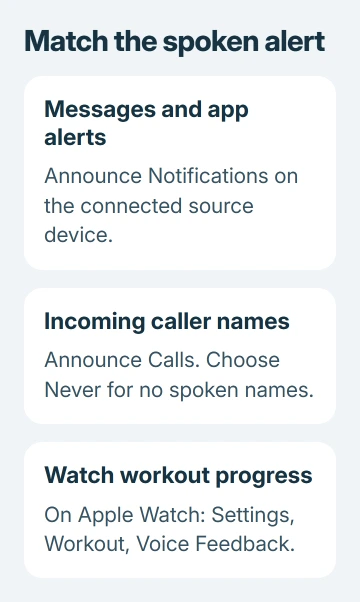
If Siri says who's calling even after messages stop, open the Announce Calls setting. On versions that place it under Siri, use Settings > Siri, or Apple Intelligence & Siri, then Announce Calls.
Choose Never when you don't want caller names announced. Headphones Only still allows announcements through AirPods, so it won't stop caller names through your headphones.
The setting's location can change between software versions. Search Settings for Announce Calls if that route differs, and check the result's label. Don't use Announce Notifications as a substitute for the caller-name control.
The phone can still ring and show its incoming-call screen after you disable caller-name reading. Turning off the spoken name doesn't block calls or stop you answering with the AirPods' normal call controls.
Head gestures also depend on the announcement features for some responses. If nodding or shaking stops doing what you expect, the AirPods head-gesture settings explain that relationship.
Check Apple Watch when the voice keeps returning
If your AirPods are connected to an Apple Watch, check the Watch's announcement settings too. Current watchOS offers Settings > Notifications > Announce Notifications; older layouts can place it under Settings > Siri.
Turn off the Watch's Announce Notifications setting if it is the source. Changing only the iPhone may leave announcements on when you're listening through the Watch, because it has its own setting.
Spoken pace, distance, and activity progress during workouts are another case. Check Settings > Workout > Voice Feedback on the Watch rather than repeatedly changing the iPhone's message settings.
If reading continues, note the exact words, connected source device, software version, and whether it happens for a message, call, or workout. Ask Apple Support to check that specific announcement type and its setting on the source device.
The Short Version
Turn off Announce Notifications on the source iPhone or iPad, disable only Headphones, or quiet individual apps. Caller names and Watch workout feedback use separate settings. Check the connected device if announcements continue.
Checked November 12, 2026.