An Apple Watch microphone can sound muffled after water gets into its opening or debris blocks it. Remove anything covering the microphone, dry the watch if it's wet, then compare a Voice Memos recording with the app that isn't hearing you.
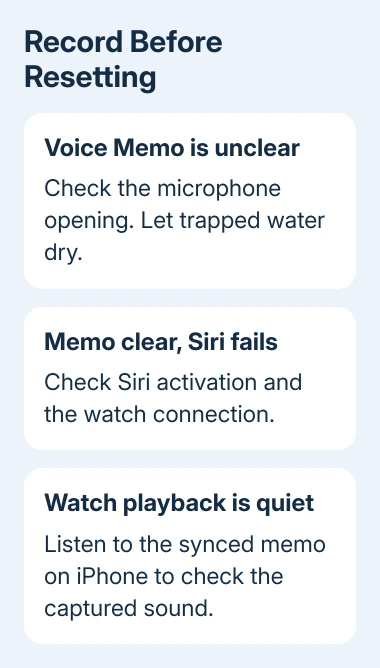
A clear recording with a failed Siri request points toward Siri or its connection. A silent recording and silent calls need the microphone checks first. Raising alert volume won't make your voice reach the other person.
In this guide
1. Remove obstructions and make a short recording
Take off any case or cover that overlaps the watch's openings. Check for dirt, soap residue or a cover that shifted against the microphone. Make sure you're checking the microphone opening rather than the speaker.
Apple's microphone diagrams show the correct opening on your model, with separate drawings for Ultra and other Series models.
Open Voice Memos on the watch. Tap the record button, record a few words in your usual speaking voice, then tap the stop button. Select the new recording and play it.
Listen to your recorded words; a running timer doesn't mean the microphone heard you. If the watch's speaker is also difficult to hear, play the synced recording in Voice Memos on the paired iPhone, using the same Apple Account.
A clear recording there shows the watch captured your voice even if playback on the watch sounded quiet. If the recording itself is silent or muffled, continue with cleaning and drying.
Keep that recording for comparison after each fix. The same spoken sentence makes changes easier to hear than a long call with a different conversation each time.
2. Clean gently, then let trapped water evaporate
If dirt is visible, clean the watch following its model's care instructions. The microphone guide allows lightly running, warm, fresh water to remove debris. Use a lint-free microfiber cloth to dry the outside.
Don't insert a pin, use compressed air or apply heat to the openings. Those methods can damage the watch instead of removing the obstruction. Cleaning liquids, sprays and abrasives aren't suitable either.
After swimming or washing, place the watch microphone-side down on a lint-free microfiber cloth. Water can reduce microphone performance until it evaporates completely, even when the outside already feels dry.
Allow time for it to dry before judging the recording again. Charging overnight may speed up evaporation, once the watch and charger are dry enough to charge safely. Don't expect an immediate change from wiping the glass.
On Series 10 and later, the guide permits a soft-bristle brush for debris in the speaker ports. That doesn't mean you should push a brush into the microphone opening.
Water Lock and its water-ejection sounds act on the speaker. A successful ejection sound doesn't tell you that the microphone is dry. Make a fresh recording after drying to check whether the microphone works.
3. Restart the watch normally
Take the watch off its charger. Hold the side button to bring up the upper-right power control. Tap that control, then drag Power Off. Hold the side button again after shutdown until the Apple logo appears.
On watchOS 8 or earlier, holding the side button takes you directly to the Power Off slider. The current interface adds the power-button step; don't mistake that screen for a microphone setting.
The Apple Watch shutdown instructions cover the button differences. After startup, unlock the watch and make the same short recording again.
If the recording is now clear, try the failed app. A normal restart can clear a temporary software problem, but it won't remove trapped water or repair physical damage, so use the result to choose your next step.
4. Check Siri separately from microphone hardware
If Voice Memos records normally but Siri doesn't respond to speech, hold the Digital Crown to call Siri. Speak when Siri is listening. This lets you try Siri without relying on it to hear a hands-free request.
Open Settings > Siri on the watch and check the available listening options. Depending on the watch and language, these include Listen for, Raise to Speak and Press Digital Crown.
Make sure the trigger you're trying is enabled. A disabled listening option can make a healthy microphone seem unresponsive.
If Siri opens but reports a connection problem, check the watch's connection to its iPhone, Wi-Fi or cellular network.
If your watch shows a disconnected-phone symbol, use the watch-to-iPhone connection checks. Repeating voice commands won't fix a broken connection to the service.
If calls alone fail, confirm that the call's microphone isn't muted. Make a fresh call without connected Bluetooth headphones so you're comparing the watch's microphone rather than an accessory microphone.
5. Update both devices before a full re-pair
On iPhone, open Settings > General > Software Update. For the watch, open the Watch app > My Watch > General > Software Update and install the update offered for that model.
Connect the iPhone to Wi-Fi and keep it nearby. The watch battery must read 50 percent or higher. Keep its charger attached throughout installation.
On an older model, install the update it offers. Don't try to force a newer major version that the watch doesn't support.
If the microphone still fails after cleaning, drying, restarting and updates, unpairing and pairing again is the remaining software step in the microphone guide.
I'd do it after those simpler checks because it erases and rebuilds the watch setup.
Keep the iPhone close. Open Watch > My Watch > All Watches, tap the info button, then Unpair Apple Watch. Confirm, keep the cellular plan if you'll pair again, and enter the password when the Apple Account prompt appears.
Unpairing through the iPhone creates a fresh watch backup. Pair the watch again and restore the backup when offered, then check Voice Memos before changing other settings.
When the recording is still silent
Arrange an Apple Watch service assessment through Apple Support if the same recording remains silent or distorted. Give your model and software version, any water exposure or drops, and whether iPhone playback was also unclear.
That helps them tell a recording problem from a speaker problem. Keep the short comparison recording and describe which of calls, Siri and Voice Memos fail, so support knows which audio function has failed.
The Short Version
Remove obstructions, compare a Voice Memos recording, and let a wet watch dry. Restart and update both devices. Treat Siri-only or call-only failures separately; if recordings remain bad after a re-pair, arrange a microphone assessment.
Checked November 12, 2026.