iCloud can keep your iPhone contacts updated on your Mac without a cable. Use one Apple Account, enable its Contacts service on each device, and open the iCloud list in the Mac's Contacts app.
Check where the contacts are stored first. A Google or work address book shown on the iPhone doesn't move into iCloud just because you switch on iCloud Contacts.
In this guide
Check the account holding the contacts
Open Contacts on the iPhone and tap Lists. Select All iCloud and look for a person you want to see on the Mac. Then check any other account lists if that person isn't there.
The combined All Contacts view can mix several address books. Looking at the individual lists tells you whether the missing person belongs to iCloud, Google, a work account, or another source before you change sync settings.
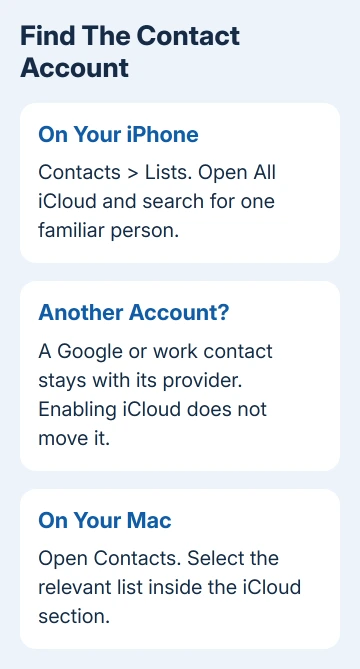
For an existing iCloud address book, continue with the iCloud switches. For an address book held by another provider, use that same provider on the Mac rather than expecting the iCloud switch to copy its contents.
For a provider account missing from the Mac, open Contacts and use Contacts > Add Account from its menu. Pick the account type, click Continue, and complete sign-in. Enable Contacts among the account's services.
If that account is already on the Mac, open Contacts > Accounts, select it, and enable its Contacts service. Select its list in the Contacts sidebar afterward; those cards remain with their original provider.
I'd check one familiar contact before attempting a large cleanup or import. It makes the account choice concrete, and you can compare that person's number and email address on both screens afterward.
If this is a move between phones rather than a Mac setup, the iPhone-to-iPhone contact transfer choices explain when a separate exported copy makes more sense than continuing sync.
Enable iCloud Contacts on the iPhone
Open Settings, tap your name, and select iCloud. Compare this account name with the Mac's intended account. Both devices must use that account to share its iCloud address book.
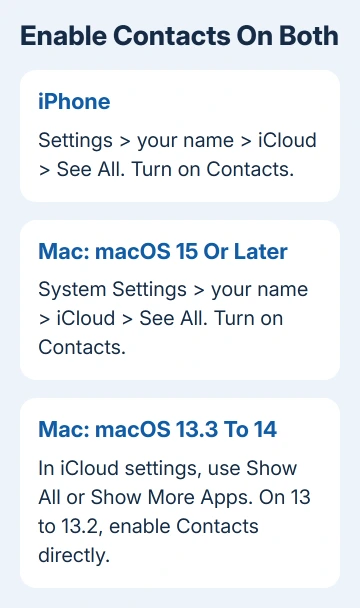
Beside Saved to iCloud, tap See All, then enable Contacts. Some versions show Show All instead. These are the iCloud service controls, rather than the account settings inside the Contacts app.
Apple recommends the same account on each device in its iCloud Contacts setup instructions. Having the Contacts app installed on both devices isn't enough when only one has the iCloud service enabled.
If a confirmation appears about existing contacts, read it before choosing. Keep the address book intact while setting up sync; don't delete its cards to try to force the Mac to download them again.
Keep internet access available on your iPhone. Automatic syncing needs a connection, so a disconnected phone can't send a new contact to the Mac even when its switches are correctly set.
Enable Contacts in the Mac's iCloud settings
Open the Apple menu > System Settings, then select your name in the sidebar. If the Mac asks you to sign in, sign in with the account already selected on your iPhone. Open iCloud.
On macOS 15 or later, find Saved to iCloud, select See All, and turn on Contacts. That includes newer releases using the same account-settings layout.
On macOS 13.3 through 14, find Apps Using iCloud, select Show All or Show More Apps, and enable Contacts. On macOS 13 through 13.2, turn on Contacts directly in the iCloud settings.
These paths use System Settings. A Mac with an older System Preferences layout needs its version's iCloud account controls; don't look indefinitely for a Saved to iCloud heading that isn't present on that release.
Now open Contacts on the Mac. In its sidebar, find the iCloud section and choose All Contacts or the relevant group there. Check the same person you found in All iCloud on the phone.
The address book can be on your Mac while Contacts shows a different list. Choose the iCloud section so you're comparing it with the phone, rather than an On My Mac list or another account.
Choose where new contacts will be saved
The default account controls where new contacts go, not where existing cards are stored. Changing the default account affects new contacts; it doesn't move the records already held by Google or a different service into iCloud.
On iOS 18 or later, open Settings > Apps > Contacts > Default Account and choose iCloud, if the account choice is available. On iOS 17 or earlier, start at Settings > Contacts > Default Account.
Use this when future contacts should join the shared iCloud address book. Leave the original provider as the default when that is where you actually want to keep your contacts, and set up the Mac to use that provider too.
On the Mac, open Contacts > Settings > General and choose the desired Default Account. That menu appears when you have several contact accounts. Pick iCloud there too if new Mac cards should enter the shared iCloud list.
A contact saved into the wrong account can look like a sync failure because the other device is showing a different list. Check the source list again before adding a second copy by hand.
Deleting a synced card can remove it from other devices as well. Review the scope of contact deletion before treating one device's address book as a spare copy you can safely delete.
Refresh the list if a recent change hasn't appeared
In the iPhone's Contacts app, open Lists, select the iCloud list, then swipe downward to refresh it. Look for the missing contact again. This refreshes the visible list without removing the account or erasing its contacts.
If the app seems stuck, close Contacts, wait about a minute, and reopen it. Check after each action so you can stop once the updated card appears rather than changing several account settings unnecessarily.
Check internet access, available software updates, and each device's date and time. Check the account names and Contacts switches again if one device still has no iCloud section at all.
If only particular people are absent, check their account lists again. A few missing Google contacts alongside a complete iCloud list points toward the account holding those people, rather than a failure of every contact to sync.
Know when a cable is a different route
On macOS Catalina or later, Finder can sync supported content with an iPhone; older macOS uses iTunes. With iCloud Contacts enabled, computer contact-sync options disappear because iCloud maintains that information instead.
A missing contact-sync option in Finder doesn't call for disabling an iCloud address book that works. Choose which method you want to use, and protect your existing contacts before changing how they sync.
If the accounts and switches match but the lists still differ, ask Apple Support to check iCloud Contacts syncing. Provide both software versions, the affected account, and whether entire lists or only recent edits are missing.
The Short Version
Enable iCloud Contacts on the iPhone and Mac with matching accounts, then compare their iCloud lists. Choose the default account for future cards separately. Enabling iCloud doesn't move existing contacts out of another provider.
Checked November 12, 2026.