Connect a compatible Canon printer and phone to the same home Wi-Fi, then add it in Canon PRINT. Without a router, use Wireless Direct. An iPhone can also use AirPrint if the Canon model supports it.
Check the full model before pressing wireless buttons. PIXMA controls vary, and pocket photo printers can use another app. The TS3500-series button steps apply only to that series. Phone setup steps are separate for iPhone and Android.
In this guide
Choose home Wi-Fi or a direct connection
For home printing, put both devices on your household network. The phone keeps its normal internet connection while communicating with the printer. This is convenient when several people need to print.
If the printer hasn't joined the router yet, use the Canon Wi-Fi setup procedure for its model. Adding a printer inside the phone app doesn't replace finishing the printer's network setup.

Without a router, Wireless Direct lets your phone join the printer's own Wi-Fi network. This changes the phone's wireless connection, so it can interrupt internet access through the home router while you're printing.
Keep the printer on and load paper before starting. Find the model on the printer's label and check whether it supports printing from a phone. A USB-only printer isn't made wireless by installing an app on the phone.
To turn paper into a file on your computer, use the Canon scanning utility and check the saved page before sharing it.
I'd use home Wi-Fi when it's already available and reserve Direct for places without a suitable router. Both connections let you print, but choosing one first makes it easier to follow the prompts and use the right password.
Add the printer in Canon PRINT on Android
Install Canon PRINT from Google Play, checking that Canon is the developer. Connect your Android phone to the home Wi-Fi you want to use. For Wireless Direct, use the printer-network connection steps later in this guide.
Turn on the printer and start Canon PRINT. Accept the printer-registration prompt and follow its instructions to find and select the correct model. When setup finishes, you should see the registered printer and the app's printing options.
Canon says to tap Yes to register the printer. The example screens use an older Android version, so follow your installed app's prompts rather than expecting identical artwork.
If the printer isn't found, use the offered If Printer Cannot be Found option and Auto Connection (recommended) where those controls appear. Continue through the connection instructions for your model.
Allow the permissions needed for the feature you're using. To print a saved photo, for example, let the app access your photos. That permission doesn't connect the printer to Wi-Fi, so finish registration before choosing a large print job.
When several Canon printers appear, compare the full model name with the physical printer. Select the one you mean to use, then send a single small job to confirm that the paper comes from the right machine.
Add it on iPhone, or use AirPrint
For Canon PRINT, download Canon PRINT through the App Store and join the same home Wi-Fi as the printer. Open the app, accept the registration prompt, and follow the onscreen instructions to select your Canon.
If your printer doesn't appear in the app, check that your phone is still on the Wi-Fi network you want to use. The iPhone registration steps also offer an automatic-connection route for a printer that isn't discovered.
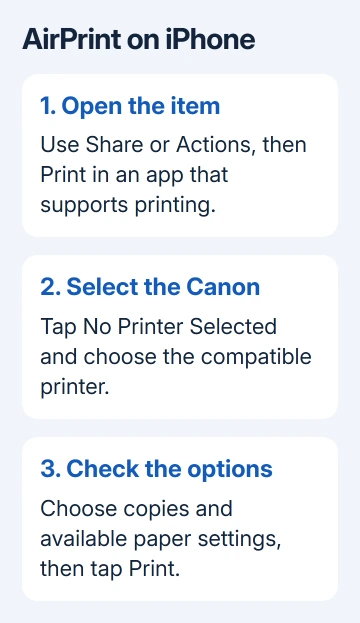
For AirPrint, no separate printing app is needed. Confirm the exact printer supports it, then open the photo, document, or webpage you want to print. Tap the app's Share or Actions control and choose Print.
Tap No Printer Selected, choose the Canon, set the copies and other available options, then tap Print. Apple's AirPrint procedure requires the phone and printer to use the same Wi-Fi network.
For an HP in the same household, follow its iPhone AirPrint setup and confirm that model's compatibility.
Some apps don't offer printing. If Print is missing in one app, try an item in Photos or another app that supports it. A missing Print command and an empty printer list are different problems.
If your Canon supports AirPrint but doesn't appear in the list, use the iPhone printer-discovery checks. Don't pair it in Bluetooth settings to repair an AirPrint connection.
Connect directly without a router on the TS3500 series
These button steps apply to the PIXMA TS3500 series. For another Canon, open that model's Wireless Direct instructions. Similar-looking buttons can start different modes, so keep your model's instructions beside the printer.
Turn the TS3500-series printer on and press Wireless select to enable Wireless Direct. Check its LCD for the Direct indicator. This is separate from holding Wireless connect to begin router setup.
Open the phone's Wi-Fi settings. On iPhone, use Settings > Wi-Fi. On Pixel, use Settings > Network & internet > Internet; on Samsung, use Settings > Connections > Wi-Fi.
Select XXXXXX-TS3500series. The six Xs stand for your printer's identifying suffix. Enter the printer's Wireless Direct password when requested. Use the printer's password, rather than your home router's password.
Print the printer's network settings if you need to check its Direct network name or password. Follow the TS3500 manual's Printing Network Settings procedure rather than guessing from an unrelated label on the router.
The Wireless Direct instructions allow up to five devices at once. Disconnect an unused device if that limit has already been reached, then join with the phone.
Stay connected to the printer's network while printing through Canon PRINT. Your phone can show a no-internet message on this direct connection. Return the phone to the household Wi-Fi when you're finished.
Print one item and check the paper result
In Canon PRINT, choose Photo Print, select a photo, then tap Next. Set the paper size and other printing options to match the paper loaded in the printer. Tap Print and check that one result before selecting more photos.
If the phone sees the printer but paper doesn't emerge, look at the printer's own screen or lamps for an error. A paper or ink warning needs fixing on the printer; registering the same connection again won't clear a physical paper jam.
If your printer isn't detected, check that both devices are on the network you intended to use, move them closer, and restart them. For Direct, check that the Direct mode is enabled and that the phone has joined its network.
If it still fails, give Canon the printer model, phone system, app name, and connection method. Say whether the phone can't find the printer, can't register it, or can't print. That tells support which step needs help.
The Short Version
Use Canon PRINT on home Wi-Fi or join the printer's Wireless Direct network without a router. A compatible iPhone setup can use AirPrint. Match buttons to the model and check the result with one printed item.
Checked November 12, 2026.