Windows can block a PowerPoint attachment or download even when the presentation itself is intact.
Check the file's Properties for Unblock first. If that control isn't there, or the file still won't open, try PowerPoint's Open and Repair command on a separate copy.
In this guide
1. Unblock the presentation you trust
Close the error message and find the actual presentation in File Explorer. Use the downloaded file rather than the attachment preview inside your email app. Right-click it and choose Properties.
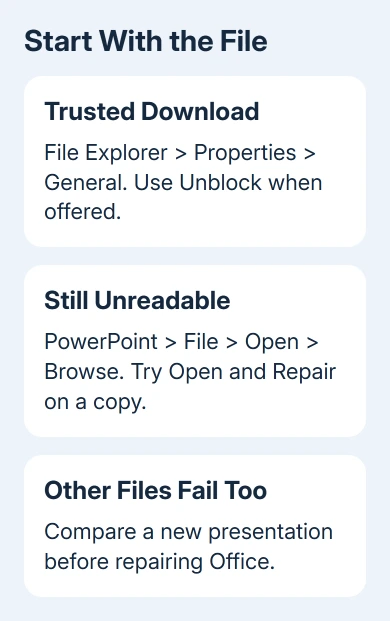
On the General tab, look near the bottom for Unblock. Select it when available, choose Apply, then OK. Try opening the file again from File Explorer.
Unblock the presentation only after checking its sender and contents. This approves the file you checked while keeping protection in place for other documents.
Microsoft says a file security block can cause this opening error. That makes it a better first check than rebuilding Office.
If the presentation opens, stop there and review its slides. If Unblock is missing, don't spend time hunting for it in PowerPoint's ribbon. Continue with a local copy and the repair command.
2. Put a fresh copy on the computer
Save another copy of the attachment or download to a local folder you can recognize. Give it a different filename so the original stays available. Then open the newly saved copy from within PowerPoint.
Opening that local copy helps you check whether the email preview, download, or storage location was getting in the way. A second copy that opens is more useful than changing settings around a damaged first download.
Ask the sender to open their original presentation too. If theirs works, request a new .pptx copy using File > Save As. That gives you another copy to try when the file you received keeps failing.
Changing the filename extension by hand doesn't convert a presentation. A file ending in .pptx needs to contain a PowerPoint presentation, not a PDF or another document renamed to look like one.
If the sender also can't open the original, skip repeated downloads of the same file. Work with a duplicate through the recovery steps, or look for a usable earlier version.
3. Use Open and Repair from the file picker
Start PowerPoint without opening the faulty presentation. Choose File > Open > Browse. Navigate to your separate copy and click it once in the file picker.
Open the small menu beside the Open button, then select Open and Repair. Choosing an entry from Recent skips this file picker, so it won't expose the same command.
The Office file-recovery instructions cover presentations as well as documents and spreadsheets. The command may recover a file that ordinary opening can't handle.
If recovery succeeds, save the result under a new name. Check the slide order, text, pictures, speaker notes, and any media before using it for a meeting. A recovered copy still needs that content review.
If the command fails, keep the original and note exactly what the error says. A password prompt, an unreadable-file warning, and a missing-file message need different next steps; don't treat them as one error.
4. Check whether PowerPoint can open anything else
Open a different presentation that you already know works. Then choose File > New > Blank Presentation, add a little text, and save it locally. Close that test file and reopen it.
If both checks succeed, focus on the unreadable presentation. Getting the author's original or recovering that presentation is more useful than reinstalling Office when other files work.
If another presentation also fails, or the new test file won't reopen, the application needs attention. Keep a note of which part failed: creating, saving, or opening. Those details help support decide what to repair.
For a file that opens but fails only when saving changes, use the PowerPoint saving-error steps. They deal with destinations, fonts, and saving a new copy rather than this opening error.
I'd keep the working test presentation until the problem is resolved. It gives you a simple comparison after a repair, without risking the presentation you need for work.
5. Recover an earlier cloud version when available
If the presentation is stored in OneDrive or SharePoint, check Version History. In desktop PowerPoint, a file that opens can offer this through its title or File > Info.
OneDrive's File Explorer menu also offers version history for supported files.
Look for a version from before the file stopped opening. If it opens successfully, save a separate copy for review before replacing the current working file. Check how much recent editing is missing.
Version history can help only if OneDrive or SharePoint has earlier saved versions. A file downloaded once to an ordinary local folder doesn't gain cloud history just because Office is installed.
When someone else owns the shared presentation, ask them to check its history rather than guessing which copy is current. Mention the last date it opened and the edits made just before it stopped working.
6. Repair Office when the failure affects several files
Close the Office applications first. In Windows 11, open Settings > Apps > Installed apps, locate Microsoft 365 or Office, open its three-dot menu, and choose Modify.
In Windows 10, use Settings > Apps > Apps & features, select the Office installation, then choose Modify. These controls can require administrator approval on a work computer.
For a Click-to-Run installation, start with Quick Repair. If several files still won't open, use Online Repair, which needs an internet connection. An MSI installation uses a different dialog with a Repair option.
Reopen the small test presentation afterward, then the troublesome copy. If several files remain unreadable, contact Microsoft Support or your organization's IT team with the Office version and both results.
For one unrecoverable presentation, ask the sender for their original or a previous version. A PDF can help you read or present urgent material, but it won't replace an editable PowerPoint file.
When support recommends a fresh installation, get PowerPoint from the purchase account so the download matches the license you own.
The PowerPoint PDF-export guide covers that option.
The Short Version
Unblock a trusted downloaded file first.
Keep its original, use the file picker's repair command on a duplicate, and compare another presentation before repairing Office. If only one file fails, a fresh sender copy or earlier saved version is the next useful recovery route.
Checked November 12, 2026.
 If you have any business, I can build it online