

An iPad that receives blue iMessages but misses green texts usually needs its iPhone's message forwarding checked. If neither type arrives, start with the iPad's internet connection and iMessage receiving addresses.
A message that's already inside Messages but makes no sound is an alert problem instead.
In this guide
1. Check whether the message is missing or just silent
Open Messages on the iPad and look in the conversation itself. Ask someone to send a new message while you watch. If it appears there, the text arrived. Check alerts rather than delivery.
Open Settings > Notifications > Messages and check Allow Notifications, the alert locations, and Sounds. Also open Control Center to review the active Focus and whether that conversation has Hide Alerts enabled.
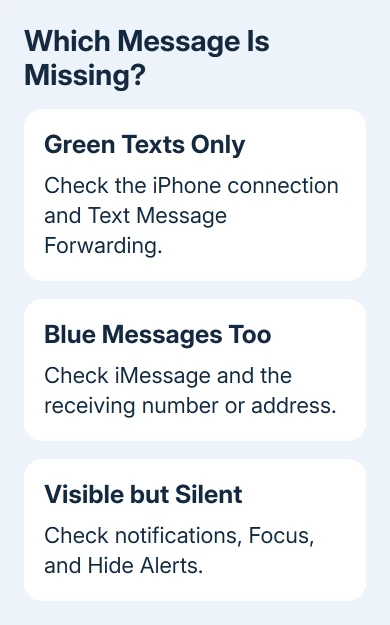
When the message isn't in the app, compare an iMessage from another Apple device with a carrier text that reaches your iPhone. Blue messages use iMessage; green messages can be SMS, MMS, or RCS.
Don't assume every green message is the same type, or that the iPad's cellular plan replaces the iPhone forwarding connection. Check whether that missing message reaches your iPhone and then fails to appear on the iPad.
If the iPhone misses it too, work through the iPhone message-receiving checks. Forwarding can't supply a carrier message that never reached the phone.
2. Restore the iPhone connection for missing green texts
Keep the iPhone turned on and connected to Wi-Fi or cellular service. Confirm that it can send and receive messages. Your iPad needs working internet access for account-based messaging too.
Open a webpage on the iPad to check that its connection works. The Wi-Fi icon can remain visible even when internet access fails. If browsing fails too, use the iPad Wi-Fi repair steps.
Compare the Apple Account signed into iCloud on both devices. Check the account heading on each device's main Settings screen. The devices need the same account for forwarding to work; keeping the iPad near the phone isn't enough.
Once both devices are connected, ask someone to send another ordinary text. I'd use that instead of a bank's one-time code, which can expire while you're changing settings.
If the new message reaches the phone but still misses the iPad, check the forwarding setup next. If messages fail on both devices, the phone's service or message registration needs attention first.
3. Turn on forwarding, or check Messages in iCloud
On the iPhone, open Settings > Apps > Messages > Text Message Forwarding. Find your iPad among the devices and enable its switch. On iOS 17 and earlier, Messages is directly inside Settings rather than Apps.
If a verification code appears on the iPad, type it into the iPhone's verification prompt. This can be required for a device that isn't using two-factor authentication for the Apple Account.
Apple's current forwarding instructions explain another way to receive those texts: Messages in iCloud includes text forwarding. Devices using that service don't need a separate forwarding setup.
Check Settings > [your name] > iCloud > Messages on both devices if you already use it. The switch can read Use on this iPad or Use on this iPhone. In some versions, first choose See All or Show All to find Messages.
Check this when your iPad already appears to be enabled. Don't keep turning things off because a separate switch doesn't behave as expected. Confirm the account and connection, then check a new incoming message.
If the Text Message Forwarding entry is missing entirely, switch the iPhone's iMessage off, then back on. Then open Send & Receive and sign in again if prompted. Continue with the next section if the iPad itself is missing from the list.
4. Match the iPad's iMessage account and addresses
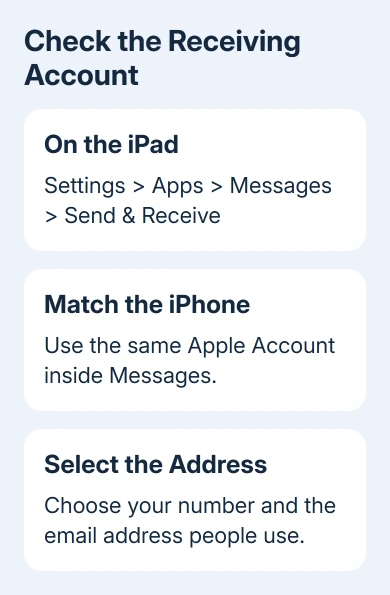
On the iPad, open Settings > Apps > Messages and turn on iMessage. In older iPadOS versions, open Settings > Messages. Choose Send & Receive.
Compare the Apple Account shown there with the one used by Messages on your iPhone. The account in Messages can differ from what's shown on the main Settings screen. That mismatch can keep your iPad out of the forwarding list.
If the Messages account is wrong, tap it to sign out of Messages, then sign in with the matching account. This is the Messages sign-in, not a request to sign out of the entire iPad.
In the receiving-address list, select your number and the email address people normally use to reach you. A message sent to an unchecked address can reach another device while missing this iPad.
Have your contact compose a new conversation addressed to that checked number or email. That way, they're not replying to an old thread that uses an address your iPad no longer receives.
5. Fix a missing or unselectable phone number
The phone number is set up through the iPhone. On that phone, open Settings > Apps > Messages > Send & Receive and check that your number and Apple Account are selected. An active SIM or eSIM for that number is required.
Then return to the iPad's receiving list and look for the number. If the iPhone shows Waiting for Activation, finish activating the number there before trying to select it on the iPad.
For a number that remains unavailable, follow the phone-number setup sequence. It signs out of Messages and FaceTime on the affected devices, sets up the iPhone first, then signs the other devices back in with the same account.
A missing phone number needs to be set up through the iPhone. For a wrong email address, return to the receiving-address list and check what's selected. Repeating a network reset won't select an unchecked address.
6. Report the part of delivery that still fails
If account and forwarding changes didn't help, restart the devices and check each for a system update. Then compare one new iMessage and one new carrier text again.
For carrier messages missing on the iPhone, ask your carrier to review incoming SMS, MMS, or RCS on the affected line. State which type fails and whether calls still work.
For messages reaching the iPhone but not the correctly signed-in iPad, contact Apple Support through its Messages help page.
Tell support both devices' system versions, whether Messages in iCloud is enabled, and whether your phone number appears in Send & Receive.
The Short Version
Green texts missing only on iPad need the iPhone connection and forwarding checked. Missing blue messages need iMessage and the right receiving addresses. Messages visible in the app need notification checks instead.
Checked November 12, 2026.
 If you have any business, I can build it online






