Yes, many old laptops can take more RAM or a replacement drive. Your model decides which parts can change, so check its service manual first. Memory soldered to the board or an incompatible connection can rule out the part you had in mind.
Start with the problem you're trying to solve. A slow hard drive, too little working memory, and a worn battery need different parts. Replacing storage won't make an old graphics chip suitable for a demanding new game.
In this guide
Find the model's service manual before choosing parts
Copy the full product and model numbers from the label or the support app. Windows also lists details in Settings > System > About, but use the maker's product number to identify the version you own.
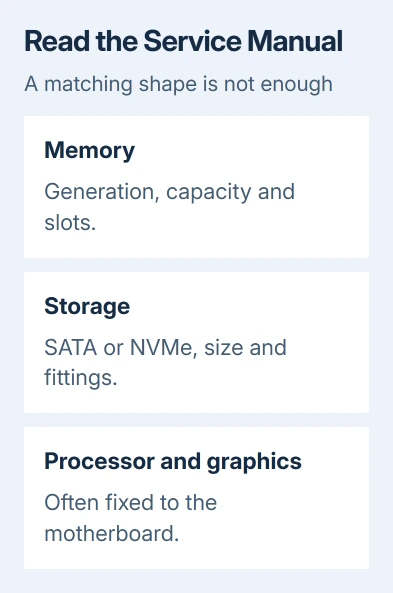
Find the manufacturer's maintenance or service manual for that number. Look for sections covering memory, storage, the battery, and removal of the bottom cover. Laptops in the same product family can have different parts and layouts inside.
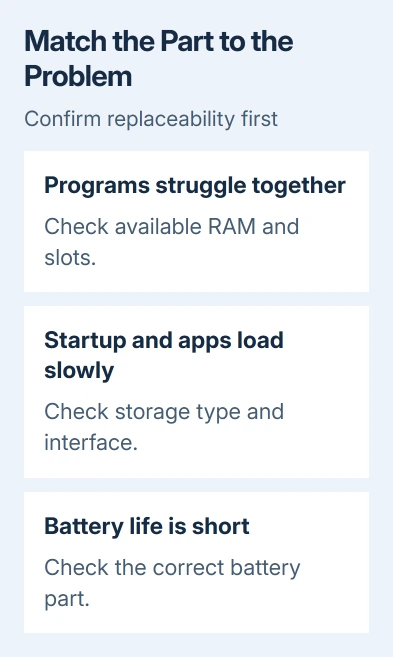
Check whether each part has a removal procedure. A specification saying the laptop was sold with 8 GB doesn't tell you whether the memory is in a removable slot, soldered to the board, or split between both.
The manual should also identify the supported type and capacity. Keep those details beside your shopping list. A part that fits another laptop with the same screen size can still be incompatible with yours.
I'd confirm the service procedure before comparing prices. If reaching the part requires a full motherboard removal, a repair shop's labor charge belongs in the decision from the start.
Choose more memory only when the laptop can accept it
RAM is the working space used by open programs. In Windows 11, press Ctrl + Shift + Esc, open Performance, and select Memory while running your usual workload. Windows 10's Task Manager also has a Performance tab.
If memory keeps running short during your usual work, consider adding more. A single percentage immediately after startup isn't enough to choose a capacity. Look at what happens when the programs you actually need are open together.
Removable laptop memory often comes on small modules called SO-DIMMs. Soldered memory is attached to the board. Some laptops combine fixed memory with a free or occupied slot, so only part of their total can change.
Match the generation, module type, supported capacity, and slot arrangement in the manual. DDR3, DDR4, and DDR5 aren't interchangeable. Don't buy a desktop memory module simply because its speed and capacity look right.
For a general capacity decision, the 16 GB RAM guide explains the workload side. Your model's limit still comes first; a larger module isn't useful if the laptop won't recognize it.
After installation, check how much memory appears in the firmware setup or Task Manager. If less memory appears than you expected, check that the module is compatible and fully inserted before judging whether the upgrade helped.
Replace a hard drive with a compatible SSD
An SSD has no spinning disk and can make starting Windows and opening programs much quicker than an old hard drive. The SSD and hard drive comparison explains where that change helps most.
Check the existing drive's connection and physical size. A laptop with a 2.5-inch SATA drive needs a compatible replacement and may reuse a cable, bracket, or caddy. Keep those fittings when removing the original drive.
An M.2 slot takes a small board-shaped drive, but its shape doesn't identify a compatible drive. M.2 SATA and M.2 NVMe use different connections. Check the supported connection and the drive lengths the mounting points accept.
Don't assume an empty-looking space is a usable second drive bay. Some configurations need a missing cable or bracket, and others don't have the required connector. Check what's fitted in your laptop before buying a second drive.
Plan how to transfer Windows and your files. Cloning copies the existing installation; a clean installation means restoring files and reinstalling apps afterward. Save important files to a separate backup before starting.
Seagate's replacement instructions require checking the computer maker's access procedure and supported specifications. Prepare the transfer first, fit the compatible drive, and check that the laptop starts from it.
Treat the processor and graphics as model-specific limits
A laptop processor usually isn't as practical to upgrade as a desktop processor. Many are soldered to the motherboard. Even an older socketed model needs firmware that supports the new chip, plus enough power and cooling to run it.
Graphics has similar limits. A desktop graphics card doesn't normally replace a laptop's built-in graphics hardware. Some special designs have removable parts; check the exact model's service information for compatibility.
Check a demanding game or app's requirements before spending on RAM or storage. More RAM or storage won't add a missing processor feature. These upgrades also can't replace integrated graphics with a faster dedicated graphics chip.
Also check the operating system you intend to keep. Microsoft documents Windows performance checks for software problems, but new RAM or an SSD doesn't automatically make an old laptop eligible for Windows 11.
Replace a worn battery using the proper procedure
Replacing a worn battery gives you more time away from the charger. It won't make the laptop run faster. Match its part number and follow the maker's disconnection and replacement procedure.
Some internal batteries can only be disconnected after you remove the bottom cover. Follow the service manual's order for shutting down, unplugging external power, and disconnecting the battery before working on other internal parts.
A swollen battery needs service. Unplug the charger and stop using the laptop; ask its maker or a qualified technician to handle the battery. Case or touchpad pressure can indicate an expanded battery.
For every internal change, keep screws grouped by their original positions and avoid touching connector contacts. If getting to the part involves more than you're comfortable doing, give the shop the model and approved part details.
Get a quote for parts, installation, any data transfer, and a check that the laptop starts properly. Compare the total with keeping or replacing the laptop.
A damaged screen, unsupported software, and several worn parts can make one upgrade a poor use of the budget.
The Short Version
Use the model's service manual to match a replaceable part to the problem. RAM, an SSD, and a battery are common possibilities. Confirm processor, graphics, and operating system limits before paying for upgrades.
Checked November 12, 2026.