

Lock an iPhone app by holding its Home Screen icon, choosing Require Face ID, then choosing Require Face ID again. Its icon stays visible, but you'll need Face ID, Touch ID or your passcode to open it.
On phones using Touch ID or Passcode, the command uses that name instead. Choose the option shown on your screen to lock the app and keep its icon visible.
This built-in control arrived with iOS 18 and remains available in newer versions. It's different from hiding an icon, setting an app time limit, or keeping a borrowed phone inside one app.
In this guide
Lock the app from its Home Screen menu
Press and hold the app's Home Screen icon until its quick actions appear. Tap Require Face ID, Require Touch ID or Require Passcode, whichever your phone shows.
In the next prompt, choose Require Face ID or the matching authentication option again. Use Face ID, Touch ID or your passcode when asked. The app's icon should remain in its usual place rather than moving to a hidden folder.
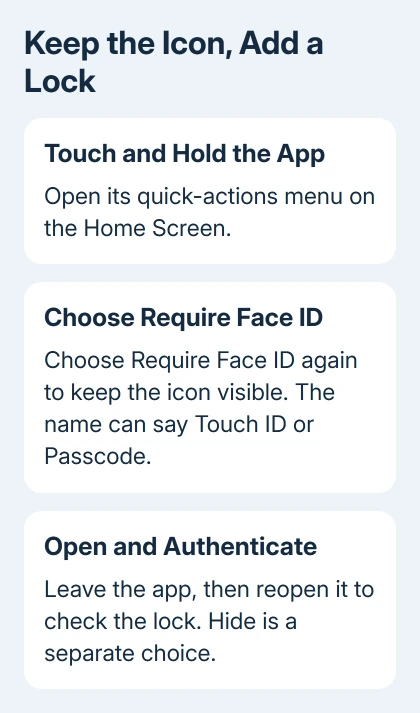
Try opening the app to check the lock. It should ask for Face ID, Touch ID or your passcode before showing its contents. Apple's app locking instructions explain how the lock protects the app you've chosen.
Repeat the procedure for each app you want to protect. Locking Mail doesn't automatically lock Messages or another app. Choose the apps containing information you don't want someone browsing while using your unlocked phone.
If the prompt offers Hide and Require Face ID, choose the plain Require option for this task. The iPhone app hiding guide explains the separate choice when the icon should disappear as well.
Check how the app behaves when opened again
Tap the locked app, unlock it as prompted, and use it normally. Opening it for one session doesn't remove its lock. After you leave the app, it locks again and needs authentication when you return to it.
When lending someone your unlocked phone, leave any sensitive app and check that reopening it asks you to unlock it. A person looking at an already-open page can still read the contents on display.
The lock also keeps information from that app out of places such as notification previews, search, Siri suggestions, CarPlay and call history. It doesn't delete the app's contents, so the information is still there when you unlock it.
The setting applies to this iPhone. It doesn't sync the locked status to another iPhone or iPad through iCloud. Set the control separately on another supported device even when both devices share your account.
If the app opens without an unlock request, check that you completed the second Require prompt. Opening the icon's menu alone doesn't set the lock. Leave the app before testing, so you're checking a fresh opening.
Understand when the passcode can still open it
A locked app normally accepts Face ID, Touch ID or the phone's passcode. That makes it useful against casual browsing, but someone who knows your phone's passcode may still be able to open the app.
Stolen Device Protection adds a stronger rule away from familiar locations. When it's on, a locked app there requires Face ID or Touch ID, with no passcode fallback. Someone who knows only your passcode can't open the app there.
To check the feature, open Settings > Face ID & Passcode or Touch ID & Passcode, enter the device passcode, then open Stolen Device Protection. Check whether it's on before assuming only your face or fingerprint can open the locked app.
I'd check this distinction before relying on a locked email app to protect account codes. The app lock and Stolen Device Protection work together, but choosing Require Face ID alone doesn't mean passcode access is always removed.
Check whether Face ID or Touch ID works before changing protection settings. A request for Face ID away from familiar locations differs from an app password error. Show support the screen asking you to unlock the app.
Work out why Require Face ID is missing
First check Settings > General > About > iOS Version. The system app-lock feature needs iOS 18 or later. On an older release, an app may have its own security control, but that isn't the Home Screen command described here.
Some built-in apps can't be locked this way. These include Calculator, Camera, Clock, Contacts, Find My, Maps, Shortcuts and Settings. A missing command for one of these is expected behavior.
Compare an eligible app such as Mail. If Mail has the command and Camera doesn't, that's because Camera is one of the apps that can't be locked. Resetting the phone won't make Camera eligible for this lock.
Family Sharing has age rules. Under-13 accounts can't lock or hide apps; teens aged 13 through 17 can. Family organizers can still review downloads and usage, and set Screen Time limits. Regional age boundaries vary.
If a managed phone lacks the command for eligible apps, ask its administrator to check its settings. Keep its management settings in place while they check the missing control.
On an unmanaged, supported phone, tell Apple Support which eligible app lacks the command. Include the installed iOS release and account age category. Ask them to check why app locking isn't available.
Turn off the app's authentication requirement
Touch and hold the app's icon again. Tap Don't Require Face ID, Don't Require Touch ID or Don't Require Passcode, then authenticate. Open the app afterward to confirm that the extra request has stopped.
Removing this lock keeps the app and its data. Reinstalling isn't needed to stop the authentication request, and it can create extra work with sign-ins or locally stored information.
If the icon disappeared, you chose hiding rather than locking alone. Use the steps to unhide an iPhone app to make the icon visible again and remove the hidden app's authentication requirement.
For a phone you're lending briefly, decide what access is needed before changing several apps. App locking protects selected apps; Guided Access is the separate feature for keeping the phone within one app during a session.
The Short Version
Use Require authentication twice and check the app when reopened. The plain lock keeps its icon visible. Check the passcode rule before relying on it, and use Don't Require authentication to remove the lock.
Checked November 12, 2026.
 If you have any business, I can build it online






