A Chrome video that gets choppy after you switch windows can be affected by power saving or the site's hidden-player behavior. Try turning off Energy Saver on a laptop, or use picture-in-picture to watch while working.
Watch what happens when you switch windows. A choppy picture with continuing sound, a tab that reloads, and a player that pauses on purpose need different checks.
In this guide
1. Turn off Energy Saver for the playback session
Open Chrome's three-dot menu, choose Settings, then Performance. Under the power controls, turn Energy Saver off if it's available. Return to the same video and switch to the same other window again.
Google's performance settings explain that Energy Saver reduces image capture rate and background work. Video and gaming performance may change while it's enabled.
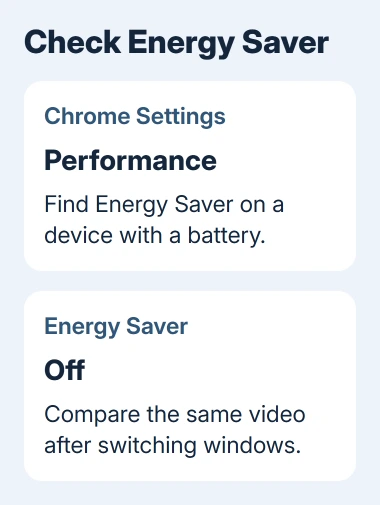
Energy Saver is available on Windows, Mac, and Chromebook devices with a battery installed. It doesn't turn on while the device is plugged in. A desktop without that control doesn't need a missing setting restored.
If the Energy Saver icon appears beside the address bar, open it and select Turn off now to keep background activity running for the current session. The Performance page is the route for changing the setting itself.
Compare playback after the change. If the picture stays smooth when you switch windows again, keep Energy Saver off for that session. If nothing changes, try keeping the player visible next, rather than changing every performance option.
This uses more power than leaving the saver active. When battery life matters more than the video, plug in or return the setting to your preferred behavior after watching.
2. Keep the video visible with picture-in-picture
Start the video in its normal tab. At the top right of Chrome, select Media control, then Enter picture-in-picture. The video opens in a small floating window that you can drag out of the way.
Switch to the other tab or application and watch that small window. This is a practical way to keep watching without leaving the whole video webpage in front of your work.
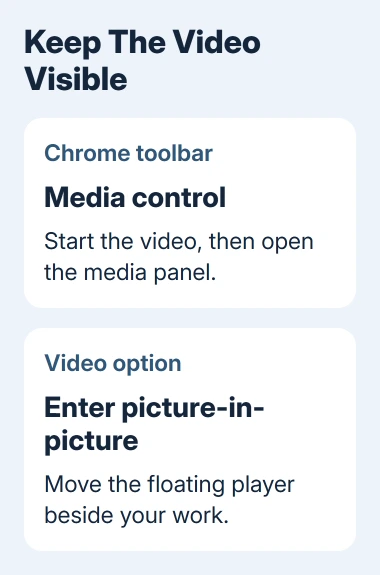
The control depends on the player being available to Chrome. If it isn't offered for that video, try the player's own picture-in-picture button when one is provided, or keep its browser window visible beside your other work.
Compare a visible window with one that's minimized or covered. Clicking another window and hiding the video window aren't the same action, even though both can feel like the problem starts when Chrome loses focus.
Webpages can change how they behave when hidden, and Chrome limits the work background pages can do. That doesn't mean every normal video should play slowly: a particular site's player may need attention if only that site is affected.
I'd use the floating player before changing experimental flags. It directly fits the task of watching while working, and you can close the small window when you're finished.
3. Check Memory Saver only if the tab reloads
When returning to the video, look for a page reload or a playback position that has been lost. That's different from sound continuing while the picture becomes less smooth.
Chrome's Memory Saver can deactivate unused tabs to free memory. Opening a deactivated tab reloads it. Active audio or video can prevent deactivation, so don't assume every background playback fault comes from this feature.
If this page is being deactivated, open Settings > Performance. Beside Always keep these sites active, select Add, then choose the open site or enter its address manually.
Retry the same site after adding it. This keeps that site active without turning Memory Saver off for every tab. Remove the exception later if the site's behavior doesn't change.
Keeping the tab active won't necessarily make video play smoothly, stop the site from pausing it, or fix a weak connection. Continue with the player and extension check when the page remains loaded but video still breaks up.
4. Compare a private window and another video site
Open New Incognito Window from the three-dot menu and load the affected video if it can play there. Use the same window-switch action, not a different clip with different playback demands.
A subscription site may require signing in again, and some videos won't play in a private session. In that case, use another ordinary video you can access to compare the behavior.
If playback works in Incognito, switch back to your ordinary window. Open Extensions > Manage extensions, turn extensions off, reload the video page, and repeat the playback check.
If that clears the problem, restore a single extension and reload before checking playback. Repeat for each extension. Pay particular attention to extensions that change the player, block scripts, or put tabs to sleep.
Incognito isn't a clean comparison when you've allowed the same extension to run there. Check its Allow in Incognito setting before ruling out an extension.
If only one website fails with extensions off, report the player problem to that service. Include whether sound continues, whether the window is covered or minimized, and whether picture-in-picture behaves differently.
5. Separate hidden-player trouble from other video faults
A loading spinner or stopped timeline while the tab is in front points toward streaming or player trouble as well. Keep following the window-switching checks only if switching away consistently changes playback.
For clips that never start even in the foreground, check the Chrome playback permissions and site data rather than its background performance controls.
Open Help > About Google Chrome and finish any offered update, then relaunch when prompted. Save work in open web apps before relaunching so the playback check doesn't interrupt something else.
For an Android screen that dims during video, use the Chrome screen-dimming checks. Mobile Chrome doesn't have the desktop Performance controls.
If video slows only while showing the tab on a TV, compare local playback, then check the Chrome casting setup. TV casting works differently from a floating player on your computer.
For trouble across several sites after these checks, send Chrome feedback through Help > Report an issue. Include the Chrome version, operating system, battery or plugged-in state, and which visibility change triggers it.
The Short Version
Turn off Energy Saver on a battery-powered computer and compare the same video. Use picture-in-picture while working in another window. A reloaded tab needs a Memory Saver check; a single failing player needs an extension or website check.
Checked November 12, 2026.