Turning off Find My iPhone requires your Apple Account password. Open Settings > [your name] > Find My > Find My iPhone, switch it off, and confirm. If the switch is blocked, check Stolen Device Protection before erasing anything.
To stop another person seeing your location, use the sharing controls instead. That stops their access while keeping the phone's lost-device protection on.
In this guide
Turn off the device setting while the iPhone is with you
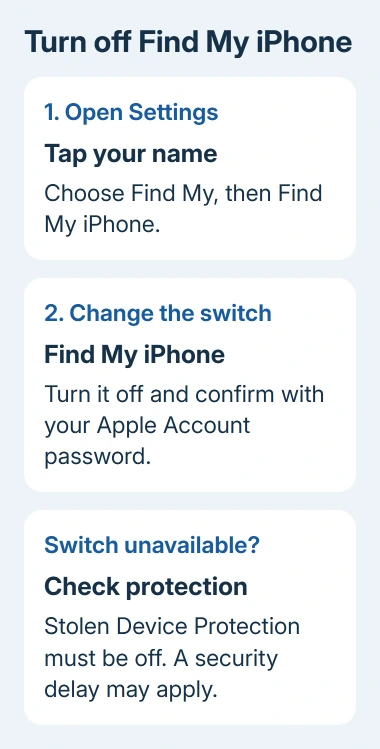
With your iPhone connected to the internet, open Settings. Tap your account name, then Find My > Find My iPhone. Turn off Find My iPhone on that page.
Enter the password for the Apple Account shown on the phone and tap Turn Off. Older software may call the account an Apple ID. The phone's unlock passcode isn't the account password requested at this step.
Open that settings page again to check that the switch stayed off. Closing the Find My app, deleting its icon, or switching off Bluetooth doesn't turn off Find My iPhone. It's the setting that controls this protection.
Apple explains this route in its Find My turn-off steps. It applies to iPhones with Face ID and models with a Home button; neither needs a special button combination.
Turning this off also turns off Activation Lock, the protection that ties activation to your account. The phone can no longer be located, locked, or erased through Find My. Keep that protection on for a missing or stolen phone.
If the app itself is missing, the Find My app recovery steps cover getting it back. Use Settings when you want to turn off the device's protection.
Deal with Stolen Device Protection before the handoff
Stolen Device Protection has to be off before you can turn off Find My. If the switch is disabled, check that protection first rather than assuming Settings has crashed.
Open Settings > Face ID & Passcode, enter the device passcode, and tap Stolen Device Protection. On a supported Touch ID iPhone, use Touch ID & Passcode instead. Turn Stolen Device Protection off as directed on that screen.
Depending on your location and security-delay choice, the phone may require a face or fingerprint check, a one-hour wait, then a second Face ID or Touch ID check. Start the delay when prompted and return to finish the change after it ends.
By default, these extra checks apply away from familiar places. Choosing Always under Require Security Delay makes them apply at home and work too. Going home won't skip the delay with that choice.
I'd check this before traveling to a trade-in appointment. A timer that hasn't finished can't be solved by repeatedly tapping the Find My switch at the counter.
Once Stolen Device Protection is off, return to Find My iPhone and turn it off using your account password. Finishing the security delay doesn't turn off Find My for you.
Use sharing controls when privacy is the actual goal
To remove one person's access, select their entry in Find My > People, then tap Stop Sharing My Location. Confirm the change. This stops their access while leaving the phone's recovery features on.
To stop sharing with all your contacts through Find My, open Find My > Me and turn off Share My Location. Read the name of the control carefully: Share My Location and Find My iPhone serve different purposes.
People you previously shared with may notice that your location is gone. Earlier operating systems may also show a Messages notification about the change, so don't assume they won't notice.
Some current versions also offer a temporary hide option for an individual. Use the permanent stop-sharing control if you don't want sharing to start again on its own.
If a location is missing when sharing should still be on, the No Location Found checks address availability and connection problems. Disabling Find My isn't a repair for that message.
Prepare a phone you are selling or giving away
Deactivating Find My doesn't erase your photos, messages, accounts, or downloaded apps. Before handing it to a new owner, make a backup and follow the separate preparation steps for selling or giving away an iPhone.
Transfer the information you need, follow the steps for any paired Apple Watch, sign out as directed, and erase the device. Ask your carrier what to do with the cellular plan or eSIM when moving your number.
Don't manually delete iCloud photos or contacts as a substitute for erasing the phone. Deleting synced information can delete it from your other devices too. Once your backup is ready, use the phone's erase process.
If the phone is going for repair rather than to a new owner, follow the repair provider's preparation request. Ask whether they need Find My disabled and whether the device must also be erased for that service.
Remove Activation Lock after a phone has already gone
If a sold or given-away phone is no longer with you, open Find My on a second Apple device using your account. Open Devices, select the old iPhone, and double-check that it's the device you meant to select.
For a phone going to a new owner, use Erase This Device and follow the prompts. Because it isn't lost, don't add a lost-phone message. An offline phone's remote erase begins when it next connects to Wi-Fi or cellular service.
After erasure, choose Remove This Device and confirm to release Activation Lock. Just hiding an offline entry won't erase the phone or release it for its new owner.
This is different from handling a stolen phone. Leave a stolen device associated with your account so its Activation Lock remains in place, and use the lost-device process instead.
Get account help when the password or setting blocks you
For a password you can't remember, use the password-reset option on a trusted device or the official account recovery process. Repeated guesses won't get you past the account check.
If the Apple Account area itself is gray, check Screen Time account-change restrictions and whether the iPhone belongs to an employer or school. Ask the family organizer or device administrator to review the restriction that applies.
For the current Screen Time layout, open Settings > Screen Time > Content & Privacy Restrictions. If All Restrictions is on, scroll to Privacy Restrictions. Open Allow Changes to Settings > Accounts and choose Allow.
If you're still blocked, ask Apple Support about Find My and Activation Lock. Send the message, iOS version, and details of any delay still running. If a used phone is still tied to its seller, that seller needs to release it.
The Short Version
Turn off Find My iPhone with your account password, turning off Stolen Device Protection first if blocked. Use sharing controls for privacy. Before a handoff, back up, erase, and remove Activation Lock.
Checked November 12, 2026.