A yellow large print keyboard for a Mac is a separate accessibility product, rather than a yellow version of Apple's Magic Keyboard. Look for black characters on yellow keys, a Mac layout, and US English if that's the arrangement you use.
Logickeyboard's Large Print ALBA Mac is one such wired option. Check the exact variant before ordering, especially when a listing mixes Mac and PC models.
In this guide
Match the product to the reading problem
Large printed characters help when the difficulty is reading the physical keys. A larger monitor font or a higher screen zoom level won't enlarge the lettering printed on your keyboard.
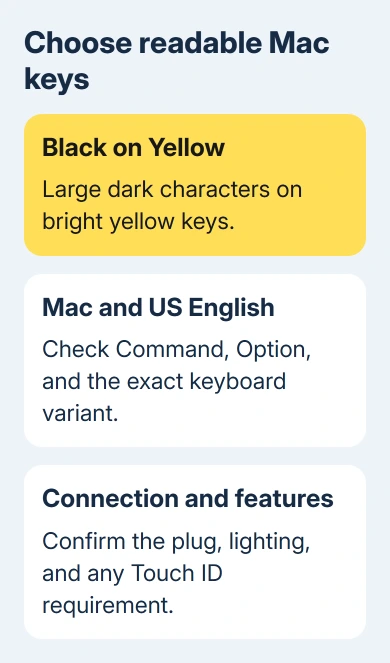
For this search, look for Black on Yellow. That means black lettering on yellow key surfaces. Yellow on Black reverses the combination, and White on Black is a third option.
Similar product names can mean very different combinations of key and lettering colors.
Consider the light where you'll type. Check a clear product photo showing ordinary letter keys and the smaller labels on the modifier keys.
Larger letters won't help with shortcuts if you still can't read the labels on the control keys.
I'd choose by the labels you actually use, rather than the most dramatic product photo. Command, Option, Return, and the number keys matter just as much as a large letter in the middle of the keyboard.
Check the Mac version and US English layout
Open the manufacturer's Large Print Black on Yellow product page. The ALBA model is labeled Mac, uses a wired USB connection, and is described as plug-and-play with macOS.
Use the Keyboard variant selector to check the language and layout. The variant is named American English Keyboard, with a product code ending in -US.
Don't assume that the variant shown by a search result is the one selected in the order form.
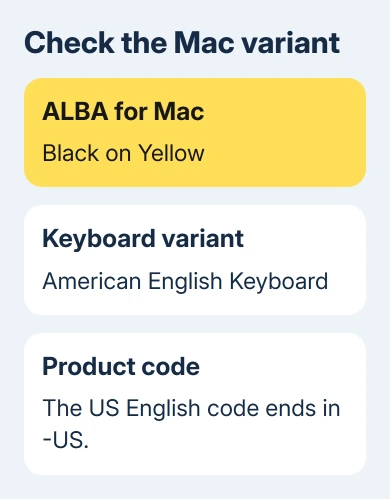
Before adding it to your cart, confirm these details for the selected variant or the seller's exact product code:
- Mac layout: familiar Command and Option labeling in the expected positions.
- US English: the character arrangement you intend to type with.
- Black on Yellow: the contrast combination, rather than another color variant.
- Connection: wired USB for this ALBA model, rather than a different Bluetooth model.
- Size: enough desk space for the full keyboard and your pointing device.
A PC keyboard can work with a Mac, but its labels and modifier positions may differ from what Mac instructions describe. If reading the keys is already difficult, having to remember what each label means makes everyday shortcuts harder.
If you regularly copy, paste, and switch apps, compare the product's modifier labels with our guide to Mac keyboard shortcuts. Keep the layout familiar as well as readable.
Compare the connection, lighting, and included parts
The ALBA listing describes a wired USB keyboard and includes a LogicLight LED keyboard lamp. The lamp and a backlit keyboard aren't the same feature.
Don't assume that every key is illuminated from underneath because a lamp comes in the box.
Check the keyboard cable's connector against the ports on your Mac or dock. If an adapter is needed, confirm that it supports a keyboard connection. A connector that fits won't work for typing if it only supplies power.
The manufacturer lists the ALBA at 446 x 141 x 23 mm. Measure the usable desk area, including where your mouse or trackpad sits. A full-size keyboard can put a pointing device farther to the side than a compact Magic Keyboard does.
The product page also links other large print models, including a Bluetooth Mini. These aren't the same ALBA keyboard under different names. Check the connection, number of keys, and included accessories for each model you're considering.
For an online purchase, check the return terms and delivery country before paying. Readability is personal, and keys that look clear in a close-up picture may be harder to read at your normal sitting distance.
Don't expect Magic Keyboard Touch ID features
A Mac-compatible large print keyboard doesn't necessarily include Touch ID. A yellow color scheme, Apple-style keys, or compatibility with macOS doesn't add a fingerprint sensor to the product.
Magic Keyboard with Touch ID has its own hardware requirements. Apple's Touch ID support information lists Apple silicon hardware running macOS Sequoia 15.1 or newer as the requirement for USB-C models.
Check Apple menu > About This Mac to see the Mac model and chip before buying an Apple keyboard specifically for Touch ID. Touch ID support differs between Intel hardware and Macs with Apple silicon.
If the existing keyboard works and Touch ID matters to you, check Touch ID support as well as whether you can read the key labels. A replacement that makes typing easier can still change how you sign in or approve a purchase.
For an existing fingerprint fault, use the checks for Touch ID not working on a Mac. Choosing a replacement by key color alone won't tell you what's causing the Touch ID fault.
Try an enlarged onscreen keyboard before buying
If you need larger keys on the screen, macOS has an Accessibility Keyboard. You click its onscreen keys using a pointer. It doesn't repaint or enlarge the keys on your desk.
On macOS Ventura or later, open Apple menu > System Settings > Accessibility > Keyboard and turn on Accessibility Keyboard.
On older releases with System Preferences, open Accessibility > Keyboard > Viewer, then select Enable Accessibility Keyboard.
Drag a corner of the onscreen keyboard to enlarge it. Click in a text field, then click its keys to enter text. Test the result in a simple note before deciding whether it fits the way you work.
The keyboard's options also let you change its appearance. This can help you judge whether larger onscreen keys help, or whether you need high contrast labels on the keys under your fingers.
For difficulty reading the text you type, Hover Typing is a different tool. On supported recent macOS versions, look in System Settings > Accessibility > Hover Text for the typing controls.
It enlarges typed text, rather than physical key labels.
When the choice still isn't clear
Send the manufacturer or seller the exact Mac model, preferred language, and required contrast. Ask them to confirm the selected product code, connector, and Mac modifier layout before you place the order.
If you're choosing for someone else, have them compare the key labels and layout first. A useful question is whether they need to see the physical keys, enlarge text on the screen, or both. Those needs can require different tools.
The Short Version
Choose a Mac model in US English with black lettering on yellow keys. Confirm the exact variant, connection, and return terms. Large print ALBA, Magic Keyboard with Touch ID, and the macOS Accessibility Keyboard solve different needs.
Checked November 12, 2026.
 If you have any business, I can build it online