

A flickering Gmail message on an Android tablet or foldable can become readable when you turn the device sideways and back. Try that, then update Gmail and Android System WebView. WebView displays web content inside apps.
The flicker can affect the message body while the inbox and other apps still work. If the whole display flashes outside Gmail too, treat that as a wider screen problem rather than assuming an email update will fix it.
In this guide
1. Rotate the open email and check its text
Open an affected message, turn the device sideways, and wait for Gmail to redraw it. Scroll through the email in landscape. If it stays readable, turn the device back to portrait and scroll again.
If rotation is locked, swipe downward from the screen's top edge to open Quick Settings. On Samsung devices, a tile labeled Portrait indicates the lock. Tap it to enable Auto rotate, then return to the message.
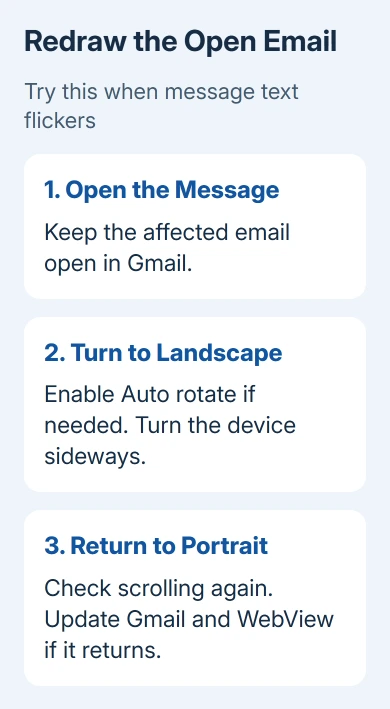
Several owners on Google's forum confirmed this rotation workaround. One reported that uninstalling updates helped for only about 10 minutes before the flicker returned, while turning the device sideways still made the email readable.
Use rotation to read the message for now; it isn't a permanent repair. If it flickers again when you open another email, move to the update check. Don't delete the email; a display fault doesn't require removing the message.
On a foldable, compare the inner display with the outer one. That difference matters when reporting the fault. The flicker can change with the screen layout even though nothing in your mailbox has changed.
2. Update Gmail and the normal WebView app
Open the Play Store, select your profile picture, then Manage apps & device. Find Gmail among the available updates and install its update. Also search the store for Android System WebView and update its normal release if offered.
WebView handles web content inside Android applications. A fault in that component can affect how an email's contents appear even when the Gmail inbox itself loads. It isn't a second email account or a replacement mail app.
An owner in a May 2026 discussion reported that a WebView update resolved the issue after other suggested steps failed. The update worked for them, but there isn't a single confirmed version that fixes every affected device.
Restart the device after updating, then reopen the same message in its usual orientation. Check a second email too. Check that the text stays readable as you scroll; opening the inbox alone won't tell you if the flicker has stopped.
If the store shows Open rather than Update, the available release is already installed. Record that version if the fault continues. Repeatedly opening the update page won't force a newer release to appear.
I'd try the regular WebView update before a development build. Beta and developer versions are testing releases. Installing one adds another software change while you're trying to restore ordinary email reading.
3. Restart Gmail, then clear only its cache
Open Settings > Apps > Gmail and choose Force stop. Reopen Gmail and check the message. A forced stop closes the app completely; your Google Account stays connected.
On Samsung phones and tablets, Settings > Apps > Gmail > Storage contains Clear cache. On Pixel and many other Android devices, the comparable page is Storage & cache. Tap Clear cache, then reopen the app.
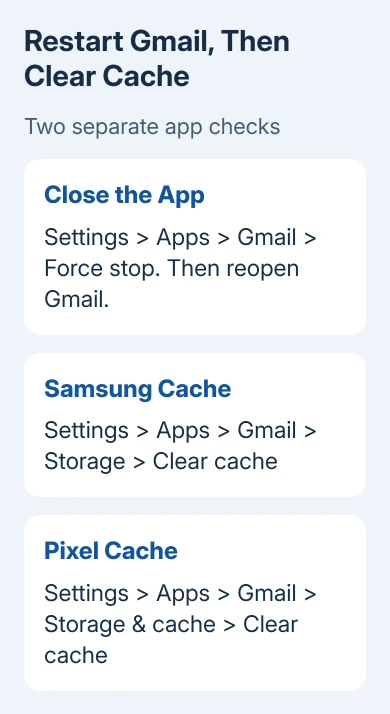
Leave Clear data or Clear storage alone during this cache check. Those buttons reset more of the app's local information. Take care of work that hasn't synced before resetting the app, especially if you can't read the affected message.
Google's app troubleshooting steps include restarting, updating, force stopping, and clearing cached information. These are sensible app checks, though some owners with this flicker said clearing the cache didn't help.
If the same message still flashes after this single pass, continue with another way to read it. Clearing the cache again won't help if the message flickers just as it did before.
4. Read urgent messages through the browser
Open Chrome or another browser and type mail.google.com into the address bar. Use the affected Google Account to sign in, then find that flickering message.
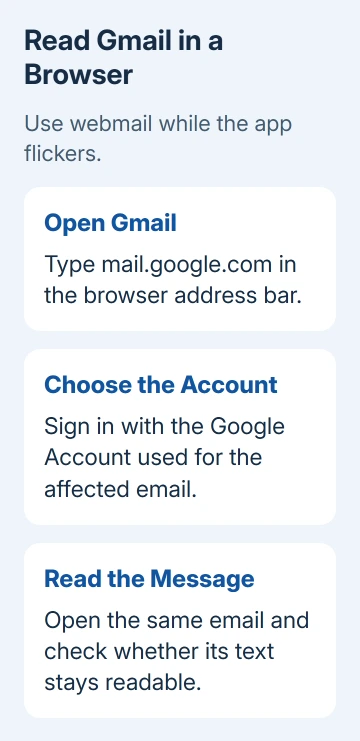
Check the address in Gmail's account menu if multiple accounts are signed in. An empty inbox under another address can look like missing email, but it says nothing about mail in the affected account.
If the full message is readable there, use the browser for urgent reading and replies while you sort out the app. This avoids making account changes just to work around a display problem on one device.
For a non-Gmail account added to the Gmail app, open that provider's own webmail instead. The Gmail website shows your Google mailbox; it isn't automatically a browser version of every outside account added to the Android application.
If mail arrives late or without an alert, use the Gmail notification and sync checks. Making the text readable won't get mail syncing again if account sync is turned off.
5. Separate an app fault from a display fault
Scroll in Settings and another app. If both stay steady while Gmail's message body disappears, report the Gmail display problem. Mention a message type that triggers it, such as a long newsletter.
If Settings also flashes or the entire panel cuts out, check the device's system update and contact the device maker. For an Outlook account inside Gmail, compare that provider's webmail too.
Check Settings > Software update on Samsung or Settings > System > Software updates on a Pixel. Menu names can differ by Android version. Install an offered system update normally, then compare the same apps again.
Don't factory-reset the device just because one email app flickers. First send a focused report through Gmail > Menu > Help & feedback > Send feedback. Include your model, Android version, Gmail version, and WebView version.
Mention whether rotation works, which display is affected on a foldable, and whether the browser shows the message correctly. Those details help the developer reproduce the problem instead of guessing why email isn't working.
The Short Version
Rotate the open message to landscape and back, then update Gmail and Android System WebView. Clear Gmail's cache once if needed. Use webmail for urgent messages and report the versions if the flicker continues.
Checked November 12, 2026.
 If you have any business, I can build it online






