

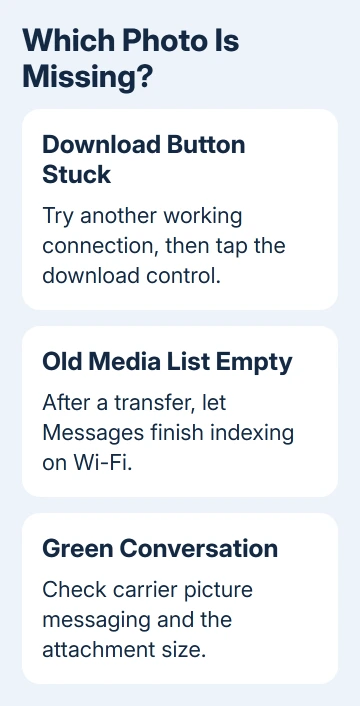
A stalled iMessage picture download often comes down to the data connection. Switch between Wi-Fi and cellular data, reopen the conversation, and tap the picture's download control again.
Old photos missing on a new iPhone can mean Messages is still downloading your history or preparing it for search. Green-bubble pictures need separate checks because they use your carrier's messaging service rather than iMessage.
In this guide
1. Retry the picture on a different connection
Open the affected conversation and tap the download symbol on the attachment. Give a large photo or video time to load. A filename and download button mean the picture isn't ready to view on this phone yet.
Turn Wi-Fi off in Settings > Wi-Fi and try with cellular data, provided your plan allows it. If cellular coverage is weak, do the reverse and use a working Wi-Fi connection.
Open a new webpage to check that the connection can reach the internet. A Wi-Fi icon can remain visible without internet access. A hotel network may still need its sign-in page completed.
Ask the sender for one new, small photo in the same conversation. If that arrives and opens while an older attachment won't, the problem is narrower than every picture message failing.
If received photos open but your own photo fails to leave, check outgoing picture delivery using the conversation color.
Don't delete the older message while you try these fixes. Deleting the conversation removes something you might still be able to download, and with Messages in iCloud that deletion can sync across your devices.
Apple's Messages troubleshooting steps confirm that iMessage needs Wi-Fi or cellular data. If pictures fail on both working connections, continue with a restart and storage checks.
2. Restart without deleting your message history
Restart the iPhone normally. For Face ID models, keep the side button pressed together with either volume button. Release both when the shutdown slider appears. Move that slider across to shut the phone down.
On iPhone 6, 7, 8, or SE models with a side power button, hold that button for the slider. On an original iPhone SE or an older top-button model, use the top button instead.
Use that model's side or top button to start the phone again; release at the Apple logo. Reconnect to the internet and open that attachment fully before saving it. A thumbnail isn't a downloaded original.
If it still won't open, check Settings > General > Software Update for an available iOS update. Make a backup before installing the update. Updating keeps iOS current, but it won't necessarily bring back that missing photo.
Keep the phone signed into its Apple Account during attachment checks. Signing out affects more than Messages and can interrupt other services while you're trying to retrieve one file.
3. Make room for downloaded attachments
Open Settings > General > iPhone Storage and let the storage categories finish loading. If little free space remains, remove an unneeded download or offload an app you can reinstall.
Choose something unrelated to the photo you're trying to recover. Clearing an old offline movie is a better first move than deleting Messages attachments without checking what they contain.
Try the picture again after making space. If it opens now, save the photos you need before doing a larger cleanup. Your iPhone's free space and your iCloud storage are separate.
Check cloud storage at Settings > your name > iCloud if your message history uses iCloud. Messages, photos, and other attachments in that history count toward your iCloud storage.
Full iCloud storage can stop message history from updating across devices. Follow the storage screen's advice on safe removals or a plan change you need. Don't erase a synced conversation just to test downloading.
If new photos work but older ones are missing after a transfer, move to the history checks. Free space alone won't tell you whether Messages has finished preparing the old conversation's media list.
4. Separate a missing media list from a missing photo
Scroll to the original message in the conversation. Compare it with the photos shown when you tap the contact's name. A picture can be present in the thread while the shared-media list is still incomplete.
After an update or transfer, Messages can take time to show shared photos and links. Connect to Wi-Fi and lock the screen while it works. This can finish quickly or take several days, depending on your library and other background work.
Our Messages search guide covers this incomplete-results case. A search that misses a photo already visible in the conversation needs different attention from an attachment that won't download anywhere.
If shared media is still missing after waiting, Apple provides a way to restart that work. Open Settings > your name > iCloud > Messages or Messages in iCloud. If the apps are grouped behind See All or Show All, open that list first.
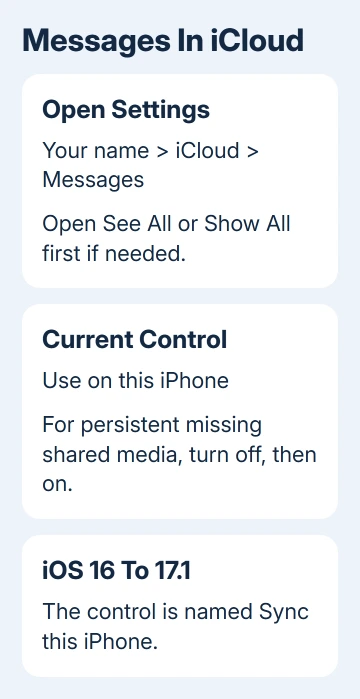
Turn Use on this iPhone off, then turn it back on. This restarts the work needed to show missing shared media after an update or transfer. Turn the setting back on so Messages can keep using iCloud.
On iOS 16 through 17.1, the cloud route uses Show All > Messages > Sync this iPhone. The wording differs from iOS 17.2 and later, so follow the control for your installed version.
Return to the conversation and give the media list time to rebuild. If the picture still doesn't exist in the thread or on another device that had it, ask the sender to resend that original file.
5. Check green-bubble pictures and the account address
Blue bubbles use iMessage. Green bubbles can use RCS, SMS, or MMS; a green bubble alone doesn't tell you which service carried the conversation. SMS on its own doesn't carry photo attachments.
If photos fail only in green conversations, check that your carrier and plan support the message type in use. MMS attachments can have carrier size limits, so ask the sender to try a smaller picture.
For blue conversations that go to the wrong device or address, open Settings > Apps > Messages > Send & Receive on iOS 18 and later. On iOS 17 and earlier, start at Settings > Messages.
Check that the intended number or account email has a checkmark. If the number won't activate, our iMessage activation guide covers that separate failure.
If all blue-message photos still fail, contact Apple Support under iPhone > Messages. Include whether new and old photos fail, the bubble color, iOS version, storage state, and the results on Wi-Fi and cellular data.
For green-message failures, ask your carrier whether MMS or RCS is active on your line and whether attachments can reach it. I'd ask for a resend when only one old file is unavailable, before resetting the phone's network settings.
The Short Version
Retry on a working connection, restart, and check storage. Missing old media after a transfer needs history checks; green-bubble failures can need carrier help. Request a resend when only one old attachment is unavailable.
Checked November 12, 2026.
 If you have any business, I can build it online






