

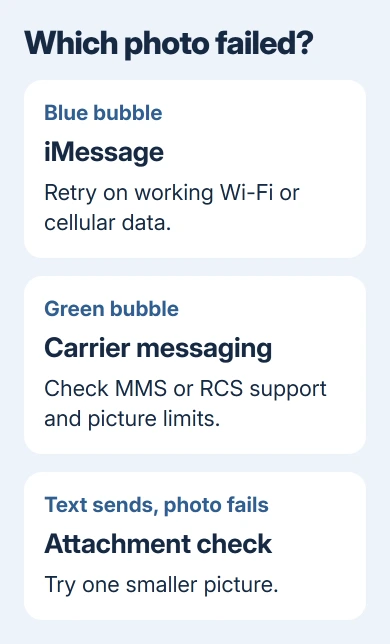
iMessage needs a working internet connection to send pictures. Try the failed photo on another connection, then select Try Again from the red error symbol.
A green conversation uses your carrier's messaging service instead, so picture limits and carrier settings matter too.
When short texts send but photos don't, try one smaller image before changing your account. That separates a picture-size problem from a conversation that can't send anything.
In this guide
1. Retry using another internet connection
Find the failed picture in its conversation. Look for Not Delivered beside the picture. Tap the red exclamation point, then Try Again. Keep Messages open while your phone tries to send the picture.
A blue bubble means iMessage. It can send over Wi-Fi or cellular data, but an internet connection that loads nothing won't carry the photo either. In Safari, load a fresh webpage rather than a previously viewed one.
If Wi-Fi isn't working, turn it off in Settings > Wi-Fi and resend through cellular data if you have a cellular signal. If cellular data is the failing connection, join a working Wi-Fi network and try again.
Apple recommends checking the connection and retrying in its message troubleshooting steps. If that retry succeeds, check the original network instead of deleting message history.
Check Settings > Cellular if cellular internet isn't working. Turn on Cellular Data. With multiple SIMs, check that your chosen line is on. Check that Messages has cellular access if your version lists an app switch there.
If the photo still fails on both connections, send a short text in the same conversation. If neither sends, check your account and recipient in section 4. If the text sends, start with the picture checks in the next section.
2. Send one picture at a lower quality
Try sending a single photo instead of a group of photos or a long video. Keep the original in Photos. This gives you a simpler attachment to retry without deleting the failed conversation or its history.
For trouble with full-size attachments, open Settings > Apps > Messages on iOS 18 and later. Look for Send Photo Previews or Low Quality Image Mode, depending on which options your iOS version shows, and turn the available option on.
On iOS 17 and earlier, open the separate Messages entry in Settings. Open that entry and look for Low Quality Image Mode. Return to the conversation and send the picture again with the changed setting.
These options reduce what the phone needs to send initially or reduce image quality. They won't keep the picture at its full original quality. Use them when getting a viewable picture delivered matters more than sending the original file.
Carrier services can impose attachment limits. Sending a bigger file also takes more time. The size limit depends on the carrier and service, which can change between recipients.
I'd try one smaller picture before changing the phone's account sign-in. If it sends, keep troubleshooting the attachment size and connection. If even that fails, check which service the conversation is using.
3. Treat green-bubble pictures as carrier messages
A green bubble isn't iMessage. It can be RCS, MMS, or SMS. SMS carries ordinary text; photos require a picture-capable service such as MMS or RCS. A text reaching an Android phone doesn't tell you whether photos can get through.
Check that your mobile plan supports the type of message being sent. RCS and MMS need cellular data or Wi-Fi connectivity as supported by the service. Your carrier can check whether picture messaging is enabled on the line.
Under Settings > Apps > Messages, check the messaging options available from your carrier. Older iOS versions put these under Settings > Messages. Options that aren't offered by a carrier won't necessarily appear as switches.
The Send as Text Message setting allows a fallback when iMessage isn't available. It doesn't turn SMS into a photo service.
If you tap the red error symbol and choose that fallback, the carrier still has to support the attachment's delivery method.
When only Android recipients fail, use the iPhone-to-Android messaging checks instead of cycling the iMessage switch again. Have the carrier verify picture-message support for that line, including MMS and RCS.
If other green conversations work, continue with the recipient check. If every green photo fails while blue photos send, tell the carrier which service still works.
4. Check the recipient and the sending address
Start a new message without deleting the old thread. Carefully enter the current number or email address the recipient uses for Messages. Send a short text, then one photo, to compare the result with the existing thread.
A single affected recipient can have an outdated contact entry. Check the address against the one they currently use, especially after a phone-number change.
A new conversation avoids repeatedly sending to an old address stored in the existing thread.
For an iPhone recently set up or moved to a new SIM, open Settings > Apps > Messages > Send & Receive. Confirm that the intended phone number or email address is selected. Older versions use Settings > Messages > Send & Receive.
On a newly set-up iPhone, make sure the cellular line is turned on. Switch iMessage off, switch it on again, and select your number in Send & Receive.
Wait for activation to finish before trying another photo.
If an incoming picture is sitting behind a download control, that's a different failure. Follow the picture download checks for that attachment rather than resending your outgoing photo repeatedly.
5. Restart, update, then take the right support route
Restart the iPhone normally. For a Face ID iPhone, press and hold two buttons together: side and either volume key. Release them at the shutdown slider.
On an iPhone 6, 7, 8, or second- or third-generation SE, hold the side button by itself until the shutdown slider appears.
An original SE, iPhone 5, or earlier uses the top button. Drag the slider, wait for shutdown, then start the phone with its side button (or top button on older models). Retry the same small photo after it reconnects.
Check Settings > General > Software Update for an available iOS update. If blue-picture sending still fails after the connection, attachment and address checks, choose Messages help for the affected iPhone inside the Apple Support app.
Give support the iOS version, recipient type, bubble color, exact error and whether another connection changed it.
For failed green pictures, ask the carrier to check whether picture messaging is enabled and supported, including any attachment limit on your plan.
The Short Version
Retry a failed blue photo on another working connection, then try one smaller image. Green photos depend on picture-capable carrier messaging, such as MMS or RCS.
Check the recipient and sending address before asking the appropriate provider to check the failure.
Checked November 15, 2026.
 If you have any business, I can build it online






