myQ can stay on Enable Bluetooth when the phone's Bluetooth is already on because the app has its own permission to use it. Check that permission first: the phone's main Bluetooth switch doesn't grant access to myQ.
On iPhone, look in Privacy & Security > Bluetooth. On Android, open myQ's app permissions and check Nearby devices when that permission is listed. A failure after this screen, during Wi-Fi connection, needs a different check.
In this guide
1. Give myQ access to Bluetooth on iPhone
Open Settings > Privacy & Security > Bluetooth. Find myQ and turn its switch on. Return to myQ and start the setup step again. Apple explains that Bluetooth access for apps is separate from enabling the radio.
Working headphones don't mean myQ has permission. Many Bluetooth audio uses don't need this app permission, so your earbuds can work while myQ is still blocked.
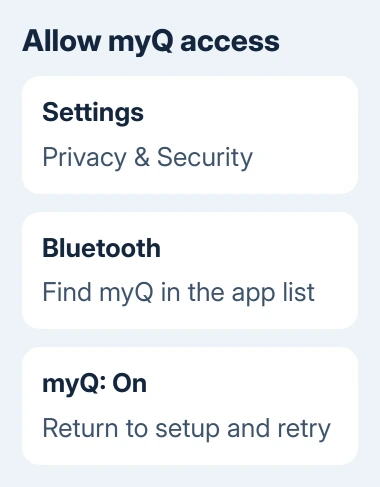
These settings do different jobs: Settings > Bluetooth turns your phone's Bluetooth on or off. Privacy & Security > Bluetooth controls which apps can use Bluetooth functions that need permission. Setup can need both.
If myQ isn't listed, open its device-setup screen again and watch for a permission request. Allow Bluetooth when requested. An app that hasn't asked for access may not yet have an entry you can change.
After allowing access, leave Settings and return to setup. Try continuing past Enable Bluetooth. Getting past it doesn't mean the garage device has already joined your home Wi-Fi network.
If the app still stops at the same prompt, continue with the restart check. Don't erase the garage device just to repair a permission on your phone.
2. Check Nearby devices on Android
Open Settings > Apps > myQ > Permissions. Some phones require See all apps before selecting myQ. If Nearby devices appears, open it and choose Allow. Make sure Bluetooth itself is also enabled in Settings.
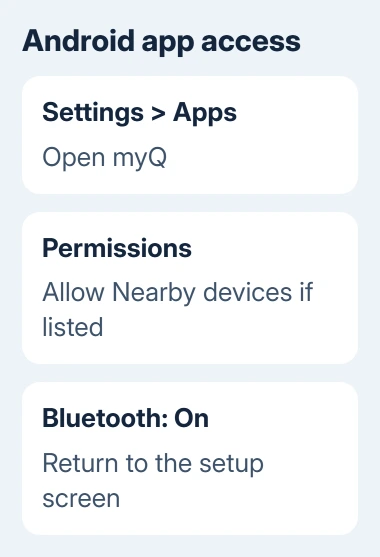
Nearby devices is the Android permission used for discovering and connecting to nearby equipment. The exact permission list depends on the phone's Android version and the app version, so an older phone won't necessarily show that label.
Look for a Location request only if myQ presents one or lists that permission. On older Android setups, device discovery can depend on location access.
Grant the requested access for setup instead of looking for an absent Nearby devices switch.
The Android app permission controls let you change a previous refusal without reinstalling the app. Open the relevant permission, allow it, then return to myQ's setup.
Don't enable every permission as a blanket fix. Camera access, for example, has a different purpose from nearby-device discovery. Address the request that the setup screen is actually making.
If your Pixel's Wi-Fi and Bluetooth switches won't turn on at all, use the Pixel wireless-switch checks instead. An unavailable radio needs attention before myQ can use it.
3. Reopen setup after changing the permission
Close myQ and reopen it to retry the failed step. On a Face ID iPhone, begin at the bottommost edge and pull toward the middle. Pause, then swipe myQ's preview upward. On a Home-button model, double-click Home to see recent apps.
On Android, open Settings > Apps > myQ > Force stop, confirm, then launch myQ. Force stop closes the app; it differs from Clear storage, which removes its local data.
Try Enable Bluetooth again and note whether the wording changes. A screen that searches for devices or asks for Wi-Fi means you've passed the step that was stuck. Work on that new stage rather than repeating the permission change.
If the same screen returns, restart the phone through its normal power menu. Then check that the permission is still allowed before reopening setup. A permission that keeps reverting is useful information for support.
I'd do this before a network reset. It keeps saved Wi-Fi connections intact and directly checks the two controls involved in the message: the radio and the app's access to it.
4. Separate the Bluetooth prompt from Wi-Fi setup
Read the screen before changing the router. Enable Bluetooth asks for access to a nearby device. A later screen asking for your home network or password is setting up the device's Wi-Fi connection.
If setup reaches the network choice, you've passed the Bluetooth step. Write down the new error exactly. Wrong-password, missing-network and device-offline messages need different checks from a Bluetooth permission prompt.
Check the model printed on the myQ device or opener when following its setup instructions. A Smart Garage Control, a Wi-Fi opener and a garage camera don't share every button or indicator sequence.
For an existing device that went offline after a router change, use its reconnect procedure rather than removing it from the account as your first move. Tell support whether it previously worked or has never completed setup.
The same separation between pairing and app access also applies to Bluetooth permission on iPad. It helps explain why a phone can see other Bluetooth equipment while one setup app refuses to continue.
5. Update the app, then report the exact stopping point
Open the App Store or Play Store, find myQ Garage & Access Control, and install an available update. Retry the setup with the permission enabled. Support can work from the current release rather than trying to account for an older app.
If Enable Bluetooth still blocks setup, contact myQ support through the app's Help area or the Chamberlain Group support site.
Ask specifically about setup stopping at Enable Bluetooth despite the radio and app permission both being enabled.
Provide the phone model, OS version, myQ app version and garage-device model. Include whether myQ appears in the permission list and whether the switch stays enabled after a restart.
Keep passwords and door-access credentials out of screenshots.
If Bluetooth is unavailable across the phone, take that symptom to the phone maker too. If only myQ fails, keep the report focused on its setup screen and permission behavior.
The Short Version
Allow myQ's Bluetooth permission on iPhone or Nearby devices permission on Android when listed. Reopen the app and retry setup.
A later Wi-Fi error is a separate stage; a persistent Enable Bluetooth prompt needs a myQ support report with the exact phone and app versions.
Checked November 12, 2026.