

A supported Android phone can mirror to Windows with Phone Link, an iPhone can use iPhone Mirroring on a compatible Mac, and Android can use scrcpy over USB on Windows or Mac. Start by matching the method to your phone and laptop.
Check that match before installing anything. Pairing an iPhone with Windows Phone Link doesn't give it the Android Phone screen feature, and a laptop's HDMI socket usually can't receive a phone's picture.
In this guide
Match the method to both devices
For Android and Windows, check whether the phone supports Phone screen in Phone Link. Support varies by model and market, even when the phone can already synchronize messages or photos.
For iPhone and Mac, use the built-in iPhone Mirroring app when both devices meet its requirements. For Android and Mac, or Android phones without Phone screen, a USB connection with scrcpy is another route.
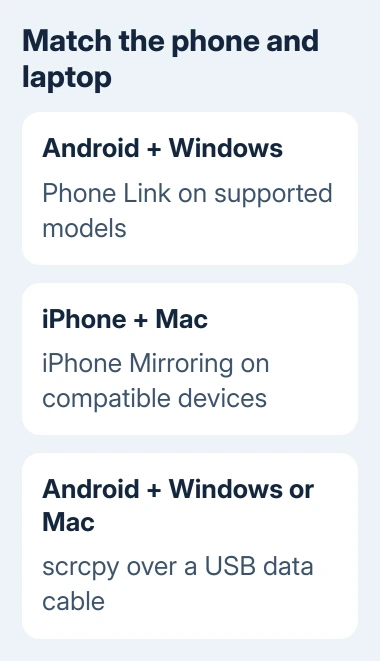
For iPhone and Windows, use an AirPlay receiver on the PC. The Mac's iPhone Mirroring app and Android's scrcpy don't cover this combination.
I wouldn't buy a phone-to-HDMI cable for this job without checking the laptop's specifications. A video output can't receive a picture just because a cable fits.
Your laptop needs software or hardware that can receive the phone's display.
Use Phone Link with a supported Android phone
Microsoft lists compatible phones in its Phone screen device reference. Check the precise model and market. Android 10 or later and Link to Windows are part of its requirements; that doesn't mean every Android 10 phone supports the feature.
Connect the phone and Windows PC to the same Wi-Fi network. Open Phone Link on the PC, choose Android and follow its pairing instructions. Open Link to Windows on the phone and follow the matching setup prompts.
Use your personal Microsoft account as requested and approve the permissions needed for the connection. Once paired, open Phone screen in Phone Link. Allow the phone's display-sharing request when it appears.
You should see your phone's screen and be able to control it from the computer. If you only see messages, you're using a different Phone Link feature. Look for Phone screen; pairing alone doesn't turn on full mirroring.
If Phone screen is absent, check model support before repeatedly unlinking and reconnecting. If it is supported but can't connect, compare the network names on the PC and phone, then check for a pending phone approval.
To remove the connection from a shared laptop later, unlink Phone Link on both devices. Closing its window doesn't remove the saved account connection.
Open iPhone Mirroring on a compatible Mac
Use iOS 18 or newer on the iPhone and macOS Sequoia 15 or newer on the Mac. The Mac needs an Apple T2 Security Chip if it uses Intel; an Apple silicon model also qualifies.
Sign in to one Apple Account on both devices and enable two-factor authentication for that account.
Keep the iPhone nearby, with Wi-Fi and Bluetooth turned on for both devices. The iPhone needs to be locked while you use it through the Mac.
It is currently unavailable in the European Union, so check your region before troubleshooting the connection.
Open iPhone Mirroring from the Mac's Applications folder or Dock. Follow its setup prompts. If asked to unlock the iPhone, enter its passcode there, then lock it again so mirroring can continue.
Choose whether the Mac should receive iPhone notifications when asked. Use the Mac's pointer and keyboard to interact with the mirrored phone. Unlocking and using the phone directly pauses the mirrored session.
If setup fails, check that the Mac isn't using AirPlay, Sidecar or Internet Sharing at the same time. Those active features are among the compatibility conditions in the iPhone Mirroring instructions.
An older Intel Mac without a T2 chip doesn't gain this feature by pairing over Bluetooth. Use the hardware requirements to decide whether further setup can help.
Mirror an iPhone to Windows with an AirPlay receiver
One option is Reflector 4, paid software with a 7-day watermarked trial. Download its Windows installer from the maker, install it and open Reflector. Connect both devices to matching Wi-Fi.
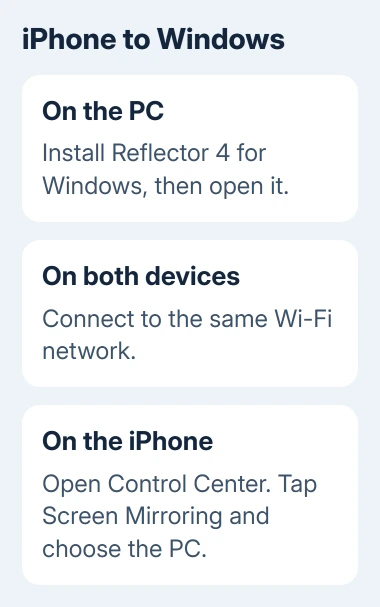
Open Control Center using a pull down from the upper-right corner for Face ID, or a swipe up from the bottom for a Home button.
Tap Screen Mirroring, choose the PC's receiver and approve any displayed request.
Your phone's display should appear on the PC. This doesn't give you the Mac app's remote-control feature. To finish, open Screen Mirroring on the phone again and choose Stop Mirroring.
Mirror Android over USB with scrcpy
scrcpy displays and controls an Android device from a computer. It supports Windows, macOS and Linux, and its official project requires Android 5.0 or later.
Audio forwarding has additional version requirements, so start by getting the picture working.
Use the project's official GitHub repository and its installation instructions for your operating system. The project warns that this is its official source; don't assume a similarly named download site belongs to it.
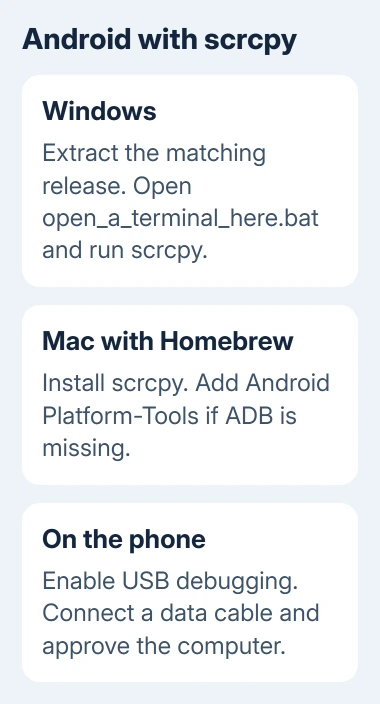
On Windows, download and extract the release matching the PC's processor type. Open open_a_terminal_here.bat in the extracted folder, then run scrcpy. The project's Windows instructions also offer a WinGet installation route.
On a Mac with Homebrew already installed, the project's macOS instructions use brew install scrcpy. Install ADB with brew install --cask android-platform-tools if it is missing.
Follow the project's Mac instructions if those tools aren't already available.
Before launching the connection, enable USB debugging on Android. Usually this means tapping Build number seven times to reveal Developer options, then enabling the debugging switch.
Samsung puts Build number inside About phone > Software information.
Connect a USB data cable, keep the phone unlocked and approve its debugging request for this computer. Run scrcpy. A separate window should display the phone, allowing you to use the computer's pointer and keyboard.
If it reports an unauthorized device, approve the phone's trust request. If no device appears, try another data cable and follow the project's USB-driver guidance for your OS. A cable that only charges won't complete this connection.
Check the picture, then end the session
Open an ordinary phone screen or your own photo first. If that appears but a streaming video stays black, try the service's own desktop playback option. Protected content can restrict capture even when normal screen mirroring works.
Close private messages and notifications before presenting the screen. Mirroring makes the visible phone content available on another display, so check the preview before sharing that laptop screen in a meeting.
For a TV instead of a laptop, use the Android-to-TV connection choices. A TV's Google Cast or Smart View receiver isn't automatically present on a Windows computer.
Close the mirroring app when finished. For scrcpy, disconnect the cable and turn USB debugging off. If a supported setup still fails, give the relevant app's support team the phone model, laptop OS and exact connection error.
The Short Version
Use Phone Link's Phone screen for supported Android and Windows combinations, iPhone Mirroring for a compatible iPhone and Mac, or scrcpy for Android over USB.
Check support before pairing, approve the phone's request and confirm the picture in the laptop window.
Checked November 12, 2026.
 If you have any business, I can build it online






