
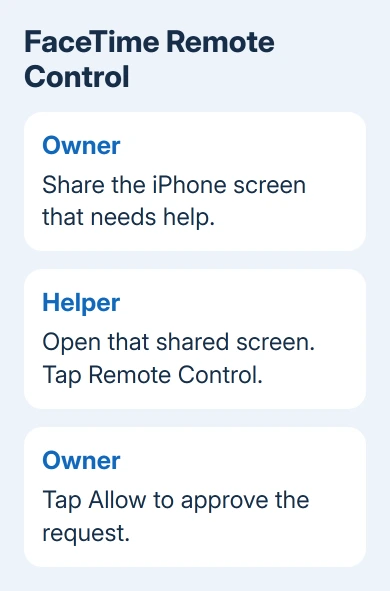
FaceTime can let you control another person's iPhone after they share their screen and approve your request. Start a one-to-one call, open their shared screen, tap the Remote Control button, and wait for them to tap Allow.
Both phones need software that supports remote control, and the person giving access must have you saved in their contacts. Seeing their screen alone doesn't give you permission to tap through their apps.
In this guide
Get the call and devices ready
Remote control works during a one-to-one FaceTime video or audio call. For an iPhone-to-iPhone session, both phones need iOS 18 or later. Check Settings > General > About > iOS Version on each phone before searching for the control.
Someone using an iPad with iPadOS 18 or later can also request control of an iPhone. The steps here describe controlling an iPhone from another iPhone; someone joining through a browser on Windows or Android won't see those same controls.
Save the helper in Contacts on the iPhone that will be controlled. Check that the contact contains the phone number or email they're using for the FaceTime call, rather than an unrelated old address.
Apple's remote-control instructions say the feature isn't currently available in the European Union. Updating a phone won't remove that availability limit.
I'd check those requirements before changing settings. If the call doesn't meet those requirements, an account sign-out or phone reset won't make the button appear.
1. Share the iPhone that needs help
Ask the person receiving help to start sharing their own screen. The helper needs to see that iPhone, so sharing the helper's screen would show the wrong phone.
On the current iPhone interface, show the FaceTime call controls, tap More > Screen Sharing > Share My Screen, and let the countdown finish. The FaceTime screen-sharing guide covers that first stage.
Open the app or settings page that needs attention. Ask the helper to confirm that they can see it. At this point, the helper is watching the screen; remote control hasn't been approved yet.
For example, helping a parent find a setting starts with the parent's iPhone sharing its screen. The helper then requests control from the view of that shared iPhone. This keeps the two roles clear before anyone accepts access.
Close private material that isn't needed for the task before sharing. Screen sharing can expose what's visible even when you haven't granted the other person control.
2. Request control from the shared-screen window
On the helper's iPhone, tap the window showing the other person's shared screen. Then tap the Remote Control button in that view. This sends a request to the iPhone being shared.
Give the owner time to answer. They still need to approve the request; tapping the button again won't give you control. Ask whether the request notification appeared on their phone.
The helper should keep the shared-screen view open while the owner responds. If the owner can see a request but the helper still can't interact, confirm that they selected Allow, rather than simply returning to the app.
Once they tap Allow, try one small action together, such as opening the settings page you agreed to change. The owner can watch the result on their own phone while the helper sees the same screen remotely.
If no shared-screen window is visible, return to the sharing step. A normal call picture showing someone's camera isn't the screen-sharing view, so it won't offer the same controls.
3. Approve access on the iPhone being shared
When the remote-control notification appears, tap Allow to accept it. Tap Don't Allow to refuse. Refusing control doesn't stop screen sharing, so you can still follow spoken instructions while the helper watches.
Only approve someone you trust. During control they can open and close apps, change settings, delete items, and send messages. They can do much more than draw a circle around a button.
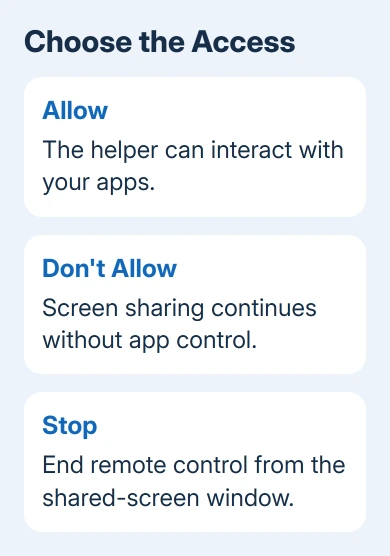
After a refusal, the other participant can still tap, draw, or write on the shared screen to point things out. They can use those marks to show you where to tap while you keep control of your apps.
For a straightforward setting change, that may be all you need. Keep control on your own phone and let the other person explain where to tap if you're uncomfortable granting broader access.
4. Work together without competing touches
Once approved, the helper can tap, swipe, and use the onscreen keyboard inside apps. Explain the next action before doing it, especially when a change could move or delete something.
The phone's owner can still tap, swipe, and type. When both people touch the screen, the owner's actions take priority. If the page seems to jump back during a demonstration, pause and agree who will operate it for the next step.
Face ID and Touch ID are disabled during remote control. The helper may also be restricted from changing Apple Account or Face ID settings, making payments, or erasing the device. Those restrictions aren't a connection failure.
Leave payments and security credentials for the owner to handle after control ends. Being able to change ordinary settings doesn't give the helper access to those sensitive tasks.
5. Stop access when the task is finished
On the iPhone being controlled, use the Stop control in the screen-sharing window's bottom controls. This ends remote control. Ending the FaceTime call ends both remote control and screen sharing.
You can stop control without ending the conversation. Use Stop when you want to keep talking after the helper has finished the change. End the call when the entire support conversation is over.
If a new session still has no request button, compare both software versions, the saved contact, the one-to-one call, and regional availability. For calls that won't connect at all, use the FaceTime connection checks.
If both phones meet the requirements but requests still don't appear, contact Apple Support about FaceTime remote control. Include both models, software versions, your region, and whether screen sharing works.
The Short Version
Share the iPhone that needs help, request control from its shared view, and approve with Allow. The owner keeps priority and can tap Stop. Both phones need iOS 18 or later, with contact and regional requirements.
Checked November 12, 2026.






