Windows 11 already has desktop composition enabled. For a PowerToys Run error, update PowerToys: version 0.96 added a fix for composition errors during theme changes. If the desktop also flashes or crashes, check the graphics driver.
An app reporting 0x80263001 and a computer repeatedly losing its display aren't the same failure. Choose the fix based on what happens when the error appears, rather than changing old Windows 7 settings.
In this guide
1. Update the app named in the error
Check the window title or error details for the failing app. PowerToys Run is the app launcher included with PowerToys. If that's the program reporting the error, open PowerToys Settings and check its installed version and available update.
Install a current supported PowerToys release through the installation route you normally use, such as Microsoft Store or its built-in update check. Restart PowerToys afterward, then repeat the action that produced the message.
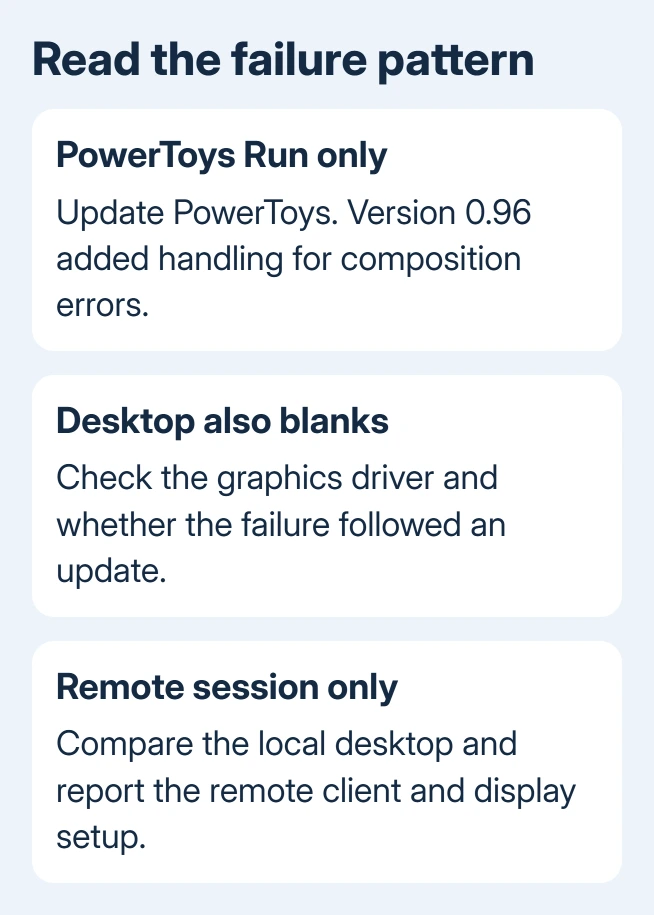
The 0.96 release notes include a retry fix for Desktop Window Manager composition errors during theme changes. In a November 2026 issue, a project collaborator pointed a reporter to that fix and asked if their PowerToys was current.
That fix addresses this PowerToys problem. It won't necessarily repair a game or another computer showing the same error code. If another app is named, check that app's current release notes and install its supported update.
For a game, verify whether the message comes from the launcher or the game itself. Tell the developer which one shows the error. Updating the launcher and repairing a game installation are separate jobs.
2. Restart Windows and check whether the desktop fails too
Save open work and choose Start > Power > Restart. After signing back in, open the affected app before launching the rest of your usual programs. Try the same action and watch whether other windows or displays flicker.
If one app crashes while the desktop works, keep working on that app. If several apps disappear or the screen repeatedly blanks, check graphics instead of reinstalling the same launcher again.
Desktop Window Manager, usually shown as dwm.exe, draws and combines windows for the desktop. Microsoft's DWM explanation says composition has been always on since Windows 8.
The old Disable desktop composition compatibility checkbox was removed. Windows 11 has no supported switch to restore composition by turning Aero on. Don't hunt for a missing setting in an old Windows tutorial.
I'd update the named app before doing a graphics-driver reinstall while other desktop programs work. A brief display change can cause the app to fail, which is the problem the PowerToys fix addresses.
3. Update the graphics driver when the display also fails
Open Settings > Windows Update and install available updates. Check Advanced options > Optional updates for offered driver updates. Restart when Windows requests it, then repeat the activity that previously produced the error.
Check your PC maker's recommended graphics driver matching your computer model and installed Windows release. A customized laptop driver can differ from the graphics-chip maker's generic package.
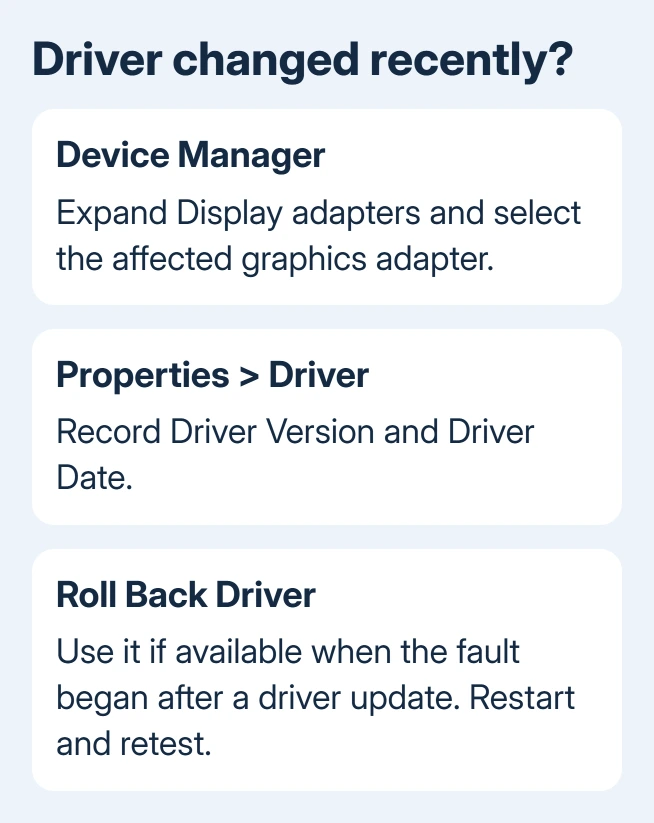
To see the installed adapter, right-click Start > Device Manager, then expand Display adapters. Open the adapter's Properties > Driver and record its version and date before comparing packages.
Some laptops have both integrated graphics and a separate gaming GPU. Record both adapters and follow the PC maker's guidance for both. Updating only the gaming card can leave the other display driver unchanged.
If Task Manager itself flickers while other windows flicker, the Windows screen-flicker comparison helps choose the driver branch. An app that flickers while Task Manager stays steady calls for app checks instead.
4. Roll back a driver when the trouble began after its update
If the display was stable until a graphics-driver update, open Device Manager > Display adapters. Right-click the affected adapter, select Properties, open Driver, then use the available Roll Back Driver control.
Follow the prompts and restart. Test the same app and display setup again. If the older driver works, the recent driver change needs attention; it doesn't mean all Windows updates should be removed.
The driver update and rollback instructions explain these controls. Rollback can require administrator permission, and its button can be unavailable when Windows hasn't retained an earlier driver.
If rollback is unavailable, ask the PC maker for a supported earlier driver for your model. Avoid guessing which unrelated older package to install. Give support the current version and when the screen failures started.
For rising DWM memory rather than this error, use the Desktop Window Manager memory checks. High memory use and a composition error need different checks.
5. Compare a local session if the error appears remotely
If the message happens only while using Remote Desktop or a virtual machine, try the app at the computer's normal local desktop when you can. Keep the same app version so the session is the main thing that changes.
If it works locally, tell the app developer or remote-desktop administrator. Include the client, host Windows version and virtual display adapter. A remote-only crash doesn't automatically mean a defective physical GPU.
Modern remote sessions also use composition. Turning it off isn't a general fix supported by the always-on documentation. A local comparison gives the developer a specific failing session to reproduce.
For a managed virtual desktop, ask IT to check the supported guest graphics driver and current app release. Avoid replacing the virtual display driver with a desktop GPU download intended for another environment.
Give support the app name and the display symptoms
If PowerToys still crashes on a current release, use its Report Bug option when available. Send the report package privately through the official support process. Include the exact error, PowerToys version and action that triggered it.
For screen blackouts across apps, contact the PC maker's display support. Send adapter names, driver versions, update history and rollback results. Ask them to review the display failures rather than enable composition.
If the computer also freezes, restarts or shows colored glitches, ask support to check the hardware more broadly. Keep the full error details, since the app showing the final message isn't necessarily the component that failed first.
The Short Version
Windows 11 composition stays enabled. Update the named app, including PowerToys. For desktop-wide failures, install a supported graphics driver or restore its previous version. Include session details when reporting remote-only failures.
Checked November 12, 2026.