Open the App Store on your iPad, tap your account picture, then open App Updates and choose Update or Update All. Automatic app updates are normally enabled, but this manual route gets a particular app updated when you need it.
The App Store updates downloaded apps. Safari and other system software follow the iPadOS update route, so a missing Safari Update button doesn't mean the Store is broken.
In this guide
Find the update list in the App Store
Connect the iPad to a working Wi-Fi network, then open App Store. Tap your photo, or the My Account control, in the upper corner. On the current layout, tap App Updates to open the available updates.
Apple's instructions show the App Updates step. Older iPadOS layouts put the update list on the account page itself, so look there if a separate App Updates button is absent.
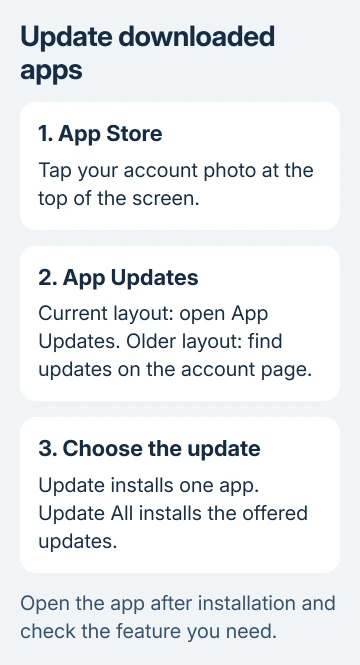
Choose Update beside the particular app you're trying to fix. This is useful before a meeting or a class when you want the needed app ready without starting every other pending download.
Choose Update All to install everything currently offered in the list. Leave the iPad connected while the downloads finish. Downloading several large apps takes more time than updating a small utility, especially on a busy connection.
Once the update finishes, open the app again. Check the feature or problem that sent you to the Store. Finishing the download confirms the app updated, while reopening it tells you whether the original problem is resolved.
Check one app when it isn't in the list
Use Search in the App Store and find the exact app. Open its full listing, checking the developer if several apps share similar names. Check the button on that page; the app may already be up to date even though it isn't in the update list.
Update means a newer compatible release is available to install. Open means the listing isn't offering an update to this copy at the moment. Get or a cloud download button installs or redownloads the app instead.
An update appearing on a friend's iPad doesn't mean your iPad can install it yet. Compare the listing's Compatibility information with your installed iPadOS version, especially on an older model.
Open Settings > General > About to read the iPadOS version. If the app needs newer system software, check Settings > General > Software Update for an update supported by this iPad.
If the model can't run the app's required iPadOS version, retrying Update All won't change that limit. Ask the app developer which features remain supported on your installed version or whether a browser version meets your needs.
I'd check the app's own listing before signing out of the Store. An Open button can be the correct result, and signing out adds an account problem to a routine version check.
Turn automatic app updates on or off
On iPadOS 18 and later, open Settings > Apps > App Store. Under the automatic download controls, turn App Updates on to let downloaded apps update automatically, or off to handle them manually.
On iPadOS 17 and earlier, open Settings > App Store directly and find App Updates there. The App Store settings moved into the Apps list on newer systems; the older direct Settings route isn't a missing feature.
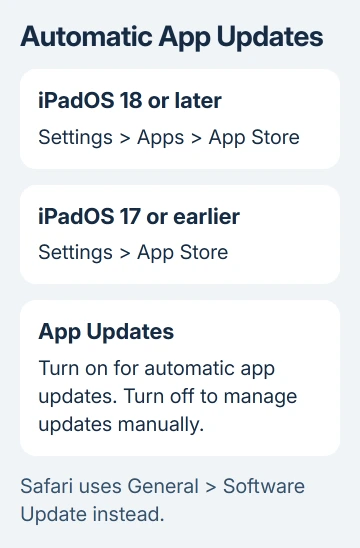
This switch controls app updates. It isn't the automatic iPadOS update switch in General, and it doesn't update every app on another person's device simply because that device is nearby.
Even with automatic updates enabled, use the manual Update button when you need a release immediately. The automatic setting doesn't tell you that every new release has already installed on your device.
For a shared family iPad, decide who handles updates before switching the setting off. Manual updates give you control, but someone still needs to return to the list and install them.
Update Safari and iPadOS through Software Update
For Safari, open Settings > General > Software Update. Safari's updates arrive with the system software on iPad; searching for a separate Safari download in the App Store won't provide the normal update route.
Back up the iPad before installing system software, keep it connected to power, and follow the available update prompts. The Safari update guide explains this distinction for iPad, iPhone, and Mac.
After the system update finishes, return to the App Store for downloaded apps. Updating iPadOS and updating a downloaded app are separate jobs. Either update can still be pending after you've finished the other.
If Software Update says the iPad is current but an app needs a later version, confirm the model's supported software. Current for an older iPad can mean its last compatible system release, rather than the newest release for every iPad.
For an organization-managed iPad, ask the administrator whether it handles the app's updates. An organization can distribute apps differently from a personal App Store installation, so follow its instructions for that app.
Resume an update that won't finish
Check whether normal pages load over Wi-Fi. If the connection fails, restore it before restarting the app download. If only the app download is stuck, touch and hold its Home Screen icon and choose Prioritize Download when offered.
Restart the iPad, then retry its app listing. For an iPad that has no Home button, hold two buttons, Top and either volume button, until you see the power slider. For Home-button iPads, press and hold Top alone.
Drag the slider to shut down, then wait 30 seconds. Keep Top pressed again until startup displays the Apple logo. A restart can clear a stuck Store session; it won't fix a payment problem or let an older iPad run an incompatible app.
Read any billing or verification message before retrying. A valid payment method may be required even for a free app. Follow the account instructions shown by the Store rather than repeatedly tapping the stalled download.
Check Settings > General > iPad Storage if space is low. The iPad app deletion guide explains deletion versus offloading when you need room. Preserve important local documents before removing their app.
If every app fails, use the help route in the App Store download troubleshooting page. Give support the exact message and whether one app or all apps fail. A single failing app can also need its developer's help.
The Short Version
For manual updates, open the App Store account menu and App Updates. For automatic updates, enable App Updates in Settings. Safari uses Software Update. Match a stalled download to its connection, storage, billing, or compatibility message.
Checked November 12, 2026.