VisualCV's Word download is marked Beta, so its layout may need adjusting. Download a fresh Word copy first. If you've opened a PDF in Word, use the direct Word export instead, or send the PDF when the employer accepts that format.
Compare the files before editing: missing text, shifted page breaks and a changed font need different repairs. A readable resume spilling onto another page needs less work than one with tangled columns.
In this guide
1. Check which file reached Word
Save a copy of the download before changing it. On Windows 11, open File Explorer and choose View > Show > File name extensions. Check whether the filename ends in .docx or .pdf.
A PDF opened in Word goes through a conversion. Microsoft explains that opening PDFs in Word can produce a different layout because Word has to turn the PDF's fixed page layout into text you can edit.
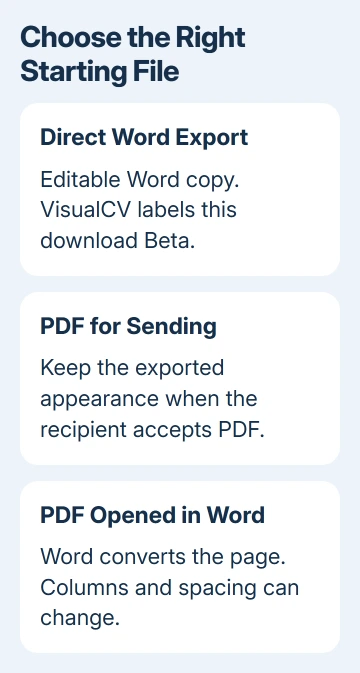
If Word displayed a message about converting the PDF into an editable document, that conversion is part of the problem. Don't spend an hour repairing it before checking whether the original Word download is available.
VisualCV's account comparison lists Word document (Beta) as a Pro feature. Check your account's current download choices. Tell support whether the export option is missing or the downloaded file looks wrong. Those need different fixes.
I'd keep the original download untouched and repair a separate copy. That lets you compare changes without having to remember which paragraph, margin or table you moved.
2. Refresh the export after the editor finishes saving
Return to the correct resume in VisualCV. Check the name, contact details and most recent job entry. That helps you catch a download of the wrong version before you start changing Word's formatting.
Finish an edit by clicking outside the text box or pressing Tab. The editor shows a loading graphic while saving. Wait for that saving activity to finish before downloading again.
Use the current Download menu to get the Word copy when that option is available. Give it a different filename and open that file in Word, so you aren't checking an older attachment still open in another window.
Compare the same section in the editor and in Word. If the job description is missing from both, fix the source entry. If it exists in the editor but disappears from a fresh export, save that example for VisualCV support.
Changing margins won't bring back text that's missing from every fresh export. Keep the broken export plus details of the section that's missing, then continue only with layout changes that don't remove information.
3. Repair page size and margins before editing paragraphs
In Windows desktop Word, choose View > Print Layout to see how the resume sits on each page. Compare the paper size with the document you need to send: Layout > Size offers choices such as Letter and A4.
Letter and A4 are different shapes. Changing between them changes the room available for each line and page. Use the size required by the recipient rather than shrinking the font until an accidental paper setting seems to fit.
Open Layout > Margins and review the current setting. Select a preset or Custom Margins if the page spacing needs correcting. Check the Apply to choice when the document contains sections, so you change the pages you meant to change.
On Word for Mac, use Layout > Margins and the Size control when available. File > Page Setup also provides paper-size settings. Menu availability varies with the Word release and the selected printer.
The Word-to-PDF guide is useful once the layout is repaired and you need a final file for sending. First get the editable document right; exporting a broken page preserves the broken arrangement.
After each layout change, check the full resume. A heading fixed on page one can move a job entry on page two. Undo a change that creates a new problem rather than stacking more changes on top of it.
4. Fix the specific paragraph that moves
On Home, turn on Show/Hide in the Paragraph group. Word displays spaces, paragraph marks and tab marks that are normally hidden. These marks help explain a large gap without changing the resume's printed appearance.
Look at the gap itself. Several empty paragraphs can push the next job onto another page. A page break can start a new page even with plenty of space left. Remove only an unwanted break or empty paragraph you've identified.
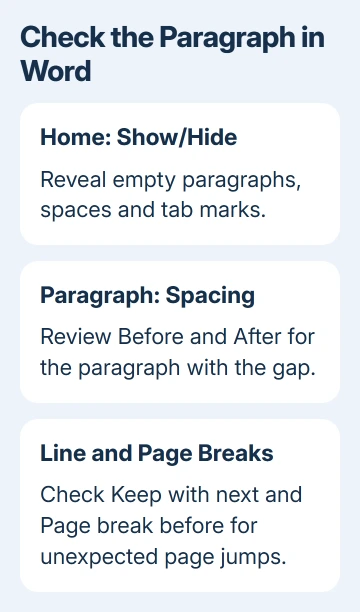
If a heading moves together with the following text, select the affected paragraphs and open the Paragraph dialog. Review Line and Page Breaks, including Keep with next and Page break before.
Keep with next can be useful for keeping a job title with its description. Turning it off everywhere can leave headings stranded at the bottom of pages. Change the paragraph causing the problem, then check the next page again.
For an unexpected gap within a section, check the paragraph's Before and After spacing. Reduce an accidental large value instead of adding blank lines elsewhere to make the pages appear balanced.
If a font looks different, highlight that passage, then check Home > Font. Apply a font available on your computer, then review line wrapping. A replacement font can change how much text fits, even at the same point size.
5. Rebuild a simple Word copy when columns are tangled
If columns overlap or the reading order is wrong, a simple single-column document can be faster to repair than a complex converted layout. Create a blank document in Word, then copy each resume section into it separately.
Paste as text using Keep Text Only on Windows or Paste Special > Unformatted Text on Mac. Reapply headings, bullets and spacing in Word. This removes the old arrangement, so use it only when you're ready to rebuild the appearance.
Check dates, bullets, email addresses and links against the original. A clean-looking document still needs all your information. Use the document-copy guide if you need another working version before trying this repair.
When the employer accepts PDF and the VisualCV layout is already correct, use Download > Download PDF in its editor instead. On mobile, the blue menu button at the bottom right reveals the Download control.
The PDF opens in a new browser tab. Download the actual file before attaching it; that internal preview URL isn't a sharing link. Follow the employer's required format when it specifically asks for Word.
6. Send a repeatable export failure to support
Choose Contact in the VisualCV knowledge base. Include the template, affected section and Word version, plus whether the file was a Word export or PDF conversion. Share private resume details only through your chosen support channel.
If every fresh export loses content or breaks the layout, ask whether the template has a Word-export limitation and which export or template to use instead. That gives you a next step without more unrelated Office repairs.
The Short Version
Export directly to .docx once VisualCV finishes saving. Repair page settings before paragraphs. Use the PDF when accepted, or rebuild a simple Word copy when a converted layout is badly tangled.
Checked November 12, 2026.