A water droplet on an unresponsive Apple Watch means Water Lock is on. Keep the Digital Crown pressed until it unlocks. Without that symbol, use the buttons to restart a frozen watch, or check accessibility settings for delayed taps.
A display that won't light up needs a power check first. A display that lights up but ignores every tap needs the touch checks. Keep that difference in mind before changing settings from the paired iPhone.
In this guide
1. Turn off Water Lock with the Digital Crown
Check the upper part of the face for a water droplet. Water Lock stops the screen from responding to accidental taps in water. More pressure on the glass won't unlock it.
For watchOS 9 or newer, keep the Digital Crown pressed until Unlocked appears. The crown is the round control on the side of the watch. Release it when the unlock process starts and let the tones finish.
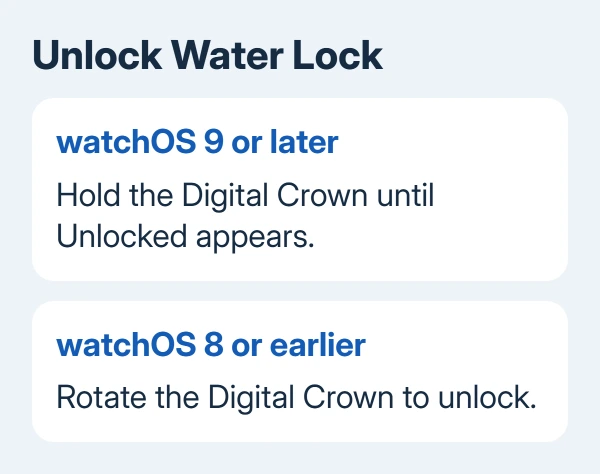
On watchOS 8 or earlier, rotate the Digital Crown instead. That older instruction still appears in discussions, which is why turning the crown can seem ineffective on a newer watch.
Apple's Water Lock instructions explain that the watch also plays tones to clear water from the speaker. Touch should work again after unlocking. Test a simple tap on the watch face or an app.
Water Lock turns on automatically for water workouts, including swimming. On an Apple Watch Ultra it also turns on during a scuba dive. If it's on after one of those activities, that doesn't mean your screen has failed.
If the watch unlocks but taps still don't register, continue with a restart. If the screen is completely dark and never shows the lock, check whether the watch has power before assuming this is Water Lock.
2. Charge a blank screen before testing touch
If the side button doesn't wake the display, put the watch on its magnetic charger. Check that the charger and power adapter are fully connected. An empty battery may need up to 30 minutes before the watch starts.
A red lightning bolt means there isn't enough power to turn on. Charging adds a ring around that red bolt. If no charging indication appears, reposition the watch and try another compatible cable or adapter.
Once the face lights up, test touch again. If it remains frozen despite having power, continue with the button restart.
3. Restart the watch when the display is frozen
Lift the watch off the charger. If some touch works, hold down the side button. Keep it down until the power controls show. On watchOS 9 or newer, tap the onscreen power button and drag Power Off.
On watchOS 8 or earlier, the Power Off slider appears directly; drag it without the extra power-button tap. On either version, hold down that same side button to start the watch again. When the Apple logo comes on, release the button.
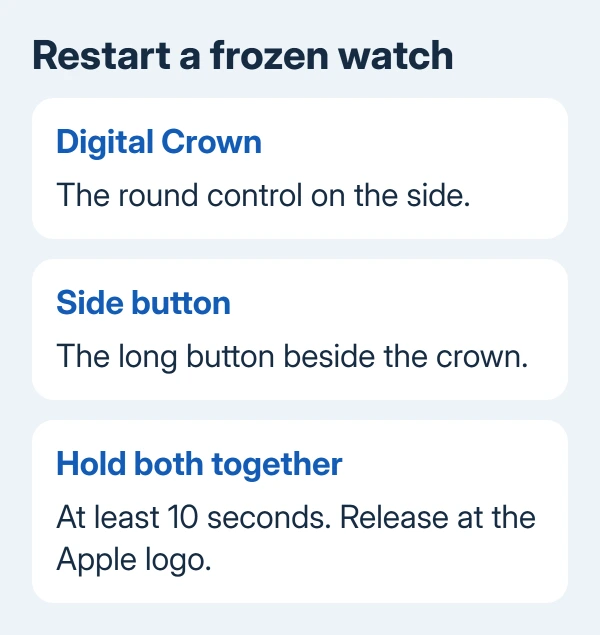
The side button is the elongated button beside the Digital Crown. On an Ultra, don't confuse it with the Action button on the other side of the case. These restart steps use the crown and the elongated button.
For a fully frozen screen, press both controls together: side button plus Digital Crown. Keep both pressed for 10 seconds or longer; let go when the logo appears. This restarts the watch without using touch.
Don't force a restart while a watchOS update is installing. A progress ring around the Apple logo is a reason to let the installation finish rather than interrupting it as a touch test.
After the watch starts, enter its passcode and try opening an app. If ordinary taps and swipes work again, the interface had stopped responding. If the buttons work but taps still don't, check the screen and touch settings next.
I'd try this button restart before erasing the watch. It doesn't require setting up the watch again and gives you a clear result to report if service becomes necessary.
4. Clean and dry the watch before testing again
Remove the watch and wipe it with a nonabrasive, lint-free cloth. Dry your fingers too. Check for water, lotion, or other residue on the glass that could interfere with normal use.
For cleaning, turn the watch off when possible and remove it from the charger. If needed, lightly moisten the cloth with fresh water. Finish by drying the watch thoroughly.
Keep cleaning gentle. Don't use compressed air, abrasive products, or external heat. They can damage the watch and won't fix a touch sensor that no longer responds.
Take off any easily removable outer cover over the glass, then try tapping the exposed, clean screen. If the cover was wet, out of place, or pressing on the display, check whether removing it helps before replacing anything else.
Check the edges of the display at the same time. If the Apple Watch screen is lifting away from the case, stop wearing it, remove it from charging, and request service. Don't press the display back into place as a touch repair.
If the display is clean and sits properly but one area always ignores touch, note that area. Telling the service team exactly where taps fail is more useful than saying the watch feels slow.
5. Check settings when taps work differently than expected
On your paired iPhone, launch Watch, select My Watch, and open Accessibility > Touch Accommodations. This is useful when the watch responds to long touches but seems to ignore ordinary quick taps.
Hold Duration makes the watch wait for a touch to last a chosen time. Ignore Repeat can treat several quick touches as one. Tap Assistance can change whether the watch uses the first or last place your finger touches.
If these settings were enabled accidentally, turn Touch Accommodations off and test the watch again. If you rely on them for accessibility, adjust the relevant setting rather than removing the assistance you need.
If taps work after you change Hold Duration, the setting was affecting them. If the screen doesn't respond anywhere, keep checking. Touch Accommodations can't repair broken display hardware.
If the only complaint is that the screen goes dark too quickly, use the Apple Watch wake-duration checks. A short wake time and a display that won't accept input are different behaviors.
6. Arrange service for a screen that stays unresponsive
Test whether the same problem happens on the watch face and inside more than one app. One app freezing is different from the entire watch ignoring touch. Tell support whether the Digital Crown can still scroll or open the app view.
Use the Apple Watch repair page to arrange an inspection. Have the watch model, recent watchOS version if known, and the result of the button restart ready. Mention any drop, water exposure, crack, or lifted edge.
If buttons work but taps still don't after restarting, ask for a touchscreen and display inspection. A technician needs to examine the watch to tell whether the display or another part has failed.
Check your warranty and AppleCare coverage when you get the repair estimate. Follow support's backup and service-preparation instructions on the paired iPhone. Don't erase the watch just to repeat checks that haven't helped.
The Short Version
Use the Water Lock crown action for your watchOS version. For a frozen interface, restart with both side controls, then check screen cleanliness and Touch Accommodations. Request service for persistent dead touch or physical damage.
Checked November 12, 2026.