
You raise your wrist, glance at your Apple Watch, and the screen goes dark before you have read it. Yet Wake Duration in Settings says 70 seconds. It is annoying, and it looks like the setting is broken.
I would tap the screen instead of only raising your wrist whenever you need more than a glance. An owner on MacRumors found the 70 seconds starts from a tap, tried it, and wrote that it worked.
The MacRumors thread opened on 5 October 2026 and had its answer within minutes.
Why raising your wrist gives you only seconds
Apple's guide describes the raise: "Raise your wrist. Your Apple Watch sleeps again when you lower your wrist". The longer timer is a separate setting.
A reply on the thread put it simply: "The wake duration is only when you tap the screen". In their words, "Apple assumes if you're raising to wake you're just checking".
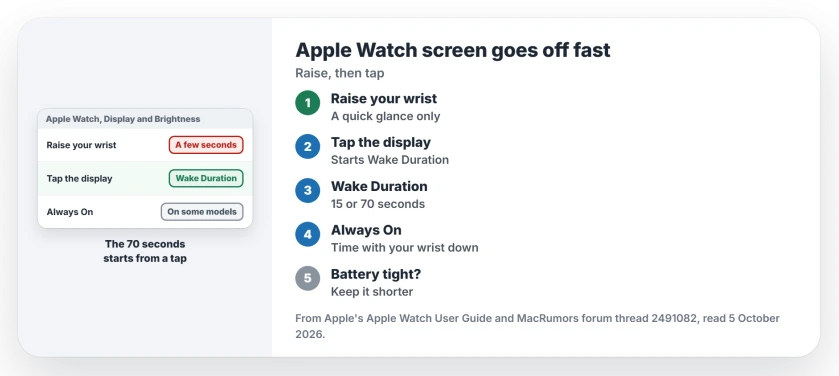
Status: checked 5 October 2026. An owner with Wake Duration at 70 seconds found it only counts from a tap. Tapping the screen gave them the full time.
1. Tap after you raise
Raise your wrist, then tap the display once. The thread's starter tried it and wrote: "I just tried it and it worked!"
Ours: one tap is free and starts the longer timer, and Apple's guide adds that a turn of the Digital Crown also wakes the screen. I would build the habit.
2. Set Wake Duration to 70 seconds
On the watch, open Settings, Display and Brightness, Wake Duration, and check which length is selected there now. Apple's step: "Keep the display on longer when you wake Apple Watch: Tap Wake Duration, then tap Wake for 70 Seconds".
The reply that explained it uses 15 seconds instead: "Tap to initiate the 70 second (or 15 for me) timer". Pick whichever length suits the way you actually use your watch during the day.
3. Turn on Always On if your watch has it
Apple says "Always On lets your Apple Watch display the watch face and time, even when your wrist is down". Another member pointed at it for this exact case: "And then there is AOD, for a reason too".
Ours: Always On keeps the time visible, but a dimmed screen falls short of a lit one when you want to read a busy face full of complications. It is for glancing.
Why Apple keeps the raise so short
Battery, mostly. One member wrote: "The display is the number one user of power". The owner disagreed and wanted choices like 10 or 15 seconds for a raise.
Ours: there is no setting for the raise length today, so the tap is the workaround. Apple Watch battery drain gets worse with longer screen time, so I would not leave 70 seconds on if your battery is tight.
What did not help
Setting Wake Duration to 70 seconds on its own did nothing for the raise. The owner had done that already and still got about 5 seconds per raise. Ours: no restart or reset touches this, because nothing is broken in the watch itself.
Does this apply to every Apple Watch?
The raise and tap behavior described in Apple's guide is the same on current models. Always On depends on the model, and Apple lists the SE (2nd Generation) as one without it.
The watch never wakes on a raise?
Then you have another fault. Apple's guide says to check the wrist and watch orientation settings first, which you change from your phone. A missing Sleep Screen is another watchOS 27 change to rule out.
The Short Version
- A wrist raise keeps the screen on only briefly.
- Wake Duration counts from a tap on the screen.
- Raise, then tap, for the full 70 seconds.
- Set Wake Duration in Settings, Display and Brightness.
- Always On shows the time with your wrist down, on models that have it.
- Longer screen time costs battery.
Where to Next
Raise your wrist now, tap once, and count. If it stays on for your Wake Duration, nothing is broken and you only need the habit.
Would you like a setting for the raise length? Say what time you would pick in the comments.

Isaac Smith is the founder and editor of PC Glance, a website that covers computers, laptops, and technology. He is a tech enthusiast and a computer geek who loves to share his insights and help his readers make smart choices when buying tech gadgets or laptops. He is always curious and updated about the latest tech trends.