
You start Sleep Focus at night, and your Apple Watch keeps showing its normal face. Before watchOS 27, the screen went dark and locked, so a stray tap in bed did nothing.
That is annoying if you want the watch dark and locked at night. I read Apple's watchOS 27 sleep pages, plus the MacRumors thread in which one owner found the missing switch.
What changed after the update
The owner described it well. Sleep Focus "locked the screen on the Apple Watch" before, and now "It's not working with watchOS 27 for some reason."
With Sleep Focus on, a bed icon shows, but in their words "the screen stays on the normal face." It happened on both of their watches, even after re-pairing.
Another owner replied that the lock screen came up as usual on their Ultra 4. So the feature still exists. On the first owner's watches, the switch behind it had ended up off.
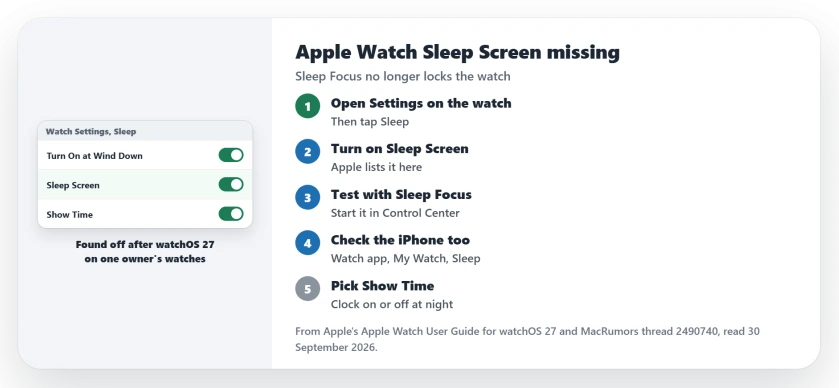
Status: checked 30 September 2026. Apple lists Sleep Screen as a setting in Settings, then Sleep, on Apple Watch. One owner found it off after watchOS 27 and turning it on brought the sleep lock back.
1. Turn on Sleep Screen on the watch
This fix is user-reported, and Apple's guide backs it. On the watch itself, open Settings, tap Sleep, then turn on Sleep Screen.
Apple's watchOS 27 guide describes the switch this way: "Sleep Screen: Your Apple Watch display and iPhone Lock Screen are simplified to reduce distractions."
Then start Sleep Focus from Control Center to test it. The screen should go dark, with the sleep lock showing when you tap it.
In the daytime the opposite complaint is common: a screen that goes dark seconds after a wrist raise.
2. Look on the watch, not only on your iPhone
Apple says you can change these sleep options on iPhone too, in the Apple Watch app under My Watch, then Sleep.
The owner could not find it there. They wrote: "No idea why it's not on by default, or why it doesn't show in the Focus settings or Watch app on the iPhone."
I would check the watch first. It takes a few seconds, and it is where the switch showed up for them.
3. Check when Sleep Focus starts
On the same Sleep screen, Apple lists Turn On at Wind Down. By default, Apple says the Sleep Focus begins at the wind down time set in the Sleep app.
If you would rather start it yourself from Control Center, turn this off. Apple's guide adds that Sleep Focus "turns off the watch display and limits distractions before your scheduled bedtime."
4. Decide whether you want the time showing
Show Time is the third switch on that screen. Apple says it keeps the date and time visible on both devices while Sleep Focus is on.
Leave it on if you check the time at night, and otherwise switch it off.
5. If Sleep Focus will not start at all
A Sleep Focus that never starts needs other fixes. Our sleep tracking page covers the schedule and the settings behind it.
Sleep numbers looking wrong too?
If the watch records your night but the times look off, the sleep time page goes through the reasons.
Why doesn't my Apple Watch lock during Sleep Focus on watchOS 27?
Check Sleep Screen on the watch, under Settings, then Sleep. One owner found it off after updating, and turning it on fixed it.
Where is Sleep Screen on Apple Watch?
Open Settings on the watch and tap Sleep. Apple lists Sleep Screen there, next to Turn On at Wind Down and Show Time.
Can I change Sleep Screen from my iPhone?
Apple says the sleep options also appear in the Apple Watch app, under My Watch, then Sleep. The first owner saw no such switch there, so check the watch too.
The Short Version
- On the watch, open Settings, then Sleep.
- Turn on Sleep Screen.
- Test it by starting Sleep Focus.
- The iPhone may not show the switch.
- Turn On at Wind Down sets the start.
- Show Time adds the clock at night.
- Sleep Focus not starting is a separate fault.
Where to Next
Open Settings on your watch now, tap Sleep, and check Sleep Screen. Then start Sleep Focus once to test it.
If yours was already on and the lock still does not show, leave a comment with your watch model. I will add new findings here.

Isaac Smith is the founder and editor of PC Glance, a website that covers computers, laptops, and technology. He is a tech enthusiast and a computer geek who loves to share his insights and help his readers make smart choices when buying tech gadgets or laptops. He is always curious and updated about the latest tech trends.