PowerPoint store add-ins use Home > Add-ins or File > Get Add-ins in current Windows versions. Choose the tool, review its details, and select Add. Downloaded Windows plug-ins can need their own installer.
Start by checking which type the maker supplies and whether it supports your PowerPoint version. That avoids looking for a Windows-only tool in PowerPoint for the web or trying to install a store add-in through the wrong settings.
In this guide
Choose the add-in type that matches your PowerPoint
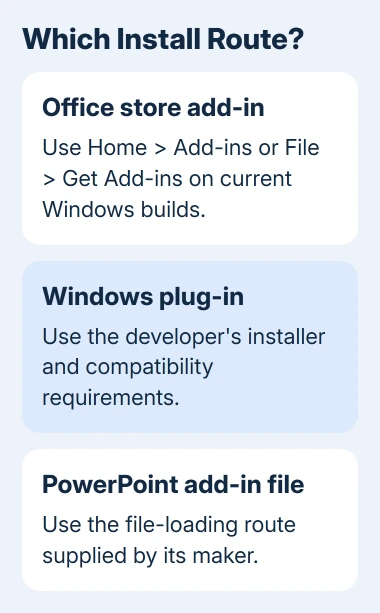
An Office add-in can open a panel beside your slides or add service commands. Its listing tells you which PowerPoint apps it supports. Check compatibility first, especially when moving between Windows and a Mac.
A Windows desktop plug-in may arrive as a separate installer. Another kind is a PowerPoint add-in file loaded by the desktop app. You load these differently from a tool you select with Add in the Office store.
I'd install one new add-in at a time and try it in a copy of a presentation. Then you'll know which tool added a command or changed a slide, without having to undo several installations together.
Choose a tool for a specific job. Adding a custom font, for example, needs the PowerPoint font installation steps rather than an add-in. The desktop app gets its installed fonts from your operating system.
Likewise, ordinary slide footnotes and their reference marks can be entered with built-in controls. Check whether PowerPoint already has the feature before installing a second way to do it.
Install a store add-in on Windows
Open a presentation in desktop PowerPoint. Select Home > Add-ins, or use File > Get Add-ins. Current Microsoft 365 builds offer these routes; an older layout can put the store controls on the Insert tab instead.
- Open the add-in chooser and select More Add-ins if the tool isn't shown immediately.
- Use the Store tab to search for the add-in you want. Compare the exact name and publisher with the maker's instructions.
- Open its details and check supported applications, account requirements, and any subscription terms.
- Select Add and read the information shown before continuing.
Microsoft's add-in management instructions describe both the Home and File routes. After installation, look for the add-in's command or panel and follow its setup instructions.
Adding a tool doesn't necessarily sign you into its service. If its panel asks for an account, use the account that provider asks for. Paying for Microsoft 365 doesn't necessarily cover the add-in provider's subscription.
Read what the add-in needs to read or change before approving access. For work content, choose an approved tool. If installation is blocked, ask the administrator rather than lowering security to force it through.
Open an add-in that's already in your account
Return to Home > Add-ins > More Add-ins, then open My Add-ins. Select the tool you want to use. If the list doesn't show a recently acquired add-in, use Refresh to reload the list.
Ribbon buttons, panels, and sign-in processes differ between tools. Use the maker's launch instructions. Installing an image search tool, for example, doesn't make every PowerPoint image command part of that add-in.
If you use several Office accounts, check the signed-in account before assuming the installation disappeared. An add-in you added through one account, or received through your organization, may not appear in another account's list.
Test the feature on a simple slide. If its panel opens but the requested action fails, note what you tried and the message you saw. That gives the provider a more useful report than saying the add-in is missing when it is actually loaded.
Use the supported route on a Mac or the web
For a store add-in on a Mac, check its listing for Mac compatibility first. The store's existing-add-in launch instructions use Insert > My Add-ins in PowerPoint to find a tool you've already added.
If your ribbon groups those controls under Insert > Add-ins, open that menu to reach the available store or My Add-ins options. Follow the add-in maker's current Mac installation instructions when its layout differs from Windows.
In PowerPoint for the web, use the add-in control in the open presentation's ribbon, rather than downloading a Windows installer. The current web and Windows add-in interface supports Home > Add-ins and the File > Get Add-ins route.
Check that the tool lists PowerPoint for the web support. Installing a Windows plug-in doesn't make it run in a browser. If the tool supports only desktop PowerPoint, open your presentation in the desktop app it supports.
Check whether the problem is app compatibility or your account. A missing Mac or web version needs another supported tool, while an administrator-managed add-in needs help from the organization that supplied it.
Handle downloaded desktop add-ins separately
If the provider supplies an installer, close PowerPoint as its instructions require, run that installer, and reopen the app. Check the provider's Windows and Office requirements, including whether it needs the 32-bit or 64-bit edition.
For a PowerPoint add-in file, the desktop File > Options > Add-ins page includes a Manage list. Choose PowerPoint Add-ins, then Go, and use Add New to select the supplied file when that is the maker's installation method.
PowerTools' file-loading procedure uses this route for its supplied file. Enable downloaded code only when you trust its publisher; keep macro protection for unfamiliar files.
Windows COM add-ins use a separate COM Add-ins choice in Manage. COM is a Windows plug-in system, so these instructions don't create a matching installation on a Mac or in the browser.
Remove a tool or deal with one that won't load
For a store add-in, open My Add-ins, select the tool, and use Remove from its menu. Removing an add-in doesn't cancel its paid subscription. Check its billing controls if you intend to stop paying too.
For a downloaded plug-in, follow the maker's uninstall procedure. If PowerPoint lists it as disabled after a crash, note that it's disabled before trying to enable it again. An incompatible tool can cause the same failure when it loads.
Give the provider your PowerPoint version, Windows or macOS version, add-in name, and exact error. If installation is restricted by work or school, ask IT to check store access and deployment for that specific add-in.
The Short Version
Use store controls for store add-ins and the maker's installer for downloaded plug-ins. Check Windows, Mac, or web compatibility first. Find acquired tools in My Add-ins; removal and subscription cancellation are separate.
Checked November 12, 2026.