The original Steam Controller pairs over Bluetooth with Y + Steam, after its Bluetooth firmware is installed. The 2026 model uses B + R1 + Steam, held through the second chime.
Start with the right controller generation, because each one has its own pairing shortcut.
Bluetooth pairing connects the controller to the device. Steam or Steam Link then handles game controls. Keep the right software running even after Bluetooth reports that the controller is connected.
In this guide
Identify the controller before using a shortcut
The 2015 Steam Controller has two large round trackpads, a single analog stick and a micro-USB connection.
Its original wireless receiver uses a different connection from Bluetooth, and early firmware needs an update to add Bluetooth Low Energy support.
The 2026 Steam Controller has two analog sticks, two trackpads, USB-C and a charging receiver called the Puck. Its connection light distinguishes Bluetooth from the Puck and USB modes.
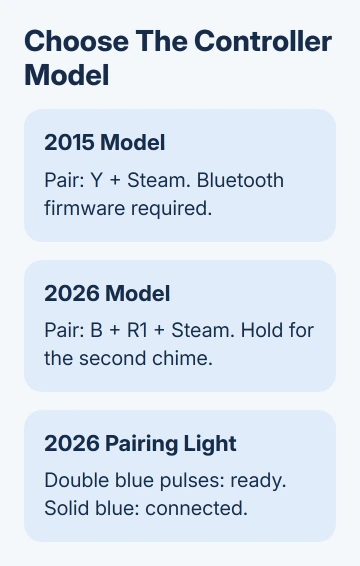
Pick the matching section before holding buttons. The original controller's B + Steam reconnect command isn't the newer controller's complete pairing command, even though both involve the B button.
On either model, start with the controller off and the receiving device's Bluetooth settings open. Keep it near the device while pairing, so you can see the new entry appear and select it immediately.
Install Bluetooth firmware on the 2015 controller
If the original controller already pairs over Bluetooth, skip the firmware installation and use the next section. A controller working with its USB receiver doesn't tell you whether Bluetooth firmware has been installed.
Download the official firmware tool on a Windows PC. Extract the ZIP archive before running anything inside it.
The 2015 controller firmware procedure identifies this tool and the reconnect commands. Use that package for the original controller, rather than the 2026 model's firmware.
Use a data-capable USB cable to connect the controller to your PC. In the unzipped folder, run ble.bat, the Bluetooth firmware installer named in the support procedure. Let the tool complete before unplugging the controller.
The firmware update clears saved pairings. Have the receiving device available to pair again; the original receiver connection also needs to be restored if you still use it.
To reconnect that receiver, plug it into the PC and open Steam's controller settings. Choose Add a Steam Controller, press X + Steam, and enter the four-character validation code shown on screen.
That add-controller option appears when the original wireless receiver is plugged in. It sets up the receiver connection. If the receiver isn't plugged in, a missing option doesn't mean you need to update the firmware again.
If the firmware tool can't find the controller, check the USB data connection before trying another flash. A charging-only cable can't transfer the firmware. If the official tool still fails, keep its message and contact Steam Support.
Pair the 2015 controller, then use its reconnect shortcut
Open the receiving device's Add Bluetooth device control. With the controller off, hold Y and press Steam to start Bluetooth pairing, then select the Steam Controller when it appears in the Bluetooth list.
After the device reports a successful connection, open Steam or Steam Link and check the controller there.
On a phone or tablet, Bluetooth is the connection used with Steam Link; it doesn't turn every mobile game into a supported controller game.
For later use, start the controller with B + Steam to reconnect to its most recently used Bluetooth device. Use that shortcut to reconnect. Use the pairing shortcut when connecting it to another device for the first time.
The BLE firmware can remember two Bluetooth connections. Steam + Start selects the second stored Bluetooth connection. Steam + A selects the most recent wireless receiver connection instead.
Starting with Steam alone uses the most recent device and connection mode. If it seems to keep returning to the wrong computer, choose the intended mode with its specific shortcut.
I'd check that shortcut before flashing firmware again. Switching to the old receiver mode can make a working Bluetooth controller seem to have disappeared from the phone.
Put the 2026 controller into Bluetooth pairing mode
Turn off the controller by holding Steam for about five seconds, until it chimes and the light goes out. Then hold B + R1 + Steam to use the right Bluetooth slot.
Keep holding after the first chime. Release after the second chime, when the light shows rapid double blue pulses. That pattern means it's ready for a new pairing, instead of trying to reconnect to a saved device.
In the receiving device's Bluetooth list, select the entry beginning Steam Ctrl (BT) FXA. Once pairing completes, the controller light should become solid blue.
The current 2026 controller connection guide also provides a left Bluetooth slot. Use B + L1 + Steam, holding through the second chime, when pairing that slot instead.
For a later reconnection, use the matching button combination only until the first chime and blue light. Holding through the second chime is what enters pairing mode and lets another device take that slot.
White indicates the Puck connection; green indicates wired USB. Neither is the connected Bluetooth state. To return to the right Puck slot, start the powered-off controller with A + R1 + Steam.
Finish pairing in Windows and check Steam
On Windows 11, open Settings > Bluetooth & devices, turn Bluetooth on, and select Add device > Bluetooth. On Windows 10, open Settings > Devices > Bluetooth & other devices > Add Bluetooth or other device > Bluetooth.
Select the controller when it appears and follow the prompts. Microsoft says its Bluetooth pairing instructions walk through those controls. If Windows has no Bluetooth switch, use the Bluetooth enablement checks.
Open Steam > Settings > Controller and check the detected controller. For the 2026 model, available controller or Puck firmware updates appear there. On SteamOS, look in Settings > System > Hardware Updates.
If a paired controller doesn't control a game, check its Steam controller layout and the game's supported inputs. The combined Joy-Con setup illustrates why Windows pairing and Steam's controller setup are separate stages.
For repeated connection failures, restart the receiving device and install available Steam, operating-system and controller updates.
If it still fails, send Steam Support the controller generation, connection light, receiving device and whether USB works.
The Short Version
Use the 2015 firmware tool when needed, then pair with Y + Steam. On the 2026 model, hold B + R1 + Steam through the second chime and select its Bluetooth entry. Finish in the device's Bluetooth settings, then check Steam or Steam Link.
Checked November 12, 2026.