Cloning an enrolled Windows PC can copy Intune enrollment details and break the destination's enrollment or syncing. IT needs to fix the copied account or certificate details, then enroll the new installation separately.
Microsoft doesn't support deploying an enrolled computer's clone. Windows can boot and accept a work password while device management fails. Check the enrollment error to tell a management problem from a Windows sign-in problem.
In this guide
1. Read the work connection before changing it
On Windows 11, open Settings > Accounts > Access work or school. Select the work connection and look for Info. Write down the organization, connection state and any management error shown.
Windows 10 uses Settings > Accounts > Access work or school as well. If Company Portal is installed, open it and check the device's status there. Record the full error code, rather than only the message that something went wrong.
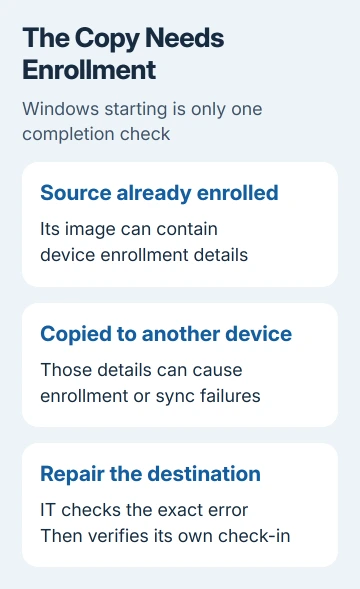
Microsoft says copying an enrolled image can cause enrollment and sync failures because it copies enrollment details or identity tokens, which identify the device to the service. This applies to physical PCs and virtual machines.
Tell IT whether you've copied Windows to another PC, a virtual machine or a replacement disk in the original PC. Say whether the source image was already managed. That tells them whether you moved Windows to a new disk or another device.
The Samsung SSD cloning procedure covers copying a disk, but a successful disk copy doesn't check Intune enrollment. Check both the disk copy and enrollment before calling the move finished.
2. Try one sync if the management connection exists
With the PC online, return to Access work or school, select the connected work account, choose Info, then select Sync. Wait for the result and note any displayed error or last-sync information.
If Info or Sync isn't available for that connection, report that to IT. Don't add a new connection just to make a missing button appear. A listed work email address and an active management connection aren't always the same thing.
This sync attempt asks the existing management connection to check in. If it completes, have IT confirm that the PC you copied Windows to has checked in before calling the migration finished.
If the same error returns, stop repeating Sync and move to the enrollment details. A copied device identity isn't repaired simply by sending the same request again.
I'd keep the source PC unchanged until IT identifies the copied PC's record. Two similar device names make it easy to remove the wrong record while trying to clean up the copy.
3. Give IT the device identity and exact error
Open Command Prompt in your normal signed-in user session and run dsregcmd /status. This shows the device's current status. It doesn't disconnect the device or start a fresh enrollment.
Device State shows AzureAdJoined and DomainJoined. Device Details, when present, includes DeviceId. Entra ID handles cloud identity for your organization; an Entra connection and Intune management are separate checks.
The dsregcmd field reference explains those values. AzureAdJoined: YES reports an Entra join; it doesn't by itself confirm a successful Intune sync.
For a hybrid-joined device, both AzureAdJoined and DomainJoined should be YES. Other enrollment setups use different values. Let IT compare yours with the company's setup rather than changing them to match an example.
Send those details through your company's approved support channel. Ask IT to compare the destination with its Entra and Intune records and the source image. Keep device identifiers out of public forum posts.
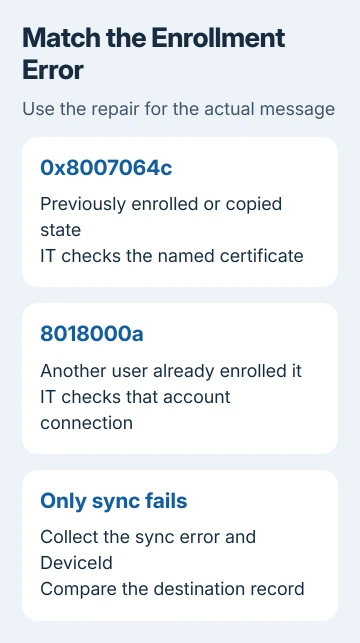
Record whether the error is 0x8007064c, 8018000a, a license message or only a sync failure. Each calls for a different repair; a registry cleanup chosen for one code shouldn't become the default for every cloned PC.
4. Use the documented cleanup only for its matching error
For 0x8007064c, the Windows enrollment error instructions identify previous enrollment, an enrolled source image and a remaining account certificate as possible causes.
Have IT open Run, enter mmc, then choose File > Add/Remove Snap-ins > Certificates. Select Computer account > Next > Local computer, finish adding the snap-in, and open Personal > Certificates.
The documented procedure looks specifically for a certificate issued by Sc_Online_Issuing. If present and confirmed as the stale enrollment certificate, the procedure removes it before trying enrollment again.
The same error procedure also names the OnlineManagement registry branch and a particular installer product key. Before making those changes, IT should back up the registry and follow that exact error section, including its retry points.
Remove only the certificate or key named for that error. If those items aren't present, report their absence to IT. A broad deletion can break a working connection while leaving the copied enrollment problem unfixed.
For 8018000a, the instructions instead address another user already enrolling or joining the device. IT should identify that account and follow its disconnect-and-re-enroll route. It isn't the same certificate cleanup as 0x8007064c.
5. Enroll the destination through the approved route
Once IT has fixed the old enrollment details behind that error, use the company's usual enrollment process. Some organizations use Company Portal; others use automatic enrollment during device setup. Choose the route they assign to this PC.
Open Windows Company Portal, sign in with the work account and complete its setup prompts. Record any new error code. The old enrollment details may be cleared, but another setup requirement may still be blocking enrollment.
IT also needs to check the assigned Intune license, allowed Windows edition and enrollment restrictions. Changing your personal Microsoft account won't correct a restriction on the company's enrollment service.
If IT can't repair the copy safely, have them back up local work and rebuild it through their deployment process. The replacement installation needs separate enrollment; its Windows image mustn't include another device's management details.
After enrollment, run the management sync and ask IT to verify a fresh check-in on the correct device record. Open the work resources you need and confirm the required apps or policies arrive.
The managed Windows settings explanation helps explain when your organization controls a setting and when the setting itself isn't working. A management label alone doesn't confirm the destination is checking in correctly.
Ask IT to open an Intune support case if enrollment still fails. Send the error, timestamps, device details, image history and repair tried so support can follow the failed enrollment instead of starting with an unrelated password reset.
The Short Version
An enrolled image can carry management details the destination shouldn't reuse. Check its work connection and try one sync. Send IT the error code and device identity, use the matching repair, and verify a fresh destination check-in.
Checked November 13, 2026.