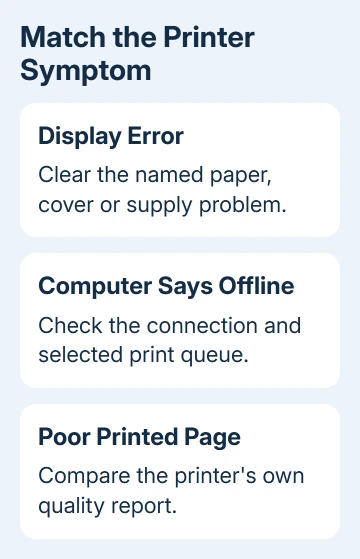
A Brother printer with a paper or cover error needs that cleared first. If only the computer says Offline, check the connection and queue. For pages with marks or gaps, compare the printer's own quality report.
Start with the printer's own display, then work on the stage that failed. Reinstalling software won't remove jammed paper, and replacing toner won't make an offline network connection return.
In this guide
1. Clear the message on the printer itself
Read the LCD, warning light, or Status Monitor message before sending another document. Write down the exact wording and the model number. Brother machines use different supplies, access panels, and reset procedures.
For No Paper, check that paper is loaded correctly and the tray is seated. For a cover warning, close the named cover firmly. If it reports a jam, follow the diagram for your model and remove paper from the indicated location.
Don't reach into hot internal areas or pull against resistance. The model's user guide identifies the safe access points. A scrap left in the path can trigger the same jam warning after the larger sheet has been removed.
When the display returns to its ready state, send one small document. If the error comes back before the computer sends anything, keep checking the printer itself. A driver change won't clear that message.
For a printer that never powers on, use the separate Brother printer power checks. The queue and network steps need the machine running first.
2. Compare a printer report with a computer print
Use the printer's Print Reports or test-print menu to print a settings or quality report. The menu varies by model, so use its control-panel guide rather than trying an unrelated button combination.
On an all-in-one, a simple copy is another useful comparison. Put a clean page on the scanner glass and copy it from the printer's controls. That operation doesn't need the computer's print queue or its driver.
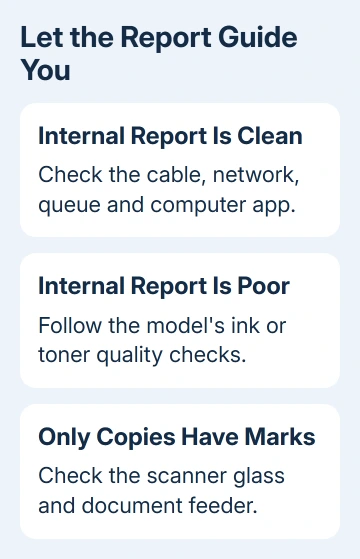
A clean report from the controls means the printer can feed paper and print properly. If computer jobs still don't arrive, work through the connection and queue checks. If the report itself is faded or streaked, move to the quality section.
If copies have marks but the printer report is clean, check the scanner glass. Dirt on the glass can appear on copies while ordinary printing stays clean. Compare the same original on the flatbed if it failed through the document feeder.
I'd compare those pages before reinstalling printer software. It gives you a useful result even when the computer only reports a vague printing error.
3. Restore the USB or network connection
For USB, test with a direct printer-to-computer connection. Reseat both ends of the cable and try another working USB port. A dock or hub adds another connection that can fail while the printer itself stays ready.
For Wi-Fi, check that your computer and printer are on the same network. Guest-network restrictions can block communication between devices. After replacing a router, reconnect the printer using the new router's network name and password.
For Ethernet, confirm the network cable is seated at the printer and router or switch. Test another cable or socket if that connection has stopped working. Wi-Fi setup steps won't repair an unplugged Ethernet link.
Print the network report if you need to verify the address and network details. The guide to finding a Brother printer's IP address covers getting that information from the machine.
After restoring the connection, send a single page. If it prints, restoring the connection solved the problem. If the computer still shows Offline while the machine is ready, check the selected printer and queue next.
4. Open the right queue and remove a stuck job
In Windows 11, open Settings > Bluetooth & devices > Printers & scanners. Select your Brother printer and choose Open print queue. In Windows 10, use Settings > Devices > Printers & scanners, then select Open queue.
Check that the queue belongs to your physical machine. The job can go to an old USB entry, a duplicate printer entry, or a printer in another room while the one next to you stays idle.
Cancel the failed document from its job menu. Then try one short file again. If the queue is paused, resume it. In a classic queue window with a Printer menu, remove a check beside Pause Printing or Use Printer Offline.
Those classic menu items aren't present in every newer queue window. Skip that menu instruction when it isn't offered. Run the printer troubleshooter in Get Help if you still can't get the queue working.
Microsoft's printer help page recommends Get Help, driver checks and spooler repairs. The print spooler is Windows' service for managing queued jobs.
If canceled jobs won't disappear, restart the computer and printer. If the queue gets stuck again with the same file, try another app or document before reinstalling the driver.
5. Repair the computer installation when reports print
Try printing a small file through a different app. If it works, check the failing app's selected printer, paper size, and print preview. A problem with one file or app doesn't require resetting the printer's network settings.
If every app fails, run the printer troubleshooter. When that doesn't help, note your model and connection method, remove the failed printer entry, and add it again through Printers & scanners.
Choose the exact model's driver for your Windows version. On an ARM-based PC, a manufacturer's installer can fail even when Windows can add the printer. Try Add device rather than repeatedly running that installer.
On a Mac, open System Settings > Printers & Scanners, select the Brother printer, and open its queue. Resume a paused job or remove a failed one. Re-add the printer if the old entry still points to a connection you no longer use.
6. Treat faded or streaked pages as a separate fault
Compare the printer's own quality report with a computer document. When both have the same gaps, streaks, or faded areas, changing the computer's queue won't repair the printed image.
For an inkjet, run the model's Print Quality Check and follow its cleaning prompt for missing colors or broken patterns. Check the next printed result before deciding whether another cleaning is needed.
For a laser printer, follow the user guide's print-quality steps for its toner and drum. These are separate parts on many Brother models. A drum-life message and a toner warning don't call for the same replacement or counter reset.
If internal reports stay poor, send Brother support a photo of the report along with your model number and any supply messages. Ask for the procedure matching that pattern before buying more ink, toner, or parts, or arranging service.
The Short Version
Clear the printer's own error first. A clean internal report points toward the connection, queue, or computer. A poor report needs model-specific quality checks. Keep the message and report handy when asking for service.
Checked November 13, 2026.