The percent error formula in Excel is =ABS((B2-A2)/A2): A2 is the accepted value and B2 is your measurement. Format the result as Percentage. Don't also multiply by 100, which makes the display a hundred times too large.
This calculates the size of the error without a negative sign. Keep the subtraction signed instead if your assignment asks whether the measurement was higher or lower than the accepted value.
In this guide
Put the accepted value and measurement in separate columns
Enter Accepted value in A1, Measured value in B1 and Percent error in C1. Put each pair of numbers on the same row so the formula compares each measurement with the right reference value.
The accepted value is the reference you're comparing against. It belongs in the denominator, the number after the division sign. Swapping those two columns changes the answer, even when the difference between them stays the same.
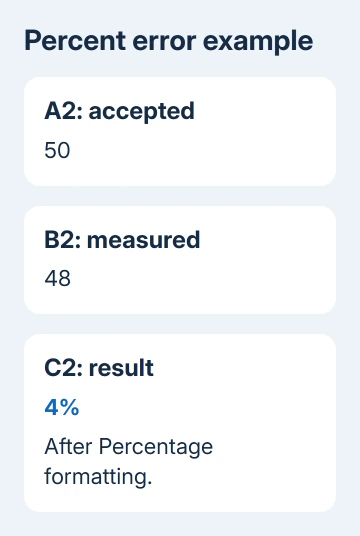
For example, use 50 as the accepted value and 48 as the measurement. The difference is -2. Dividing by 50 gives -0.04, and taking its absolute value, the size without the sign, gives 0.04.
Both numbers need matching units. Comparing 0.5 meters with 48 centimeters without converting one of them first gives a misleading result instead of showing how far your measurement was off.
I'd label the units in the headings and enter plain numbers in the cells. Text such as 48 cm mixes the value with a label and can stop an arithmetic formula from calculating.
Enter ABS around the comparison
Select C2 and type =ABS((B2-A2)/A2), then press Enter. The inner subtraction calculates the difference. Dividing by the accepted value puts that difference in proportion, and ABS removes any negative sign.
Microsoft's ABS function guide explains how it removes a number's sign. That's why the same formula works when the measurement falls short of the reference or exceeds it.
With A2 set to 50 and B2 set to 48, C2 initially shows 0.04 if the cell uses General formatting. That decimal is correct before you apply Percentage formatting. It doesn't mean the formula has returned only 0.04 percent.
Change B2 to 52 and the absolute result is still 0.04. A measurement two units too high and one two units too low have the same error size against a reference of 50.
Change B2 to 50 and the result becomes zero. This is a useful check of the cell references: matching measurement and accepted value should produce no difference.
Keep the parentheses around B2-A2. Without them, Excel divides before subtracting, so =ABS(B2-A2/A2) performs a different calculation and won't give the intended percent error.
Apply Percentage formatting once
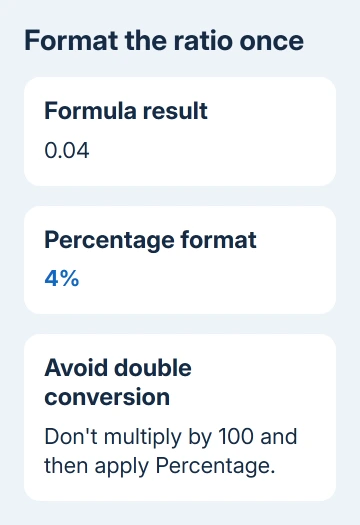
Leave C2 selected and choose Home > Number > Percent Style. The decimal 0.04 now displays as 4%. Use the decimal-place buttons in the same group if you need more detail.
The formula and Percentage formatting work in Excel for Windows, Mac and the web. The calculation doesn't require a special add-in or a function named PERCENTERROR.
Keep either a decimal ratio formatted as a percentage or a number already multiplied by 100. For an ordinary results table, the first choice is easier because the cell stays formatted as a percentage.
If you instead use =ABS((B2-A2)/A2)*100, leave the cell as a number and label the column clearly. Applying Percentage to that result turns 4 into 400%, which changes what the reader sees.
For an accepted value of 80 and a measurement of 78.5, the error is 1.875%. A format showing two decimal places displays 1.88%. Formatting rounds the display while keeping the full result for calculations.
Avoid rounding the source measurements just to make the table tidy. Set the displayed decimal places on the result, and keep the precision your data or assignment requires.
Copy the formula for multiple measurements
When each row has its own accepted value, copy C2 down the results column. The next row should read =ABS((B3-A3)/A3), followed by the same pattern for later rows.
Check the first copied formula by selecting it and reading the formula bar. It should compare the two values on that row, rather than continuing to compare every measurement with the first pair.
For one fixed reference in A2 and measurements running down column B, use =ABS((B2-$A$2)/$A$2). Those dollar signs hold A2 in place; the measurement reference moves down column B.
The formula-copying guide explains relative and fixed cell references if the results change unexpectedly after filling a column.
Use a simple pair you can check by hand before copying hundreds of rows. A correct-looking percentage on one row doesn't show whether the accepted value was fixed when the worksheet needed it to move.
Deal with zero, negative references and signed results
You can't calculate percent error against an accepted value of zero because that would mean dividing by zero. Excel shows #DIV/0!. Don't replace that error with 0%, which would claim a perfect measurement.
For a table that should mark zero references, use =IF(A2=0,"N/A",ABS((B2-A2)/A2)). The N/A result makes it clear that percent error can't be calculated for that row.
Use the formula only after entering both source values. An empty measurement cell can be treated as zero by arithmetic, so an unfinished row can otherwise look like a completed 100% error result.
For a negative accepted value, ABS around the entire ratio still gives an error size of zero or greater. If the required calculation is signed, ask which sign convention your course or workplace uses before dropping ABS.
Percent change and percent difference answer other questions. Percent change tracks movement from an old value; percent error compares a measurement with an accepted reference. Choose the calculation that matches the task.
If Excel shows the formula as text, use the formula display checks. For a numeric answer you don't expect, recheck the accepted value and units before changing the math.
The Short Version
Use =ABS((B2-A2)/A2) with the accepted value in A2, then apply Percentage. Keep references correct when copying, and mark a zero accepted value as unavailable rather than reporting zero error.
Checked November 13, 2026.