A keyboard lock, remapping tool, or administrator policy can stop Windows + R working. Right-click Start and choose Run first. If the box opens, check the keyboard shortcut rather than repairing Run itself.
A restriction message or a missing Run command changes the next step. That points toward an administrator setting, especially on a managed PC. A keyboard swap won't remove that restriction.
In this guide
1. Open Run with the mouse and compare the result
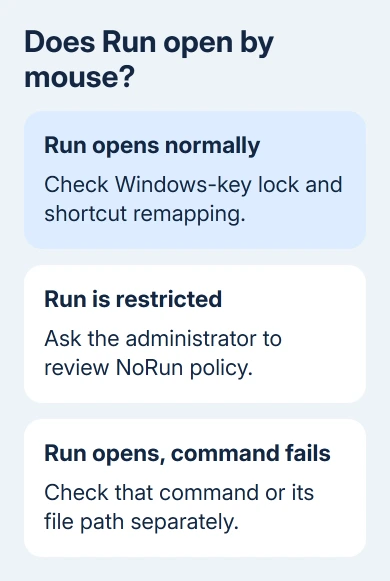
Right-click Start on the taskbar and select Run. The normal result is a small dialog with an Open field and OK, Cancel, and Browse buttons. Close it without entering anything for now.
Alternatively, click Start, type Run, and open the matching system app. Microsoft lists this search option alongside the keyboard shortcut in its Run instructions.
If the box opens by mouse, press Windows + R on the desktop, away from a game or a remote session. Hold the Windows-logo key, tap R, then release both keys. Check both Windows keys if your keyboard has two.
If Run opens but a command inside it fails, record that command and its error separately. A file-not-found message after pressing OK means the dialog worked; check the command, the app's installation, or the file path next.
If Run reports restrictions, skip to section 5. If Start and Search also fail to respond, save work and use the restart in section 4 before making deeper changes.
2. Check the keyboard's Windows-key lock
Press the Windows key alone. It should open Start. Then try Windows + E, which normally opens File Explorer. If neither works but letters type normally, check whether the keyboard has a Windows-key lock or gaming mode enabled.
Gaming keyboards can block the Windows key to prevent accidental interruptions. Look for a lock button, indicator, or gaming-mode control in the keyboard's own software. Use the model's manual for its exact switch or key combination.
There isn't one unlock combination for every laptop or gaming keyboard. Don't keep trying random Fn combinations: those can change wireless, display, or other controls instead. Check the maker and model printed on the keyboard.
Turn off the relevant lock, return to the desktop, and try the shortcut again. If Start now opens from the Windows key and Run responds too, the keyboard mode was blocking those keys.
For an external keyboard, use a direct connection to the PC and compare another keyboard if one is available. A second keyboard working on the same desktop points toward the original keyboard or its settings.
For letters that also stop responding, use the Windows keyboard checks rather than treating the whole problem as a broken Run shortcut.
3. Compare the on-screen keyboard and any remapping tools
Open Settings > Accessibility > Keyboard with the mouse and turn on On-screen keyboard. Click its Windows key, then R. Try this to see whether Run opens without the physical keys.
If the on-screen combination opens Run while the hardware keyboard doesn't, check the hardware keyboard's settings and connection. If neither keyboard opens Run but the mouse command does, look at tools that change shortcuts.
In PowerToys, open Keyboard Manager. Check Remap a key and Remap a shortcut for anything assigned to the Windows key or Windows + R. Note the existing assignment before changing or removing it.
The Keyboard Manager documentation explains that changed key assignments work while PowerToys is running. Exit PowerToys from the notification area for a comparison if you're unsure which mapping applies.
Also exit any keyboard macro utility you've configured, then test on the desktop again. If the shortcut returns, reopen one utility at a time and correct the assignment in the tool that makes it stop working.
Leave accessibility settings you rely on enabled. Sticky keys lets you enter a combination one key at a time; Filter keys can filter out quick presses and repeated input. Check them only if the way keys respond has changed.
4. Restart after closing shortcut tools
Save open documents, then choose Start > Power > Restart. After signing back in, test Run before opening games, remote desktops, or your usual keyboard utilities. Check whether the shortcut works in this fresh session.
If it works initially and fails after one particular app opens, check that app's shortcut settings. In a remote session, also check whether the key combination is going to the remote computer instead of this PC.
I'd use the mouse command while sorting out a keyboard utility. It keeps the Run box available without changing system policies or resetting Windows just to restore one shortcut.
For another way to open system tools, the Task Manager shortcut guide includes mouse and keyboard routes. A working mouse-opened Run box is a reason to finish the keyboard checks first.
5. Check a policy only when Run itself is restricted
Microsoft's NoRun policy can remove Run commands and block Windows + R. Its setting is called Remove Run menu from Start Menu, despite also affecting the keyboard shortcut.
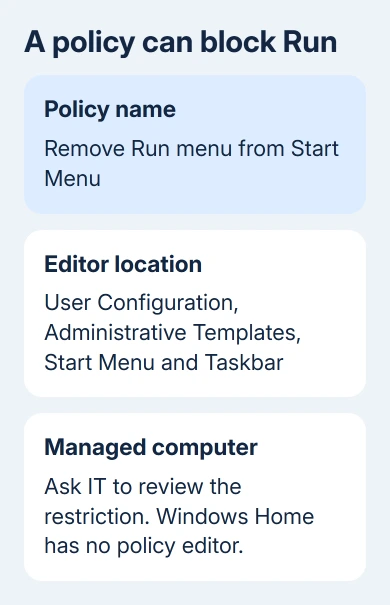
On a work, school, or kiosk PC, send the restriction message to the administrator. Ask them to check NoRun and assigned access, which limits the PC to certain apps. These limits can be intentional and return after a local change.
On your own unmanaged Windows 11 Pro PC, search Start for Edit group policy. Open User Configuration > Administrative Templates > Start Menu and Taskbar, then open Remove Run menu from Start Menu.
If you enabled that setting yourself, change it to Not Configured or Disabled, select Apply, and sign out, then sign in again. Recheck Run through Start and the shortcut. Windows 11 Home doesn't include this editor.
The same policy exists under Computer Configuration > Administrative Templates > Start Menu and Taskbar. Check there if you once set it up there; changing the user setting won't remove a restriction set for the whole computer.
The missing editor on Home doesn't mean Windows is damaged. Don't download another policy editor or import a registry file for an unknown restriction. Ask Windows support to check the restriction message and your account setup.
6. Repair system files when several Windows features fail
If Run, Start, and other system features remain broken after a restart, find Command Prompt through Search and use its Run as administrator command. Run DISM.exe /Online /Cleanup-image /Restorehealth, then sfc /scannow.
Wait for each command to finish and read its result. These tools repair Windows components; they don't unlock a gaming keyboard or undo an intentional workplace policy. Restart and try those same features again afterward.
For a repeat failure, open Get Help from Start. Describe whether Run opens by mouse, whether another keyboard works, and whether a restriction message appears. Give support those results before considering a Windows reinstall.
The Short Version
Open Run by right-clicking Start. If that works, check Windows-key lock, remapping tools, and the on-screen keyboard. If Run is restricted too, check policy with the administrator. Repair Windows files only for wider system failures.
Checked November 13, 2026.