Filter failed points to trouble preparing the document for your printer. Try opening an Acrobat or Reader PDF in Preview and printing there first. If every app fails, check the printer driver and queue.
The message doesn't automatically mean the printer needs ink, a factory reset or replacement. Check whether one document, one app, or every job fails. One failed PDF calls for different checks than jobs failing in every app.
In this guide
1. Cancel the failed job and print from another app
Open System Settings > Printers & Scanners, select the printer, and open its queue. On older macOS releases, use System Preferences > Printers & Scanners > Open Print Queue instead.
Select the failed job and cancel it with the queue's delete or cancel control. Resume the printer if the queue shows it as paused. Then send a short document from TextEdit, with the same printer selected.
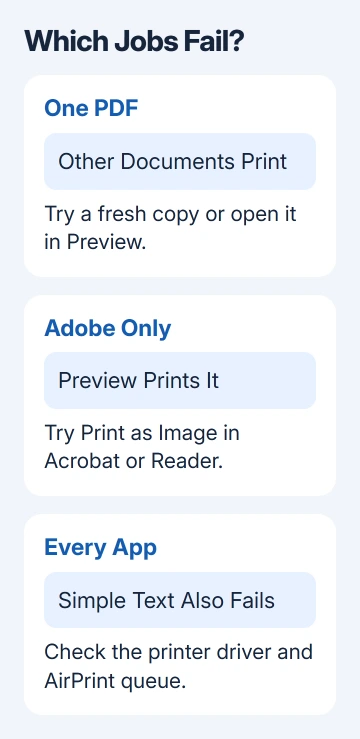
If the TextEdit page prints, your Mac can send a simple job to this printer. Return to the failing document rather than resetting every printer on the computer.
For a PDF, open Finder, Control-click the file, and choose Open With > Preview. Select File > Print, choose the printer, and try one page. If that page prints, you can use Preview to print the document.
If the printer can't be found and the job never reaches a queue, use the Mac printing connection guide. If the printer is missing, check its connection. For a queued filter error, check how the Mac prepares the job for printing.
2. For an Adobe PDF, try Print as Image
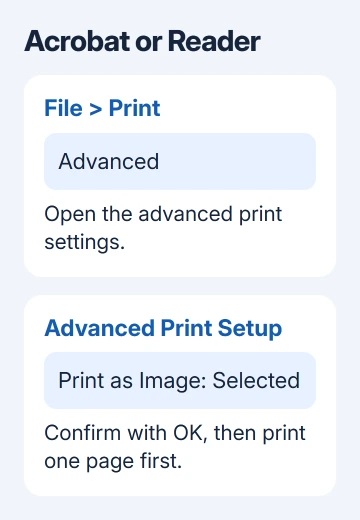
In Acrobat or Reader, open File > Print and select Advanced. Enable Print as Image, confirm with OK, then send just one page to check the result before printing the rest.
This sends a picture of the page instead of asking the print software to process all its PDF content in the usual way. Text and image edges can look slightly rougher, so check the printed sample before using it for a final copy.
HP lists Preview and Print as Image as workarounds for its Adobe filter failure, including jobs using advanced features such as booklets or watermarks. Its page says there isn't a permanent solution for that specific issue.
That issue doesn't explain every Filter failed message. If a plain TextEdit page also fails, move to the driver checks. If only one PDF fails in multiple apps, ask for a fresh copy of that document before replacing the printer setup.
I'd use the app that successfully prints the document while sorting out the driver. Getting a needed page onto paper doesn't have to wait for every advanced finishing option to work again.
3. Bypass the printer's extra print-dialog features
Some printer software adds its own controls to the Mac print window. If those extras fail, they can stop your print job even when the connection is fine.
Open System Settings > Printers & Scanners, select the printer, and click Options & Supplies. If available, select Use Generic Printer Features, then confirm with OK and try the same simple document again.
Apple's Mac printing steps include this control for software that uses Print Dialog Extensions. Those are the extra settings supplied by a printer app or driver.
The checkbox isn't present for every printer. If it isn't there, continue to the printer software rather than searching unrelated privacy or security settings for it.
If the document now prints, check whether you still have the features you need, such as duplex printing or the correct paper tray. The generic controls may let you print without offering every option in the printer's own software.
4. Replace an incompatible driver with a suitable queue
Check the exact printer model and macOS version before choosing software. Open Apple menu > About This Mac for the system version. A driver for an older Mac release isn't automatically suitable for the current one.
In Printers & Scanners, select the printer and open Options & Supplies to check its driver information. Install a current compatible driver if the manufacturer supplies one through its supported update route.
For an AirPrint-compatible printer on your network, add a new queue using AirPrint instead of the old manufacturer driver. Open Printers & Scanners > Add Printer, Scanner, or Fax, select the printer, and check the Use menu.
Choose AirPrint when offered, then add the printer and send a simple document to that queue. On older macOS releases, the add control is the + button in the printer list.
Check the selected queue in the app's Print dialog. Two entries with similar names can leave you accidentally printing through the original failing driver, even after adding a working replacement.
AirPrint must be supported by the printer. If the Mac doesn't offer it for that model and connection, use the compatible manufacturer driver rather than selecting a different printer model because its name looks close.
5. Treat Apple silicon compatibility as a separate message
An old printer utility may include software made only for Intel Macs, which can cause trouble on an Apple silicon Mac. A message saying the software isn't compatible needs a compatibility check as well as the ordinary queue checks.
Read the separate macOS printer compatibility guide if that is the message you see. Don't install Rosetta on an Intel Mac or assume it repairs a damaged PDF.
If the printer works with AirPrint, keep that successful queue while checking whether the old utility is still needed. Extra scanning, accounting or finishing features may need their own current software even when basic printing works.
6. Reset printing only when every suitable queue fails
A printing-system reset removes all printers, completed-job information and printer presets. Note the printers and settings you need before using it, especially on a Mac connected to several office printers.
Open Printers & Scanners, Control-click the printer's list entry, and choose Reset printing system. Confirm, then add the required printer again and try a short document.
Try this last, after comparing apps and checking the driver, because it affects every printer on the Mac. It doesn't repair a PDF's contents or add support for a printer whose driver no longer works with your macOS version.
If it still fails, send printer support the model, macOS version, driver choice, and TextEdit/Preview results. Include the full error from the queue so they can check the print software for your setup.
The Short Version
Try Preview for an Adobe PDF, or use Print as Image. If every app fails, bypass extra print-dialog features and check the driver or AirPrint queue. Reset the printing system only after those narrower checks.
Checked November 13, 2026.