When Wave Link's meters move but headphones stay silent, the app usually isn't sending that mix to them. Select the physical headphones and the mix you want to hear. Raising the stream mix won't repair the headphone-output connection.
Check your Wave Link version. Wave Link 2 uses Monitor Mix and monitoring buttons. Wave Link 3 changed the mixer; Windows 3.5 adds Listening to. Follow the section matching your interface.
In this guide
1. Select the headphones that are actually connected
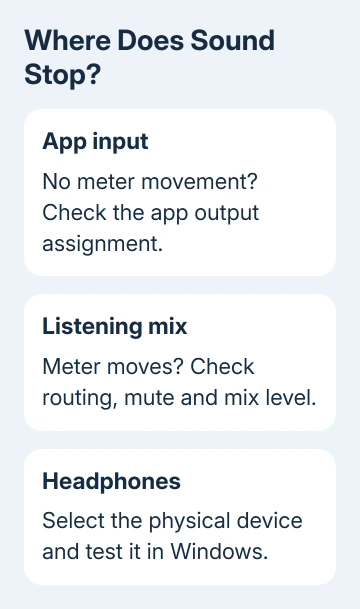
Start a continuous piece of audio at a modest volume. Open Wave Link and look at the channel receiving that app. A moving meter means audio is arriving at that channel; it doesn't mean the headphones have been selected to play it.
In Wave Link 2, select the headphones' physical device from Monitor Mix. For headphones plugged into Wave:3, choose its headphone output. A USB headset plugged into the computer has its own output entry.
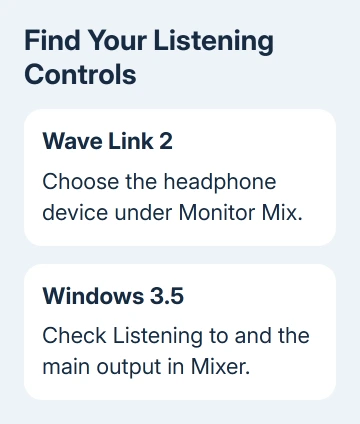
Elgato's Wave Link 2 output instructions also allow Windows Default Output. That follows the Windows default device. Choosing your headphones by name makes the selected destination easier to recognize.
In Wave Link 3.5 for Windows, look in the Mixer toolbar for Listening to. Choose the mix you intend to hear and check that your main output device is available. This version warns when no mix is selected or that output is unavailable.
If silence started when you unplugged a USB headset, reconnect it and reselect its output. An output can stay listed even when the headset is disconnected. If the device is missing everywhere, check Windows next.
2. Check the headphones outside the mixer
In Windows 11, open Settings > System > Sound, select the physical output and use Test. In Windows 10, open Settings > System > Sound > Sound Control Panel. Select it on Playback, then use Properties > Advanced > Test.
Keep the test quiet enough to avoid a sudden loud tone. This tests the headphones directly, without an app already assigned to a Wave Link channel. A working tone tells you the headphones can play Windows audio.
For a silent test, check the headset's connection, hardware volume and mute control. Headphones plugged into a Wave microphone or interface also depend on its headphone level. A software fader can't fix a disconnected headset.
Microsoft says to check missing devices and muted outputs in its Windows sound checks. For silence affecting all audio, use the computer sound troubleshooting steps before rebuilding Wave Link.
When the test tone works, return to Wave Link and select that same physical device. Keep track of its exact name. It's easy to choose the monitor's HDMI audio output when the headset is connected through USB or an analog socket.
3. Make sure the channel reaches your listening mix
Check whether the channel is muted or turned down in the mix you're listening to. A stream can have normal levels while your personal listening mix is silent. Your audience and headphones can use different mixes with separate settings.
In Wave Link 2, check the channel's monitor-side fader and the overall Monitor Mix level. The ear icon beside each output mix shows which one you're hearing. Select Monitor Mix to hear your listening balance.
Stream Mix appears as an input in streaming or recording software. Selecting it there won't select a headphone output in Wave Link. Sending audio to a recording app is separate from sending it to your headphones.
For Wave Link 3.5 on Windows, open Audio Flow. It shows the route from inputs through channels and mixes to outputs. Select parts of the route and check its issues panel for muted outputs or channels that aren't routed anywhere.
That view helps when only one app is missing. Follow that app's channel into the mix named in Listening to. If the route stops short of the output, connect the missing part in Wave Link rather than changing the headset's driver.
4. Check app routing when its channel meter is still
A still channel meter means the app's sound isn't arriving there. Start playback and check the app's selected output. If the app has its own speaker setting, inspect that before changing Windows defaults.
In Windows 11, inspect the playing app under Settings > System > Sound > Volume mixer. Windows 10 uses App volume and device preferences on the Sound page. Assign the app to its intended Wave Link input.
Return to the mixer and look for meter movement while the app plays. If it starts moving, the app needed that output selected. Then use the channel's level in your listening mix to set how loudly you hear it.
If a Bluetooth headset isn't appearing as a playback destination at all, the headphones missing from Sound output guide addresses that separate Windows problem. A mixer can't select a usable output until Windows makes it available.
5. Match update advice to your Wave Link version
Don't follow an old Monitor Mix screenshot by position alone in Wave Link 3. Its controls and the way it handles mixes changed. Audio still needs a route to your headphones, but the controls aren't necessarily in the same place.
The Windows 3.5 release notes include a fix for the default output missing from Personal Mix after a fresh install. Check your installed version if that matches what happened to your setup.
Back up working channels and mixes before updating. Wave Link 3.5 adds automatic backups, including before updates. For another version or macOS, read its own release notes before assuming a Windows fix applies.
If silence remains, give Elgato support the app version, operating system, headphone connection and Windows Test result. Include a picture of the selected mix and output, showing which meters move. Support can check where playback stops.
The Short Version
Select the physical headphones, confirm they pass a Windows sound test, and route the app into the mix you're hearing. Wave Link 2 uses Monitor Mix; Windows 3.5 uses Listening to and Audio Flow to show the current route.
Checked November 13, 2026.