Grayed-out System variables controls in Windows 11 usually mean the editor lacks administrator permission. Open it as an administrator to make a computer-wide change. Use User variables when only your own apps need the setting.
A change that saves but doesn't appear in a terminal is different. The terminal may still be using the values it had when it opened. Check whether Edit is disabled or the terminal is showing an old saved value.
In this guide
1. Choose User or System before requesting access
Search Start for environment variables, then select the account-specific search result. Look at the two lists: User variables belong to the named account; System variables apply across the computer.
A standard account can change its own user variables without gaining permission to edit the system list. If the lower list's New, Edit and Delete buttons are disabled while the upper controls work, that matches the permission difference.
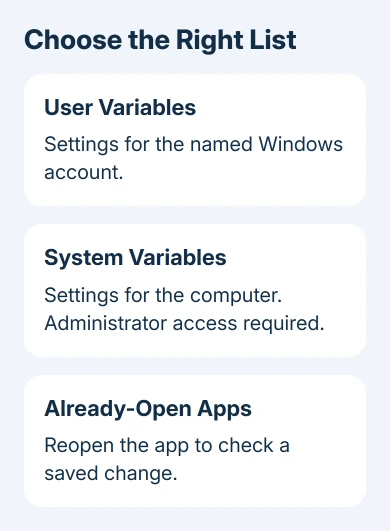
Check the app's instructions before choosing a list. A personal command-line tool may need a user setting. A Windows service or an app running under another account may need the setting to apply beyond your own account.
Microsoft explains Process, User and Machine settings in its environment-variable documentation. Machine means the setting applies across the computer.
A change made only inside an open terminal belongs to that process, instead of automatically becoming a permanent system setting.
Don't change the system list just because a tutorial uses its lower panel. Match the scope to the app's actual requirement. I'd use a user setting for a personal tool when its instructions allow that; it avoids affecting other accounts.
2. Open the system editor with administrator permission
Close the environment editor. Open Start, find Windows PowerShell, then select Run as administrator. Approve the permission prompt with an authorized administrator account. Then enter this command in the administrator window:
SystemPropertiesAdvanced.exeIn System Properties, open the Advanced tab if necessary and select Environment Variables. Select the particular variable in the lower System variables list, then choose Edit. To add a missing variable, use that list's New button.
The command opens the familiar system settings dialog; it doesn't change any values by itself. Opening it from the administrator terminal gives the editor permission to make a system-wide change.
The lower list's editing controls should now respond.
Save the original name and value before editing. For Path, preserve its existing entries and add the required folder as its own entry. Replacing the entire list with one program's folder can stop unrelated commands from being found.
Confirm the value editor with OK, then close the remaining settings dialogs with OK as well. If access is denied or elevation requires credentials you don't have, continue to the next section.
Reopening the same window without administrator access won't add permission.
3. Handle a standard or managed account correctly
On a personal PC, ask the administrator to make the system change or approve the elevated editor. Being the person who normally uses the computer doesn't necessarily mean the signed-in account has administrator rights.
When a standard user supplies another administrator's credentials, the upper User variables list can belong to that administrator. Read its account heading before editing; it may not be your everyday account.
For a user-only change, close the elevated editor. Search environment variables from your normal sign-in and open the account editor. Check the account heading before editing.
This avoids saving a personal tool's setting under an account that won't run it.
If IT manages this computer, ask for the variable name, value and required scope. IT may already manage that setting through a policy or its software tools.
Send the disabled-control screenshot and the app's requirement so they can make the intended change.
If Run as administrator is itself unavailable, the grayed-out administrator option checks cover that separate issue. Don't change account membership just to make the environment editor's buttons light up.
An app running as an administrator can also behave differently from your ordinary desktop apps. The missing mapped drive in an administrator app is another example of why both the account and permission level matter.
4. Reopen the program before checking a saved change
Reopen the app or terminal that needs the variable. For Windows Terminal, close the entire application instead of adding a tab to its running session. Existing processes can retain the old environment.
If a development tool or launcher starts the app, reopen that parent program too. The app it launches can pick up that program's old values. Editing a stored setting doesn't rewrite the environment in every open process.
To inspect a saved value without changing it, open PowerShell and run a read-only check such as:
[Environment]::GetEnvironmentVariable('JAVA_HOME', 'Machine')Replace JAVA_HOME with the variable you're checking. Use 'User' instead of 'Machine' to inspect the current account's saved user value. A blank result can mean that name has no saved value in the User or Machine setting you chose.
If the stored value is correct but the app still behaves differently, check the app's own configuration and any same-named user variable. Don't keep rewriting the system value if the remaining problem is which setting your app reads.
For Path, compare the specific folder entry rather than expecting every scope to show the same complete text. Windows builds an environment for each process, and the saved user list isn't simply another view of the saved machine list.
5. Check PowerToys and avoid a risky command shortcut
If you're using PowerToys Environment Variables instead of the Windows dialog, check its Open as administrator setting.
Its documented permission control allows system-variable management when elevated; otherwise only profile and user variables can be modified.
PowerToys profiles also affect what its applied list shows. Confirm whether you're editing a profile, User or System entry before saving. A PowerToys profile value isn't a permanent system variable, even when their names match.
Avoid using setx as a quick way around a disabled editor, especially for Path. The command reference describes a 1,024-character limit that can cut off an existing value. It also changes stored values for future command windows.
If the elevated editor still can't save, tell IT or Windows support your account type, variable name, scope and error. Say whether it changes back later; that separates a denied save from a setting another tool restores.
The Short Version
Use the upper list for your account and an elevated editor for system-wide settings. Preserve the old value, save every dialog, then reopen the app that needs it. A stale terminal value is different from a disabled Edit button.
Checked November 13, 2026.