

Google Maps that crashes or won't open needs an app update and, if that fails, a cache check. Maps that opens with a missing blue dot needs location access instead; a blank map or failed route search can be a connection problem.
Start with what's going wrong on your phone. Clearing app storage won't improve a weak GPS signal, and changing location permissions won't repair an app that closes before a map appears.
In this guide
1. Update Maps and reopen the app
Open the Play Store, search for Google Maps, and open its app listing. Tap Update if it appears. If it says Open, there isn't an update being offered for your device and account right now.
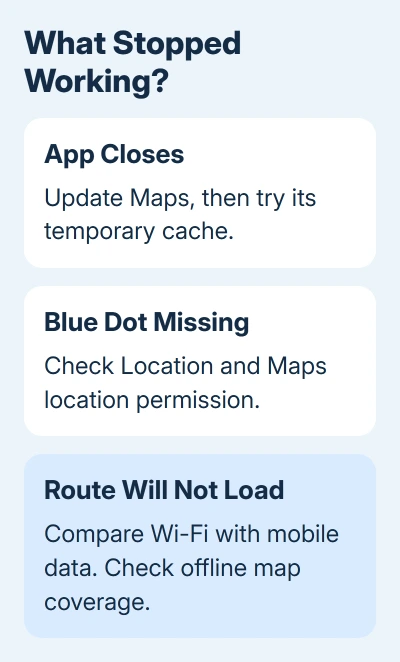
After updating, open Maps and search for a familiar place. If the app stays open and shows the place, try the action that previously failed. Even if Maps now opens, check route searches separately if those were failing too.
For an app that's stuck on screen, open Settings > Apps > Maps and choose Force stop, then reopen it. On phones with a See all apps list, use that to find Maps. If Maps still won't respond, restart your phone.
Google's Maps crash guide recommends updating the app and clearing its stored data.
Start with temporary cache data in the next section before using the more disruptive storage option.
If multiple apps also close unexpectedly, check Settings for a system update. The exact location varies by maker; use Settings search for System update or Software update.
Mention whether other apps crash too when you request help with Maps.
2. Clear the temporary cache first
On a current Pixel, open Settings > Apps > See all apps > Maps > Storage & cache > Clear cache. On a Samsung Galaxy, use Settings > Apps > Maps > Storage > Clear cache.
Older Android versions may call the app list Apps & notifications. Other manufacturers use names such as App management or Manage apps. Find Maps in that list, then open its storage controls.
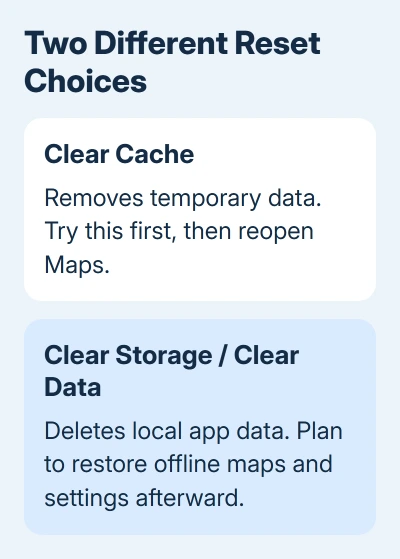
Clear cache removes temporary data. Launch Maps again and test the destination or action that previously failed. If Maps works again, stop there and leave its storage alone.
If Maps still crashes, the stronger option is Clear storage on Pixel or Clear data on Samsung. This permanently deletes the app's local data, so plan to restore needed offline maps and settings afterward.
Check anything you depend on offline before doing that reset. I'd avoid clearing storage just before a trip when downloaded maps are your only navigation option.
Stick with clearing the cache until you have internet access to download your maps and set things up again.
If an updated app still crashes after its data is cleared, go to the support section rather than repeating the reset. If it stays open but can't find you, check location access next.
3. Restore the blue dot and location permission
Touch and hold the Maps app icon, open App info, then Permissions > Location. Choose Allow only while using the app for location access. On versions that show Use precise location, turn it on for an accurate navigation position.
Also check that the phone's main Location switch is on. These are separate controls. Giving Maps permission won't help if location is switched off for the whole phone.
Return to Maps and tap the location button. A blue dot marks the current position. A gray dot or missing dot means Maps can't currently get your location; a broad pale circle means it isn't certain where you are within that area.
Move outside or away from a parking garage or dense buildings, then try again. GPS reception can be poor indoors even when the phone has a strong internet connection. Don't judge the result only from a basement or enclosed garage.
For a wide or wrongly directed heading beam, tap the blue dot and choose Calibrate when offered. Follow the displayed instructions. The compass can also be calibrated by moving the phone in a figure-eight motion a few times.
If your dot jumps around, turn off Battery Saver for the check. Follow any Location Accuracy recommendation Maps displays.
These checks help Maps find your position; Android location sharing is a separate feature for another person seeing it.
4. Repair missing maps and failed route searches
Switch between a working Wi-Fi connection and cellular data, then search for the same destination. If one connection loads places and routes while the other doesn't, work on that connection before resetting Maps again.
Away from Wi-Fi, enable cellular data and switch Airplane mode off. A phone can show its last position or an already-loaded map without being able to retrieve fresh route information.
Offline maps are useful when coverage is unreliable, but they don't provide every online feature. Offline navigation needs the whole driving route inside the downloaded area.
Walking, cycling, transit, live traffic, and alternative routes aren't available offline.
Open Maps > profile picture > Offline maps and check whether the needed area is downloaded and current. Select an expired or expiring map and use Update while the phone has a working connection.
To prepare another area, choose Select your own map, adjust the area, and tap Download. Some countries and regions restrict downloads. Check that the app offers a download for your destination.
For voice that changed while routes still work, use the Maps navigation voice checks. That symptom doesn't need the same repair as a map that won't load or an app that crashes.
5. Report a repeatable Maps fault
If the app opens, use profile picture > Help & feedback and choose Send product feedback.
Include the phone model, Android version, Maps version, and the specific action that fails, such as opening a saved place or starting a driving route.
When Maps closes before feedback can be sent, open its Help Community through the crash-support page. Tell them whether an update, cache clearing, or a different connection changed the behavior.
Those details tell the people helping you what fails and which checks made a difference.
6. Request a phone check for wider location failures
If location fails across multiple apps outdoors, contact the phone maker and ask them to test the phone's location service or GPS.
If only one destination has bad directions, report that route in Maps; resetting the phone won't correct a road-data error.
The Short Version
For crashes, update Maps and clear temporary files. A missing blue dot needs location access. Route failures need connection and offline-area checks. Report the specific action that still fails.
Checked November 13, 2026.
 If you have any business, I can build it online






