Chrome can put new bookmarks in a folder you aren't watching. Save one page, inspect its folder, and search the full list. If it vanishes after Chrome closes, check whether that same profile keeps new saves.
Start on the device where saving fails. Check its bookmark list before reinstalling Chrome or removing the profile, since that profile might hold your only copy.
In this guide
1. Save one page and check the destination
In desktop Chrome, load the webpage you want saved. Click the address bar's star control. Look at which folder the bookmark panel has selected. If the panel offers Done, use it after making your changes.
For a page already in your bookmarks, Chrome can open an edit panel instead of adding another entry. Check the displayed name and folder. If you see an edit option, Chrome already has a bookmark for that page in this collection.
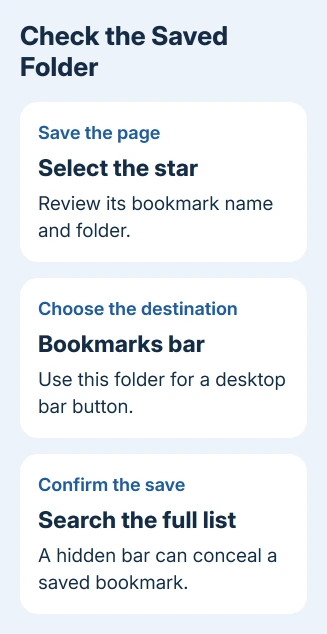
Next, enter chrome://bookmarks in the address bar and search for a distinctive word in the bookmark's name. If it appears there, saving worked. Chrome saved it, just somewhere other than where you expected.
To move it, edit the bookmark's folder in the bookmark controls or move it within Bookmark Manager. Choose Bookmarks bar if it should appear across the top of desktop Chrome. Other folders don't automatically put every link on that bar.
For a saved collection that exists but has no visible toolbar, use the Chrome bookmarks bar guide. Avoid repeatedly saving the same page while the real issue is that the bar is hidden.
2. Use the correct save control on a phone
On Android, open the webpage, tap Chrome's three-dot menu and choose Add to bookmarks. Then open More > Bookmarks and search for the saved page. Tap Back inside the bookmarks view to check folders other than the one last opened.
On iPhone or iPad, open Chrome's three-dot More menu and choose Add to Bookmarks. To check the result, open More > Bookmarks and inspect the folders. Use the upper-left Back control to view other folders.
To change a bookmark on iPhone or iPad, touch and hold it and tap Edit. Change the name, folder or address, then tap Done. That is different from simply opening the saved page, which doesn't move the bookmark.
On Android, use the three-dot menu next to an existing bookmark and choose Edit to review it. The folder last used can make a recently saved bookmark easy to miss when you're looking in a different folder.
These steps save the page in Chrome's bookmarks. A shortcut on the phone's Home Screen, a Safari bookmark and a Chrome bookmark aren't interchangeable. Check the app where you actually saved the page before trying to sync it elsewhere.
3. Separate a local save from an account transfer
Save a new page on the original device and check its bookmark list. If it appears there but not on your second device, Chrome is saving it locally. Check the account storage and sharing options for those bookmarks.
On desktop Chrome, open Settings > You and Google and select the account name. Check what Chrome saves in that Google Account. Check that the address matches your other device, especially if you have work and personal accounts.
Google says older information can remain device-only even after sign-in; its account storage instructions explain transferring those existing items. For existing local items, the profile menu can offer Save x items in Account.
Choose the information to transfer and confirm Save in account when offered. The number in that label varies with your device's data. Don't assume a successful Gmail sign-in in a webpage has performed this browser-data step.
The Chrome bookmarks sync checks cover that transfer problem in detail. Use them when the bookmark exists on one device. Continue here when a newly saved bookmark won't stay in the same profile.
4. Check whether the same profile keeps the bookmark
After finding the new bookmark in Bookmark Manager, close Chrome normally. Reopen it, check the profile icon, then search the bookmark list again. Use the same page and profile so you can tell whether Chrome kept the bookmark.
If the bookmark is there, Chrome kept it. A different shortcut may have opened another profile earlier. Review the profile name and account each time rather than assuming every Chrome window uses the same collection.
If the bookmark is absent, check other existing profiles before deciding it was deleted. Chrome profiles keep separate information. A shared computer can have several collections, and changing profiles doesn't move bookmarks between them.
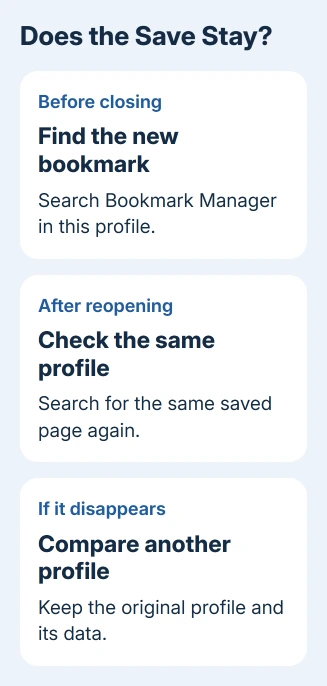
Keep the original profile. Deleting it erases the browser information stored locally, including bookmarks. Export the bookmarks you still have to HTML before making changes that would erase them.
On Chromebook, verify the signed-in Chromebook user rather than expecting the desktop profile switcher. On a phone, verify the Chrome account. Check the same bookmark collection before and after reopening the app.
5. Compare with a separate desktop profile
On Windows or Mac, select Profile > Add Chrome profile to create a separate browser profile. Keep the original one available. Use the new profile for a single bookmark check, choosing the option to continue without an account if offered.
Save one webpage and find it in the new profile's Bookmark Manager. Close that window, reopen the profile and search again. This comparison leaves the original collection in place without requiring a transfer first.
If the new profile keeps the bookmark, explain this difference in your support report. It gives support a repeatable example: the same page stays saved in one profile and disappears from the other.
If both profiles lose the bookmark on a shared or managed computer, ask its administrator whether browser data is cleared or restored between sessions. Keep workplace controls enabled while IT checks the behavior.
When saving still fails
Use Chrome Help to reach its community. Explain whether the bookmark never appears, goes into the wrong folder, disappears after reopening, or fails to reach another device. Include your operating system and installed Chrome version.
Report the second profile's result and whether your original collection still exists. These details help advisers choose the next check. Keep an HTML copy of the desktop bookmarks you still have while asking for help.
The Short Version
Verify the saved folder and search the full list. Use the right mobile control and the same profile. For cross-device gaps, check account storage. For a save lost after reopening, compare profiles and preserve existing bookmarks.
Checked November 13, 2026.