

A Galaxy S25 that won't connect to laptop Bluetooth usually needs a fresh pairing or the right setup for files or calls. On Windows, add it with the phone's Bluetooth screen open, then confirm matching codes on both devices.
If pairing succeeds, check the next task. Sending a file needs Windows to be ready to receive it; making calls needs Phone Link setup. A paired phone doesn't automatically open its files or turn the laptop into a speaker.
In this guide
1. Pair from the Bluetooth screens on both devices
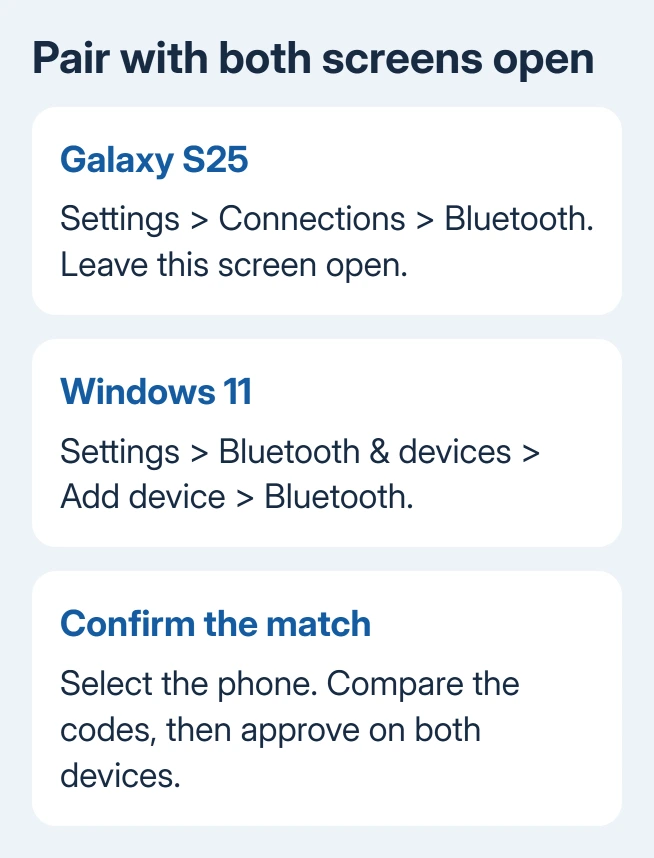
On the S25, open Settings > Connections > Bluetooth and turn Bluetooth on. Keep this page open while the laptop searches. Leave the S25 near your laptop until pairing finishes.
On Windows 11, open Settings > Bluetooth & devices and turn Bluetooth on. Choose Add device > Bluetooth, then select the phone when it appears. Check the S25's device name so you select the right phone.
On Windows 10, use Settings > Devices > Bluetooth & other devices > Add Bluetooth or other device > Bluetooth. The button labels differ from Windows 11, but both devices still need to accept the pairing request.
Compare the code on the computer with the code on the S25. Confirm only the matching request, then let setup finish. Watch the phone for a prompt as well as the laptop; an unanswered request on either screen can stop pairing.
Microsoft's Bluetooth pairing instructions also describe pairing through the taskbar's device selector. Using Settings gives you a place to check the phone's saved entry afterward.
If the PC isn't Bluetooth-capable, it needs a supported adapter before these steps can work. For a separate dongle, follow the USB Bluetooth adapter setup rather than installing a random phone driver.
2. Remove the old pairing and discover it again
A saved entry can remain after a failed connection. On the S25's Bluetooth page, find the laptop and open its adjacent settings control. Choose Unpair.
On Windows 11, open Settings > Bluetooth & devices > Devices. Open the menu beside the S25 and choose Remove device > Yes. On Windows 10, select it under Bluetooth & other devices and choose Remove device.
Turn Bluetooth off on both devices, wait a few seconds, then turn it on again. Return to the phone's Bluetooth page and repeat section 1. Removing both saved entries avoids trying to reuse one side of an old pairing.
If Windows 11 still doesn't show the phone, open Bluetooth & devices > Devices. Under Device settings, change Bluetooth devices discovery to Advanced if that option is available, then search again.
The Advanced setting lets Windows show more types of Bluetooth devices. It doesn't replace the need to approve the code. If the phone appears but pairing fails, note the exact failure message rather than changing discovery settings again.
I'd finish one complete pairing attempt before resetting any network settings. Watch what happens on both screens during that attempt. Repeatedly tapping the saved device name won't tell you which part is failing.
3. For files, put Windows into receive mode
A paired S25 can still fail to send a picture because Windows isn't waiting for the transfer. On Windows 11, open Settings > Bluetooth & devices > Devices, then Send or receive files via Bluetooth.
Choose Receive files and leave that window open. On Windows 10, open the Bluetooth shortcut's right-click menu beside the clock. Choose Receive a File. Check the hidden-icons panel if that shortcut isn't visible.
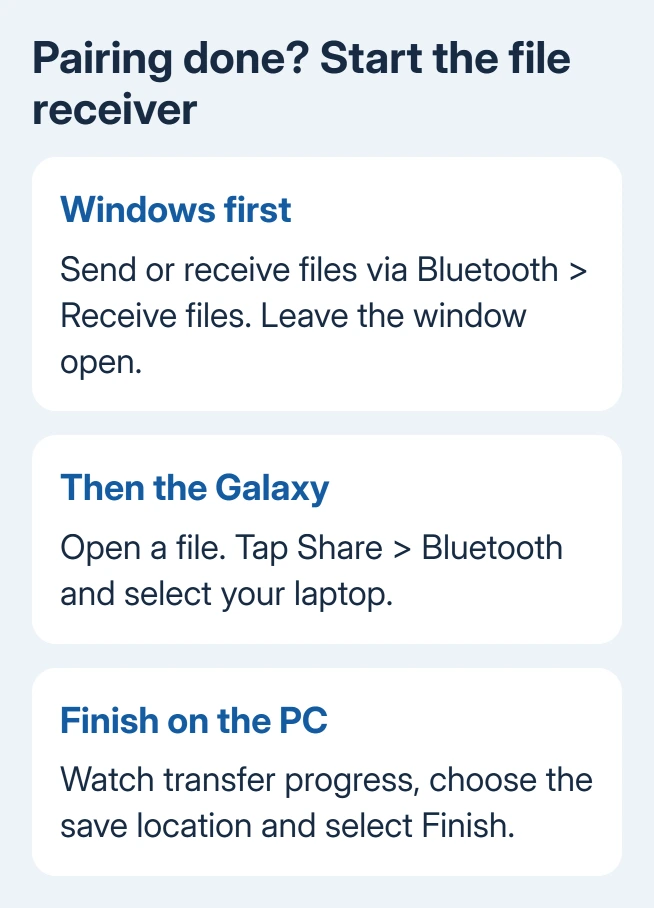
On the phone, open one small file or photo, tap Share > Bluetooth, then choose the laptop. Watch the Bluetooth File Transfer window on the PC for progress. When it finishes, choose the save location and select Finish.
Samsung's phone-to-Windows file instructions use this receive-first workflow. Start with one picture so you can confirm the route before sending a larger collection.
If pairing works but the transfer fails, check the receiving window and destination. Leave the saved pairing in place even if Windows doesn't show the phone as continuously connected.
Bluetooth can be slow for a large video. For a Windows file-copy alternative, connect the unlocked S25 with a data-capable USB cable and select MTP or Transferring files from its USB notification if prompted.
Open File Explorer > This PC, choose the phone and browse its storage. Copying over USB saves you waiting for a large Bluetooth transfer to finish.
4. For calls, complete Phone Link setup
Open Phone Link on the PC and choose Calls > Get Started. Follow the prompts, then approve the connection and requested calling permissions on the S25. Check both screens for the matching PIN.
If you've already linked the phone but skipped calls, open Phone Link > Settings > Features > Calls and enable Allow this app to make and manage calls from my phone.
Bluetooth is required for Phone Link calls, but pairing the phone in Windows doesn't finish the app's setup. Open the Calls page and check that setup is complete before treating a missing dial pad as a Bluetooth driver fault.
Keep the devices close while testing. If file transfers work but calls don't, focus on Phone Link's permissions and Calls setup. A successful file transfer shows that the devices can communicate for that task.
5. Check which device can't connect to anything
Try the S25 with a known-working Bluetooth accessory, then try the laptop with a different accessory. That tells you whether only this phone-and-laptop pairing fails, or whether one device can't connect to anything.
If the laptop fails with everything, open Get Help and run its Bluetooth troubleshooter. Check Device Manager > Bluetooth for the adapter and any warning. Use the laptop maker's driver for that exact model if an update is needed.
If Bluetooth has disappeared from Windows entirely, use the missing Bluetooth repair steps. Changing the phone's pairing can't restore a radio the PC no longer detects.
If the S25 can't pair with any working accessory, restart it and check Settings > Software update > Download and install. Retest a nearby accessory after the update or restart finishes.
If the phone is the problem, give Samsung Support the S25 model, software version and devices tried. If it's the laptop, give its maker the adapter name, Device Manager error and Windows version. Say which task fails.
Using a Mac laptop instead
Keep the S25's Bluetooth settings open. On the Mac, choose Apple menu > System Settings > Bluetooth, find the phone and click Connect. Accept the matching pairing request on both devices.
For incoming files, open System Settings > General > Sharing and enable Bluetooth Sharing. Open its information control and set When receiving items to Ask What to Do, then choose the folder for accepted items.
Send a small photo with Share > Bluetooth on the S25 and approve the Mac's prompt. The Bluetooth Sharing controls are separate from ordinary pairing.
For a Mac backup instead, use Smart Switch with a USB connection. The Windows file-receiving and Phone Link menus in the earlier sections don't apply to macOS.
The Short Version
Pair with both Bluetooth screens open and approve matching codes. Remove stale pairings if needed. For a paired phone, start Receive files before sharing, or finish Phone Link's Calls setup. Then try each device with another accessory.
Checked November 13, 2026.






