Grammarly may stop scrolling to the appropriate page in Microsoft Word when the cursor's position or document formatting gets in the way. Click inside the page you want checked, then reopen the suggestions.
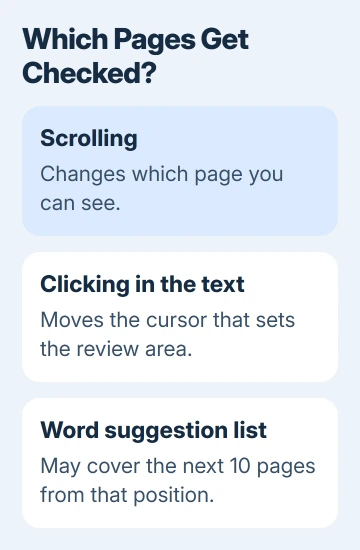
The current Word integration may review the next 10 pages from the cursor's position. If a suggestion opens beside unrelated text, check the document's contents and other add-ins instead.
In this guide
1. Move the cursor to the pages you're reviewing
Open your document in Word and click inside an ordinary paragraph near the passage you want to edit. Move the typing cursor, rather than only scrolling the page into view. Then open Grammarly's suggestion list again.
Grammarly's desktop user guide explains that Word may show a list covering the next 10 pages based on cursor position. Moving the cursor changes the area being reviewed.
Choose a suggestion in that part of the document. Compare its proposed correction with the visible sentence before accepting it. A long document doesn't have to appear in one continuous suggestion list.
If the relevant suggestions return, review the document section by section. If a suggestion still opens beside unrelated text, continue with the document checks. That isn't just a limit on how many pages Grammarly reviews at once.
2. Save a copy before simplifying a long document
Save the original and make a troubleshooting copy with a distinct name. That keeps your finished formatting separate from the test version. I'd do this before touching a thesis or report with citations.
The Word integration troubleshooting page lists failed suggestion jumps, incorrect cursor placement, missing correction marks and corrupted text as reported problems.
That page recommends dividing documents into sections of no more than 50 pages. The 50-page troubleshooting limit is separate from the 10-page suggestion area. Neither number means Word itself refuses to open a longer file.
Copy one chapter or a shorter range into a separate Word document and try a suggestion there. Keep a complete sentence and its surrounding paragraph together. Otherwise, it's harder to judge whether the proposed change makes sense.
If the smaller file works, review manageable sections and keep the original as the master. Transfer edits carefully, checking each sentence in context. If a short section still fails, examine its contents next.
3. Check citations, tables and other complex content
Content linked to this problem includes endnotes, footnotes, a table of contents, images, tables and equations. These features are useful parts of a document, but they can interfere with Grammarly's connection to the text.
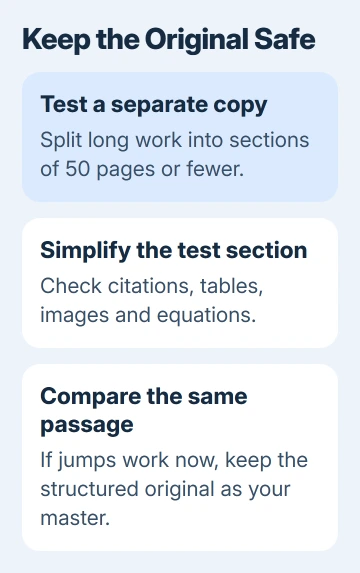
In the troubleshooting copy, remove those elements from a small affected section and try the suggestion again. Use a passage where a suggestion jumped to the wrong location. That lets you see whether removing the complex content helps.
Keep those features intact in your master document. Removing a citation or a table of contents to test navigation isn't a sensible final edit for a document that needs them.
If the plain section navigates correctly, review language in that simpler copy and preserve the original. That points to something in this document getting in the way. Tables and footnotes can still be useful in your other documents.
If the same fault happens in a small, plain document, removing more pages from the original won't teach you much. Move on to checking the integration and the other tools running inside Word.
4. Separate missing controls from failed navigation
The desktop integration now has a Grammarly tab at the right edge of the screen instead of the floating widget in its newer experience. Hover near that edge if the old widget has disappeared, then open the available suggestions.
The Word interface can also look different from the Grammarly controls in another app. Follow the controls actually present in Word rather than looking for a setting copied from an older browser-editor tutorial.
If the tab opens and shows corrections, Grammarly is present. It's having trouble reaching the right text. If no controls appear at all, report that as a missing integration, rather than as a suggestion-scroll problem.
The troubleshooting page also lists interference from Office add-ins. On Windows, open File > Options > Add-ins to see what's installed. For a COM add-in, choose COM Add-ins beside Manage, then Go to change its enabled state.
Temporarily disable a recently added competing writing tool, restart Word, and try the same passage. Keep track of the tool you changed so you can restore it afterward. Managed installations may require your IT team to change add-ins.
If Word itself freezes or refuses to start, use the separate Word launch troubleshooting before continuing with Grammarly. Word needs to open reliably before you can check how Grammarly moves between suggestions.
5. Use Word's own review tools when you need to finish
For a deadline, a separate proofreading pass is more useful than repeatedly accepting changes beside the wrong sentence. In supported Microsoft 365 versions of Word, select Home > Editor and review the spelling and grammar categories.
The Editor instructions explain how to select a suggestion, ignore it or change the checking options. Editor and Grammarly check different things, but Editor gives you another way to review your text.
If the built-in checker is also missing errors, check Word's proofing settings separately. A proofing-language setting won't repair Grammarly's cursor navigation, but it matters when you're using Editor instead.
If the problem continues in a short, simple document, use the support-request link on the Grammarly troubleshooting page. Include the Word version, the affected document and a video showing the suggestion and the location it opens.
The page also links instructions for collecting desktop error logs. Check the material for private content before sending it. Explain what changed after moving the cursor, splitting the file or simplifying its contents.
The Short Version
Move the cursor into the passage that needs checking. For failed jumps, try a short separate copy while preserving the original's formatting. Check competing add-ins, then send support an example that shows the wrong location.
Checked November 13, 2026.