

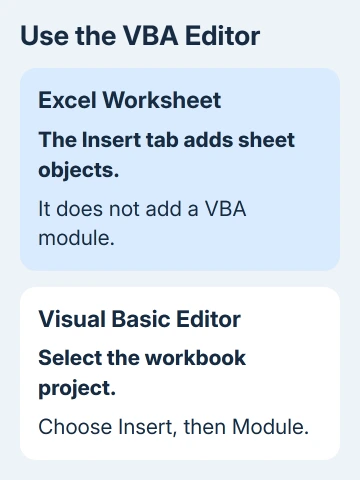
A grayed-out Module command can mean Excel's Visual Basic Editor has no editable project selected. Open the workbook and select it in Project Explorer. Use Insert > Module inside the editor, rather than Excel's worksheet Insert tab.
A locked project and Excel running in a browser need different fixes. Start with the screen you're using; changing macro security won't give the web app a Visual Basic Editor or unlock someone else's protected project.
In this guide
1. Move the file into desktop Excel
Check whether you're in the installed Excel app or a browser tab. Excel for the web can retain a workbook's existing VBA code, but it can't create, edit or run that code. VBA means Visual Basic for Applications, Excel's macro language.
Use Open in Desktop App if that command is available, or open the saved workbook from your installed Excel app. You'll need Excel installed on the computer. The browser's Automate tab is a different feature from the VBA editor.
Microsoft explains the desktop requirement in its web macro guidance. A missing VBA menu in the browser isn't a broken installation or a setting to enable there.
Once the file opens in desktop Excel, check its filename. Opening a second copy can leave several similarly named projects in the editor, making it easy to add code to the wrong workbook.
2. Open Visual Basic and select the correct project
On Windows, press Alt+F11 from Excel to enter the Visual Basic Editor. The Developer > Visual Basic command is another route. If a laptop uses the function keys for brightness or volume, the menu avoids that keyboard difference.
On a Mac, use Developer > Visual Basic. To show Developer, open Excel > Preferences > Ribbon & Toolbar, select Main Tabs, check Developer, and save. Current Mac Excel versions also support VBA in the desktop app.
Inside the editor, choose View > Project Explorer. On Windows its shortcut is Ctrl+R. The pane on the left lists open projects, with workbook names in parentheses, such as VBAProject (Budget.xlsx).
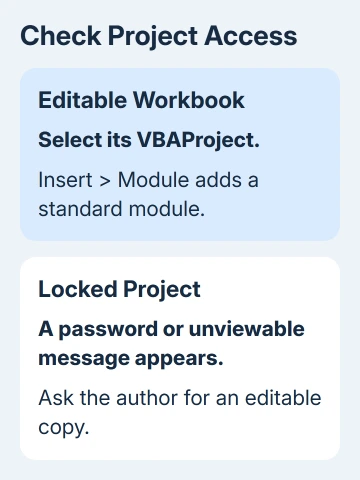
Select the project for the workbook you're editing, then choose Insert > Module from the editor's menu bar. That adds a standard code module to the project you selected. Excel's main Insert tab adds worksheet objects instead.
A successful insertion adds Module1, or another available module name, under Modules and opens its code window. The editor creates the Modules group for you when the project has a standard module.
If the command works, check the workbook name once more before entering code. If it remains unavailable, leave that project selected and check whether its code is running or its contents are locked.
3. Stop an unfinished macro before changing its project
A macro can leave the editor in a running or paused state. Look for a running-state label in the title bar, a highlighted execution line, or an active Reset control. These are different from an ordinary blank code window.
When it's safe to stop that macro, use Run > Reset in the editor. The Reset button is also on its standard toolbar. This stops the macro; it doesn't delete the module or its code.
Stopping a macro can leave spreadsheet changes unfinished. Save important spreadsheet work separately before you make further edits. Don't resume an unfamiliar macro just to see whether the Insert menu changes.
Return to the intended project and try Insert > Module again. If the project opens and the command now works, save in the macro-enabled format described later. If a password or locked-project message appears, follow the next section.
4. Ask the owner to unlock a protected VBA project
Expand the workbook's project in Project Explorer. If you get a password prompt or Project is unviewable message, you can't edit that project as it stands. The project can be locked even while its worksheets remain usable.
Get the VBA project password or an editable copy from the workbook's author. VBA-project protection is separate from a password for worksheets. Removing sheet protection doesn't grant access to the code project.
For a purchased add-in, contact its developer with the product and Excel versions. The developer may have hidden its code. Put your own macro in a workbook you control rather than trying to modify the add-in's protected project.
If an error appears during add-in loading instead, use the hidden-module compile error checks. That's a separate problem from inserting a new standard module.
5. Check editing permission without weakening macro security
Return to Excel and look for a Protected View bar. For a file you trust whose contents you recognize, choose Enable Editing to edit it normally. Workplace policies can block exiting Protected View; ask IT when the control is blocked.
Enabling editing and allowing macros to run are separate decisions. A workbook can need editing access without needing every macro enabled. Don't turn off security for all files to make one project's Insert command available.
The trusted-workbook macro settings explain the controls for running code. Read the warning you actually have before choosing one; a password prompt isn't a request to enable macros.
Try the module command after returning to the editable workbook's project. If it still fails, create a new blank workbook in desktop Excel and try inserting a module into that new project, without copying any code into it.
Excel closing outright on that command needs the VBA editor crash checks, including the Windows beta UTF-8 setting.
6. Save the code and compare with a new workbook
When insertion works, choose File > Save As in Excel and save an Excel Macro-Enabled Workbook (.xlsm). A normal .xlsx file doesn't retain VBA macros. Saving in the right format keeps your code in the file.
An .xlsx filename doesn't by itself explain a disabled Insert command. Code can be added before choosing a VBA-compatible save format. If Excel warns that the chosen macro-free format will remove VBA, choose the macro-enabled format.
Reopen your saved workbook after closing it, return to Visual Basic, and check that the project still contains the module. Check the module containing your intended code, using its current name if you renamed it.
If a blank workbook accepts a module but the original doesn't, send the file's author the exact error and project-lock result. I'd check this before repairing Office; it helps tell file restrictions apart from editor trouble.
If a new project won't accept a module either, contact Microsoft Support or IT. Send the Excel and operating-system versions, selected project and a picture of the disabled command. Ask them to check VBA installation and policy.
The Short Version
Use desktop Excel, select the workbook's project in Visual Basic, then choose Insert > Module. Stop unfinished code or request project access when needed. Save VBA code in .xlsm format. Compare with a blank workbook before repairing Office.
Checked November 13, 2026.






