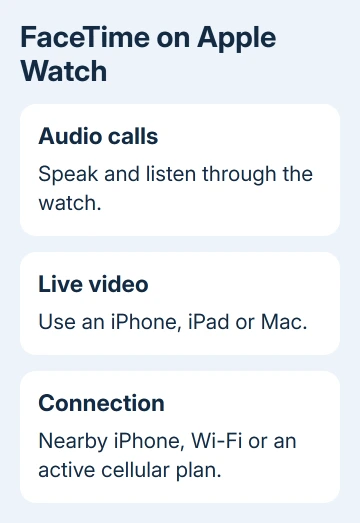
Yes, Apple Watch can make and receive FaceTime audio calls, but it doesn't support live FaceTime video. Start an audio call from a contact on your watch, or ask Siri for a FaceTime audio call to that person.
The watch needs an internet connection through its paired iPhone, Wi-Fi or an active cellular plan. A GPS-only watch can use FaceTime audio on Wi-Fi without the iPhone beside it. Buying a cellular model isn't necessary just for that.
In this guide
Start with a FaceTime audio call
FaceTime on the watch is a voice conversation. Both people can speak and listen, but a live picture of the other person won't appear on the watch screen. Use your iPhone, iPad or Mac when you want a video conversation.
For your first call, choose someone you've already reached through FaceTime. That way, a wrong contact address won't look like a watch connection problem. I'd make that first call while the paired iPhone is nearby.
Apple says you can make and receive calls using the watch's FaceTime audio controls. There isn't a separate video setting to enable on the watch.
Don't confuse a recorded FaceTime video message with a live video call. Current watch software can let you view a video message sent after a missed call. A recorded message doesn't enable live video conversations.
Choose the person and the audio option
Press the Digital Crown to open your apps, then open Phone. Find Contacts, choose the person, tap the phone button on their contact card and choose FaceTime Audio when offered. The Phone layout varies with watchOS.
On versions with favorites and recent calls on the Phone screen, turn the Digital Crown to reach Contacts. Start from the contact rather than tapping a recent ordinary phone call, which can call that number through your carrier again.
Wait for the call screen to show that it's connecting. Once the other person answers, speak toward the watch. The call uses the watch's speaker and microphone unless you've chosen another available device for audio.
Siri is another route: request a FaceTime audio call by contact name. Include the word audio and use a name that identifies one person in your address book. Choose the right contact if Siri asks which person you mean.
An ordinary phone number entered on the keypad isn't a way to force FaceTime. FaceTime needs an address or number registered for the service. When one contact fails, check that person's working FaceTime number or email on your iPhone.
If the watch labels the person incorrectly, fix the contact-name problem before repeatedly calling a similarly named entry. Check that the name, number or address matches your intended contact.
Call from an existing Messages conversation
Open Messages on the watch and enter the conversation with the person. Tap their profile picture. Depending on watchOS, tap the call control and choose FaceTime Audio, or use the FaceTime audio choice shown on that screen.
Messages is handy when that conversation uses the person's Apple Account address. It saves searching an address book that has several numbers for the same person. Check the conversation's participants before starting the call.
Current software also supports bringing a Messages conversation into a group audio call. During a call, use the additional call controls and Add People to choose another contact. Some layouts show the number of active people first.
The extra controls can move as watchOS changes. The important choice is FaceTime Audio, rather than an ordinary call to a phone number. If an older watch doesn't show the same group controls, use your iPhone for that group conversation.
Use Wi-Fi when the iPhone isn't nearby
A watch that has already been set up with an iPhone can connect to Wi-Fi when that iPhone is away or off. Open Settings > Wi-Fi on the watch, choose an available network and enter the Wi-Fi password when asked.
Retry the audio call after Wi-Fi connects. The watch uses that internet connection without needing a cellular subscription. Without the nearby iPhone, Wi-Fi or cellular service, the internet call won't connect.
Carrier Wi-Fi Calling is a separate feature for ordinary phone calls. It isn't the switch that enables FaceTime audio. A watch can therefore make a FaceTime audio call on Wi-Fi even when an ordinary call to a phone number needs more setup.
An active, supported plan lets a GPS + Cellular watch use data away from the iPhone and Wi-Fi. Owning a cellular model doesn't give you a subscription. Check that service is active before depending on the watch for calls while out.
Low Power Mode can change connection behavior when the iPhone is away. Open the calling app and give it time to connect, even if the watch wasn't connected while idle. Outgoing calls can take longer in that mode.
When the call won't connect
First, make a FaceTime audio call to the same person from the paired iPhone. If it fails there too, check the recipient's address and your phone's FaceTime setup before changing the watch. The trouble isn't limited to your watch.
On iOS 18 and later, open Settings > Apps > FaceTime. On earlier iOS versions, use Settings > FaceTime. Check that FaceTime is enabled and that the intended account or reachable address is selected.
If the iPhone works but the watch doesn't, bring the devices together and retry. A watch showing a red disconnected-iPhone symbol needs the watch connection checks. Resolve that connection before trying calls farther away.
For persistent failures, ask Apple Support about watch FaceTime audio. Tell them your model and watchOS version, whether your iPhone can call the same person, and whether calls fail on Wi-Fi or cellular.
The Short Version
Apple Watch handles FaceTime audio, not live FaceTime video. Choose FaceTime Audio from a contact or Messages conversation, and use the paired iPhone, Wi-Fi or an active cellular plan for the connection.
Checked November 13, 2026.