StartMenuExperienceHost.exe crashes can leave Windows 11 without a working Start menu. Restart and install current updates first.
On a work PC, Start can also fail when Windows hasn't set up the components it needs or registered its package for your account. Those problems need different repairs.
A menu that never launches can also look like a crash. Check the Application log for the process name before deleting packages or running a command copied from an unrelated Start-menu problem.
In this guide
1. Restart and install current Windows updates
Save your work, press Ctrl + Alt + Delete and use the power control to restart. This route remains available when clicking Start doesn't work. Test the Windows key after signing back in, before opening your usual programs.
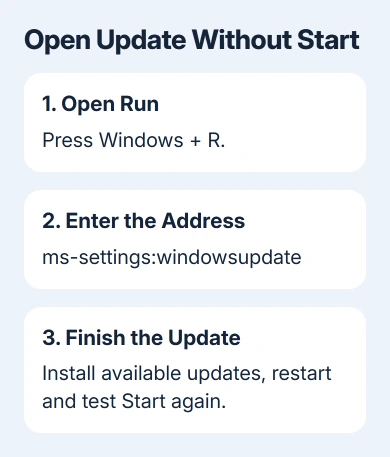
If Start still fails, press Windows + R, enter ms-settings:windowsupdate and press Enter. Install offered updates, then restart when requested. Press Windows + R again and run winver to record the version and OS build.
Microsoft says Start problems can involve missing registration, activation failures or crashes in its troubleshooting instructions. I'd update first because the same package command won't fix all three causes.
KB5072911 covers some managed Windows 11 installations running 24H2 or 25H2. After initial device setup and certain updates, Windows hadn't registered the packages used by Start, Settings and other desktop components in time.
The fix began in updates released June 23, 2026, with further rollout the next month. Install your device's current update instead of an old standalone fix. This particular fault is described as very unlikely on personal PCs.
On a work PC where Settings and Search also crash, give IT the build and KB5072911 reference. The older workaround registers packages Start needs while the affected user is signed in. It isn't a command to re-register every app.
2. Confirm that Start is actually crashing
Press Windows + R, type eventvwr.msc and press Enter. Expand Windows Logs, select Application, and examine errors around the time you tried to open Start. Look for Event ID 1000 or 1001 mentioning StartMenuExperienceHost.exe.
Record the event's faulting application, module, exception code and time. A faulting module is the component named at the failure, not necessarily something to delete. Keep the full event for support.
An old event from last week doesn't explain a menu that broke this morning. Try Start once, refresh the log and compare the time. A fresh matching event tells you the process is failing during the current attempt.
If no matching crash appears, describe what you see: the menu may be failing to start or activate. Continue with the package check instead of assuming that every silent Start menu is the same executable crash.
Note desktop customization tools installed near the first failure. For ExplorerPatcher, check its Windows-build compatibility. Tools that replace parts of the desktop can fail too, and ordinary Windows repair doesn't update them.
3. Check Start's registration for the affected account
Press Windows + R, type powershell and press Enter normally. Run this command in the affected user's ordinary Windows PowerShell window:
Get-AppxPackage -Name Microsoft.Windows.StartMenuExperienceHostOutput showing package information means Start is registered for that account, even if it crashes. If no matching update issue explains it, continue to system-file repair rather than treating it as missing.
If the command returns nothing, check whether the package exists for another user. Open Task Manager with Ctrl + Shift + Esc, choose Run new task, enter powershell, and select the administrator-privileges option. Run:
Get-AppxPackage -AllUsers -Name Microsoft.Windows.StartMenuExperienceHostIf only the administrator command finds the package, it's on the PC but isn't registered for the affected user. Close that window. In ordinary PowerShell, under the affected account, run:
Add-AppxPackage -Path "C:\Windows\SystemApps\Microsoft.Windows.StartMenuExperienceHost_cw5n1h2txyewy\AppxManifest.xml" -Register -DisableDevelopmentModeRunning registration as another administrator can register it for them instead of your account. Sign out and back in, then test Start. Keep any error message rather than repeating registration across several accounts.
If the package isn't installed for any user, stop this check. Restore a configuration that worked or use Windows recovery. Downloading a replacement SystemApps folder from another PC isn't a supported way to install Start.
4. Repair Windows components and system files
For a registered package that continues crashing, open an administrator Command Prompt through Task Manager's Run new task control. Enter cmd, select administrator privileges, and run the commands in this order:
DISM.exe /Online /Cleanup-Image /RestoreHealth
sfc /scannow
Wait for DISM to finish before starting SFC. DISM repairs the component store, where Windows keeps repair files; SFC checks protected system files against working copies. These repairs won't fix every Start-menu crash.
If the result reports repaired files, restart and test Start. If it reports no damage, SFC didn't find damaged protected files. Keep the crash-event details for the next step.
For a DISM failure, record its error code and whether Windows Update works. On a managed PC, update policies can control where Windows gets its repair files. Ask IT for the correct repair source rather than downloading arbitrary images.
I'd keep the event log and repair results together. They tell support whether the problem is a missing package, damaged files or a repeatable crash after those checks, which saves another round of generic commands.
5. Use Windows repair or send the crash to support
Open Settings > System > Recovery > Fix problems using Windows Update > Reinstall now, if offered. It rebuilds the installed version, keeping apps, settings and files. Save a backup before starting.
This option isn't offered on every installation, especially managed PCs. If it's missing or Settings crashes, compare the Windows reinstallation choices before choosing an erasing repair.
For repeated crashes, use Get Help to contact Microsoft Support, or ask your IT team. Send the build, fresh Event 1000/1001 details, recent changes and package results. Ask them to examine the crash if the same component fails after repair.
The Short Version
Update, confirm a fresh crash in Event Viewer and check Start's registration for your account. Repair system files when registration exists. Missing packages or crashes persisting after repair need recovery or support analysis.
Checked November 13, 2026.